Add a package
Learn how to create a package by bundling your services into a set of credits sold for a single price.
Packages overview
Packages bundle credits for one or more services and sell them for a single price.
- Credits: 1 credit equals 1 use of an included service.
- Service mix: Credits can be flexible across selected services or fixed per service (for example: 1 initial consultation and 3 follow ups).
- Expiry (optional): Set a period after which unused credits cannot be used.
- Tracking: When a package is assigned to a client, any appointment that uses the package deducts credits and appears on the client’s package record (usage and linked appointments).
How to add a package
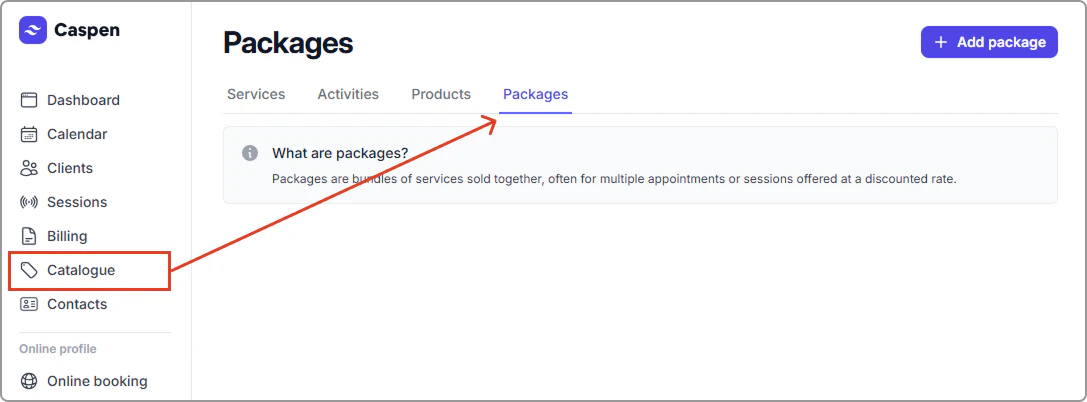
- Go to Catalog → Packages tab.
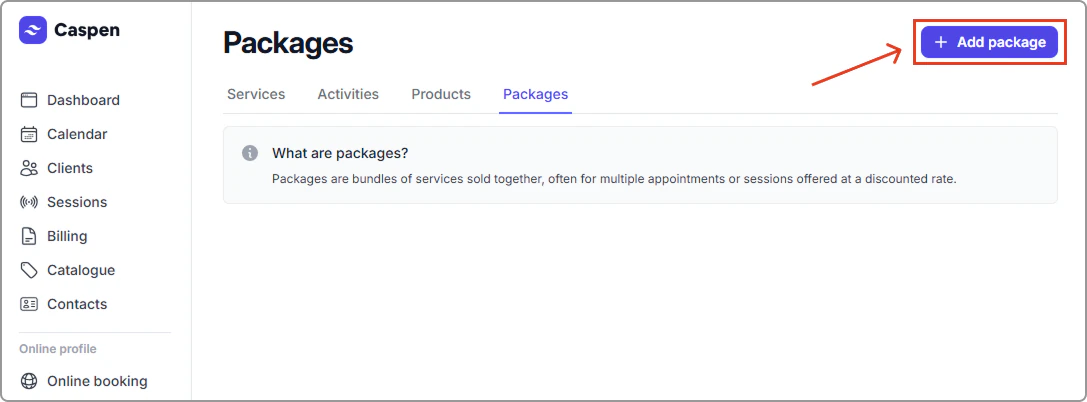
- Click Add package.
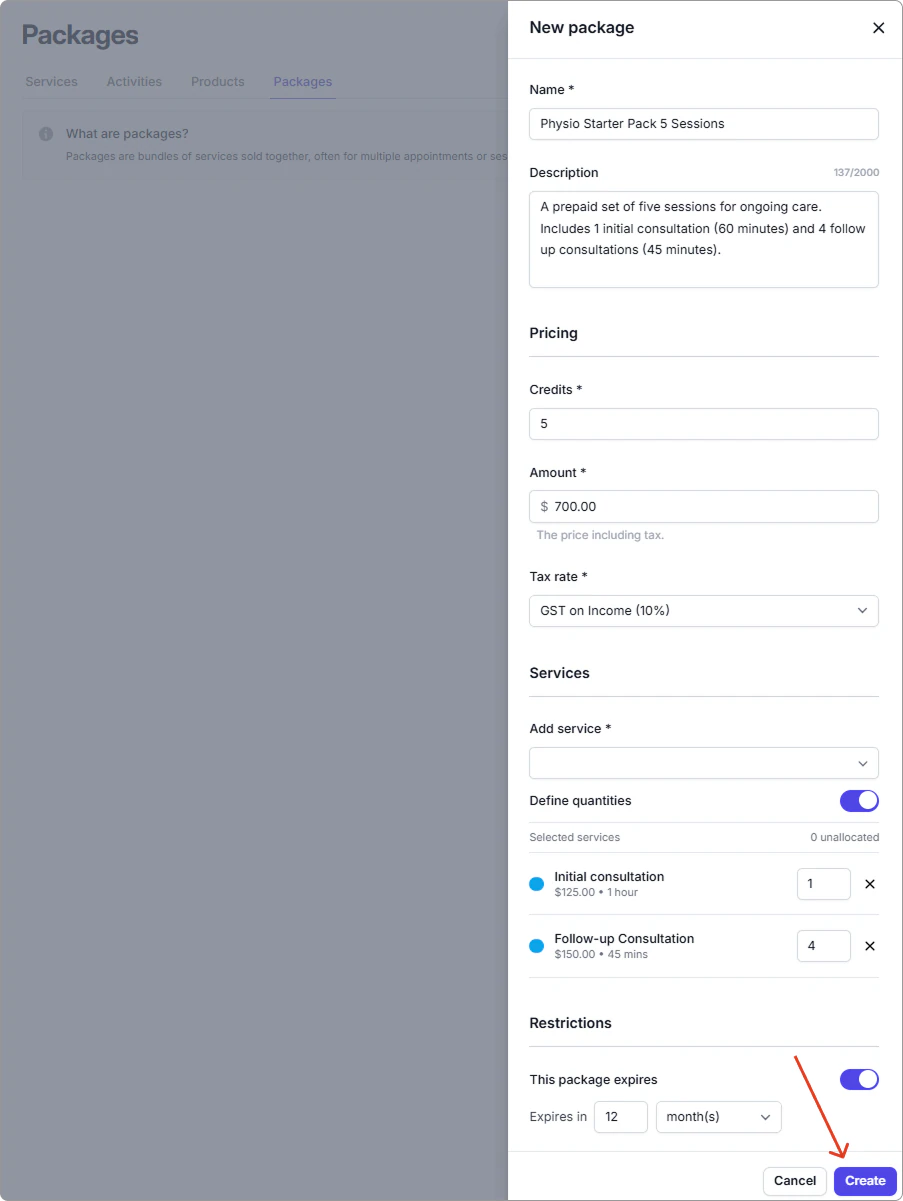
- Enter the details (see Package field reference below), then click Create.
Tip
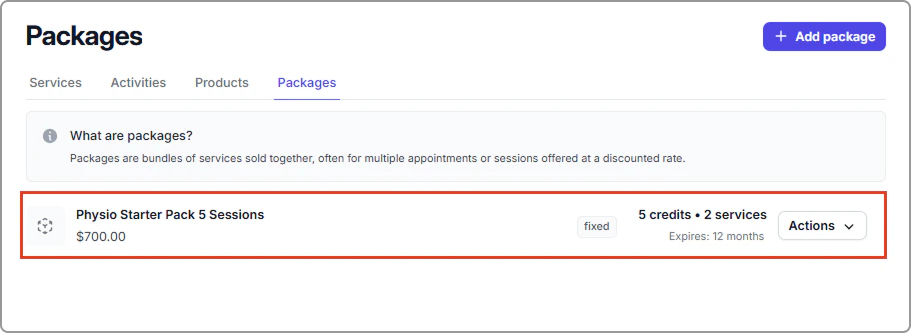
The package appears on the Packages list and can be added to a client.
Package field reference
| Field | Description |
|---|---|
| Name | The name of the package. |
| Description | Short summary of what’s included or key information. Internal only. Shows on the client’s package after you assign it. |
| Credits | Total number of uses in the package. |
| Amount | Price for the whole package. |
| Tax rate | The tax that applies to this package. |
| Add service | Select one or more services the credits can be used for. |
| Define quantities | Credit allocation [flexible vs fixed]
|
| This package expires | Turn on if you want to set an expiry period (e.g., client must use package within 12 months). After expiry, remaining credits cannot be used. |
Info
Entering the amount
Enter amounts the same way your account tax setting expects:
- Prices exclude tax: enter the amount without tax. Tax is added on the invoice.
- Prices include tax: enter the amount with tax. The tax portion is shown on the invoice.
See Settings → Taxes to change the account tax setting.
Package states
After you assign a package to a client, it shows a status badge.
| State | What it means |
|---|---|
| Active | Assigned to a client, not expired, and has remaining credits. |
| Completed | All credits have been used (or marked complete). |
| Expired | The expiry date has passed. Remaining credits cannot be used. |
| Canceled | Manually canceled. Credits are no longer valid. |
What to do next
- After you create a package, add it to a client. See Assign a package to a client for details.
Frequently asked questions
Can I include multiple services in one package?
Yes. Add as many services as you like. Credits can be flexible across those services or fixed per service.
What does “Define quantities” do?
- Off (flexible): Credits are shared across all selected services.
- Onn (fixed): You set how many of each service is included (e.g., 1 x Initial, 2 x Follow-up).
Can I change a package after I have created it?
You can edit a package in the catalog. For major changes (like service mix or credit rules), it is best practice to create a new package to avoid confusion.
How are credits deducted?
When a package service is used (e.g., booked), the matching credit is reduced by one, or by the defined quantity for that service.
What happens when a client runs out of credits?
They cannot use the package again until more credits are purchased. You can sell another package or use standard billing.
Do packages expire?
Expiry is optional. If enabled, remaining credits cannot be used after the expiry date.