Activity categories
Learn how to add categories for activities in Caspen.
2 min readUpdated 4 months ago
How to add a category
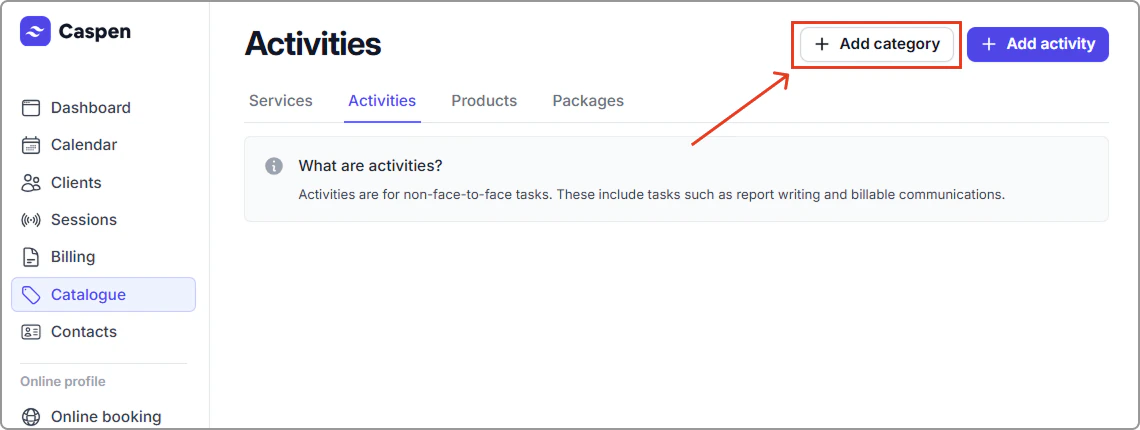
- Go to Catalog → Activities tab.
- Click Add category.
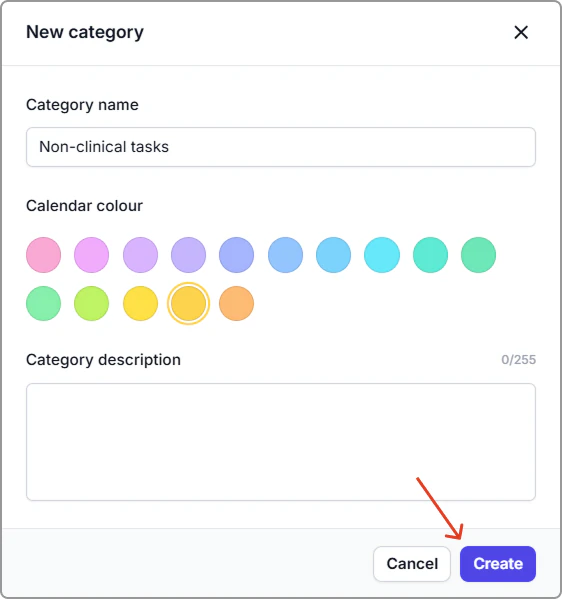
- Enter the details, then click Create.
Category field reference
| Field | Description |
|---|---|
| Name | The category name shown in lists and menus. Examples: Reports, Case Notes, Admin, Communications. |
| Calendar color | The color activities in this category use on the calendar. |
| Description | Internal note about how this category is used. |
How calendar colours work
How it works
- Activities inherit their category color in the calendar.
- If you change a category’s color later, all activities in that category update to the new color.
Why it helps
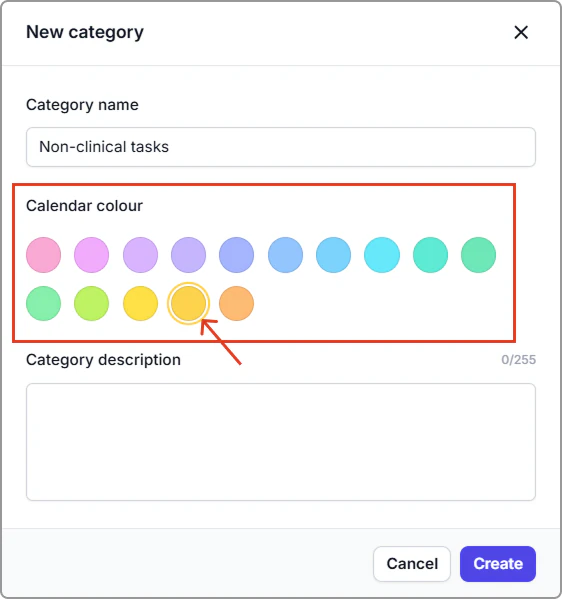
Color coding makes it faster to scan lists and the calendar. Use distinct colors for each activity category (for example: Non-clinical tasks = yellow).
Example: set a category color
Actions → Edit category → Calendar color → select yellow → Save.
Where you’ll see it
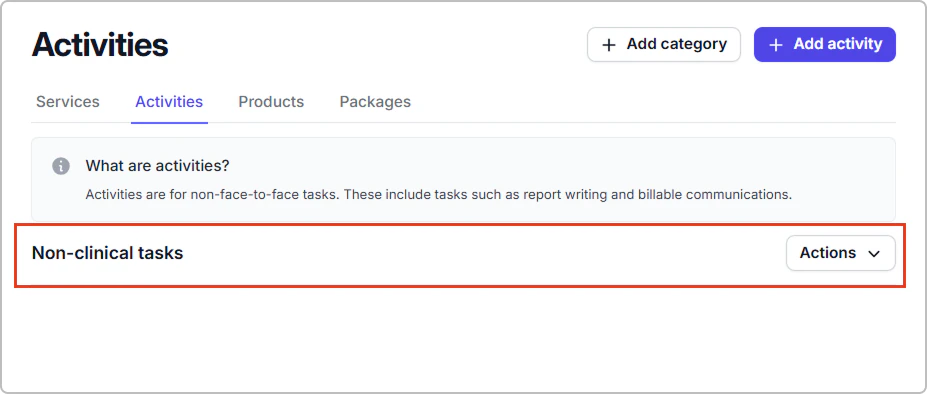
- Activities list: Activities in the Non-clinical tasks category show in yellow.
- Calendar: Those activities appear in yellow on the calendar.
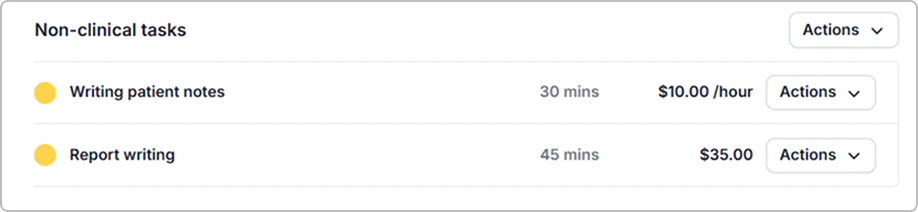
Activities list using the Non-clinical category color (yellow).

Calendar event using the Non-clinical category color (yellow).
Edit an activity category
- Go to Catalog → Activities.
- Find the category, then click Actions → Edit category.
- Update the Name, Calendar color, or Description, then click Save.
Archive an activity category
Info
Note: You can only archive an empty category. Reassign or archive its activities first.
- Go to Catalog → Activities.
- Find the category, click Actions → Archive category.
It is now removed from the Activities list.