Add an activity
Learn how to add activities to your catalog in Caspen.
Info
What are Activities?
Activities are non face-to-face items (e.g., report writing, case notes, billable communications). They do not send client notifications and are not shown in online bookings.
How to add an activity
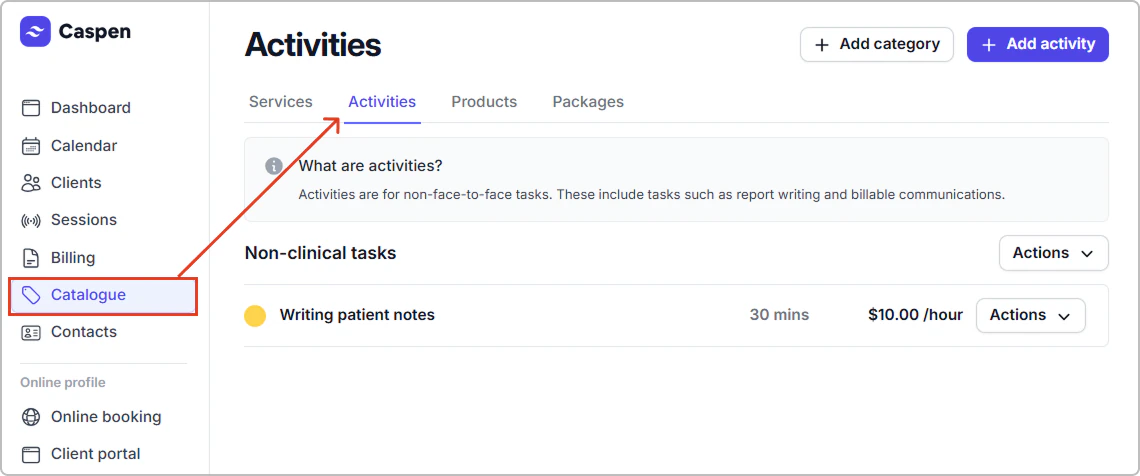
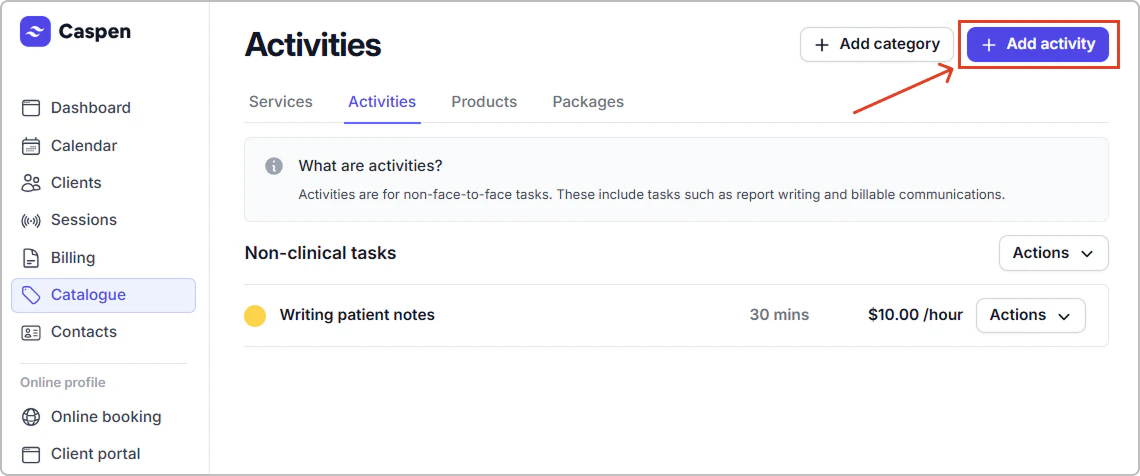
- Go to Catalog → Activities, then click Add activity.
- Enter the details (see Activity fields reference below).
- Click Create.
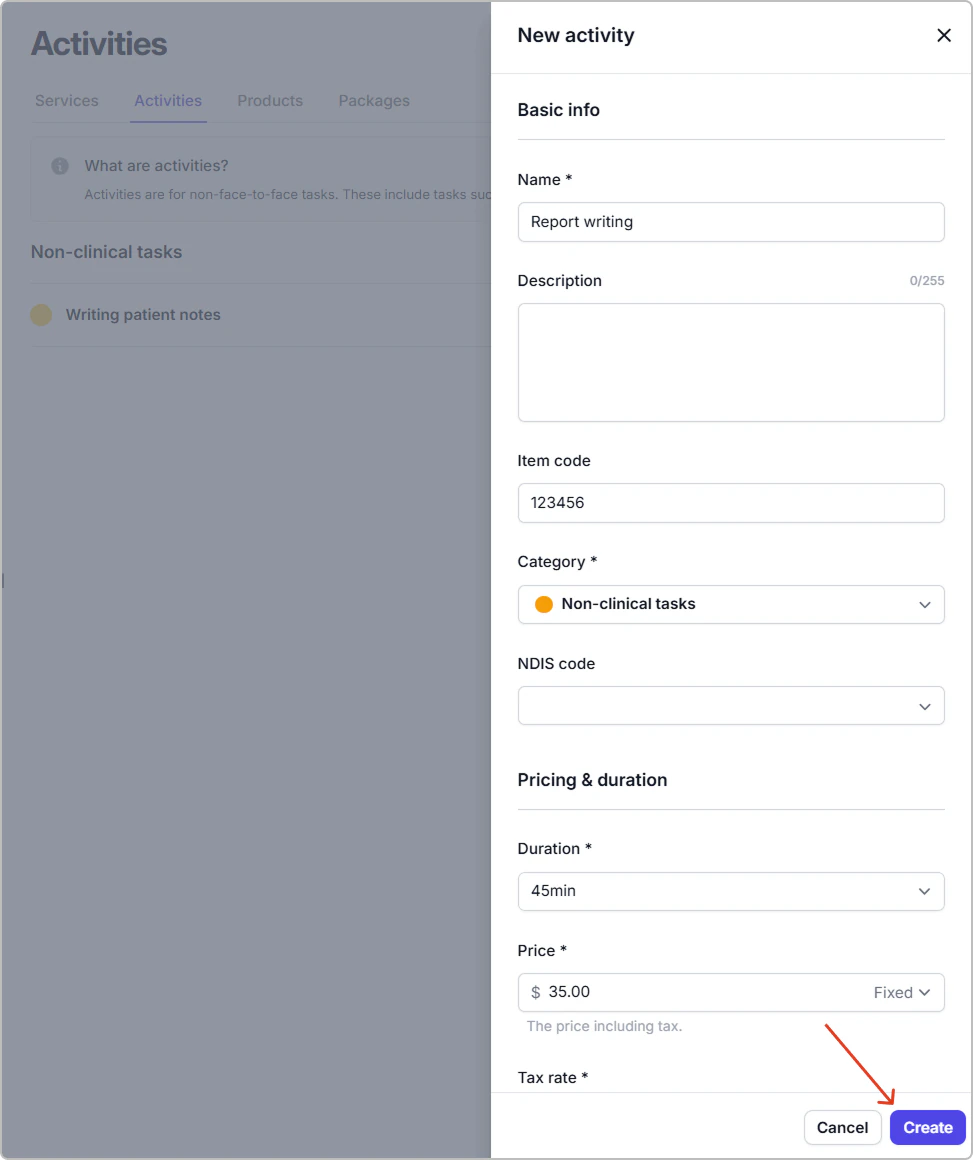
The activity appears in your catalog and can be scheduled in your calendar for the practitioners and locations you selected (and added to invoices if needed).
Info
Tip: Assign at least one location and practitioner so the activity can be scheduled.
Activity field reference
| Field | Description |
|---|---|
| Name | The activity name shown in the calendar and on invoices where applicable. |
| Item code | Internal or funding reference. |
| Category | The category this activity belongs to. Used for grouping and color. |
| NDIS code | Australia-specific NDIS related funding code. If not applicable, leave blank. |
| Duration | Length in minutes. |
| Price | The amount you charge. Either Fixed or Hourly.
|
| Tax rate | The tax that applies to this activity. |
| Practitioners | Who can perform this activity. |
| Locations | Where this activity is recorded. |
Info
Entering the price
Enter prices according to your account tax setting:
- Prices exclude tax: enter the price without tax; tax is added on the invoice.
- Prices include tax: enter the price with tax; the tax portion is shown on the invoice.
See Settings → Taxes to change the account tax setting.
Note: This is separate from the activity’s Tax rate, which sets which rate (for example 10 percent or tax free) to apply on the invoice.
Quick add from a category
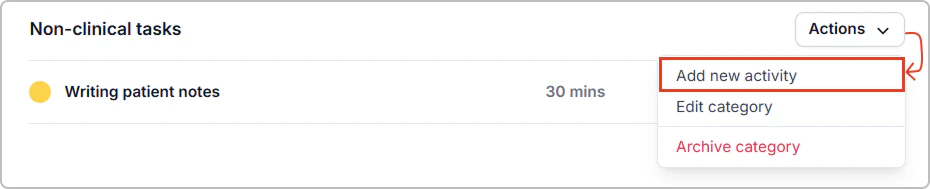
You can also add an activity from a category: Actions → Add new activity. This opens the same form with Category prefilled.
Frequently asked questions
Do activities send client notifications?
No. Activities do not send client notifications.
Can activities appear on invoices?
Yes. If you add an activity to an invoice, its name, price, and item code (where enabled) will appear like other billable items.
What if I do not use NDIS?
Leave NDIS code blank. It is only relevant for Australian NDIS billing.