> For the complete documentation index, see [llms.txt](https://support.caspen.com/llms.txt). Markdown versions of documentation pages are available by appending `.md` to page URLs; this page is available as [Markdown](https://support.caspen.com/integrations/microsoft/set-up-outlook-calendar-integration.md).
# Set up Outlook Calendar integration
Connect Outlook Calendar so you can view Caspen calendar events in Outlook Calendar.
## Overview
Connect your Microsoft account to sync Caspen appointments, activities, classes, and busy times to your Outlook Calendar.
***
## Before you start
* Each practitioner must connect **their own** Microsoft account.
* When you connect, Caspen creates a calendar called **Caspen** in Outlook Calendar. We recommend you do not rename this calendar to keep your sync running smoothly.
* **Important:** This is a one-way sync from Caspen to Outlook Calendar. Changes made in Outlook do not sync back to Caspen.
* **Note:** If you want to create Teams meeting links, you will need a Microsoft account that supports scheduled Teams meetings. Your Outlook calendar sync will still work either way.
***
## Connect your Outlook Calendar
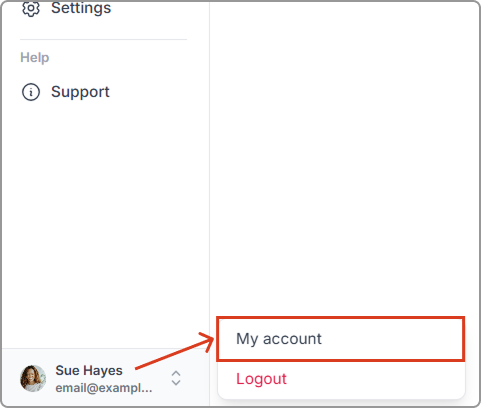
1. In Caspen, click your name in the bottom-left corner, then click **My account**.
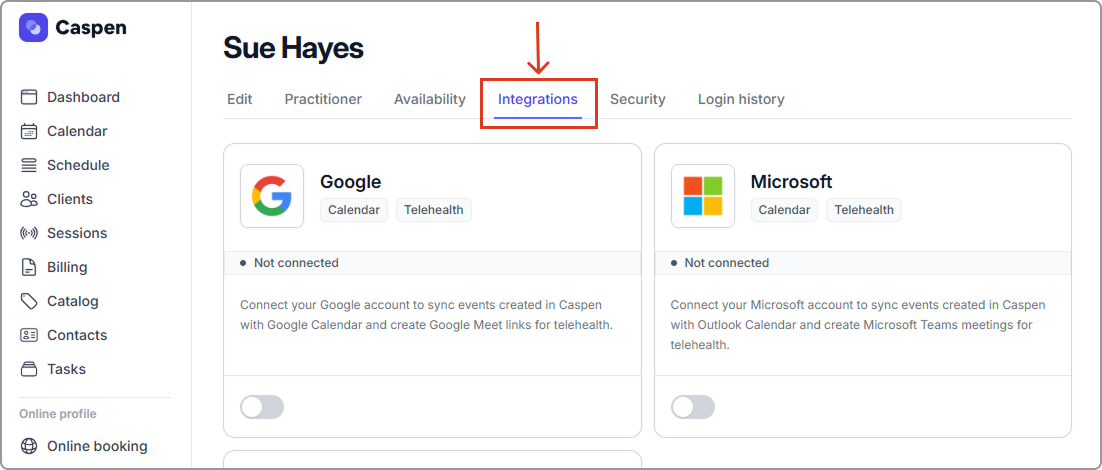
2. Open the **Integrations** tab.
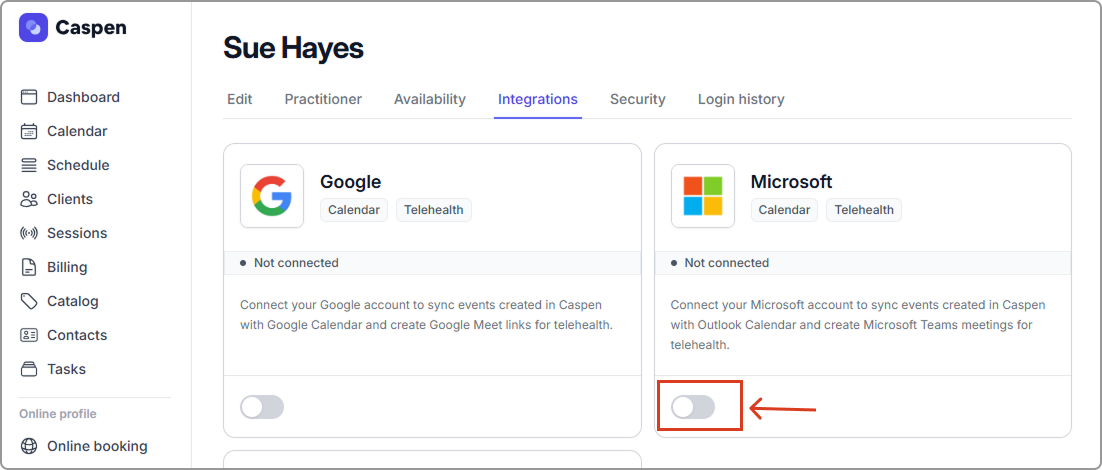
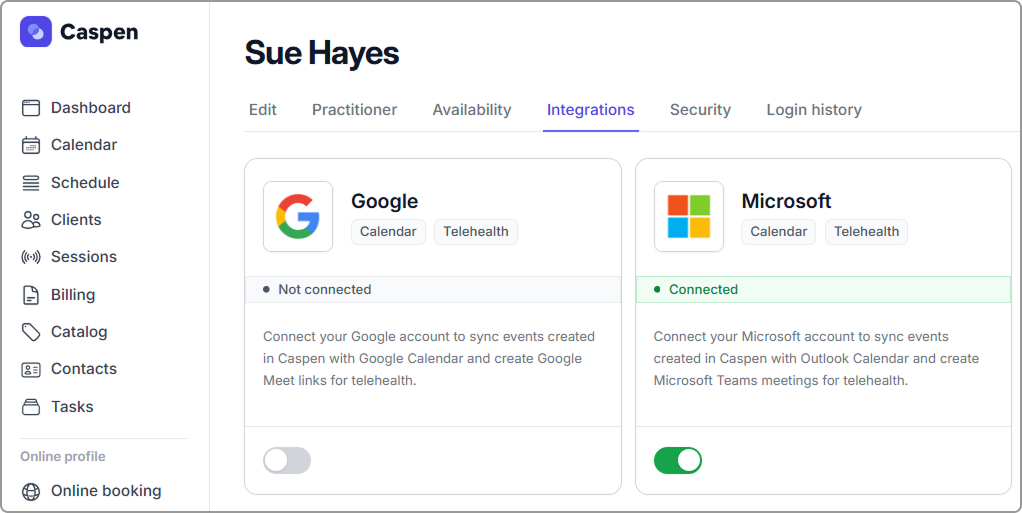
3. Find the **Microsoft** integration and toggle it on.
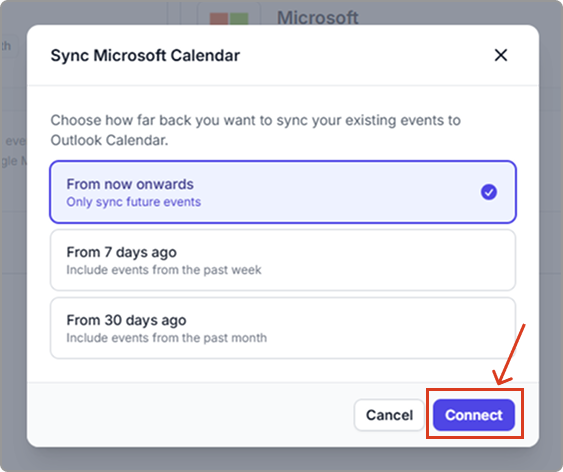
4. Choose how far back you want to sync existing events:
* **From now onwards** (only sync future events)
* **From 7 days ago** (sync the past week and future events)
* **From 30 days ago** (sync the past month and future events)
5. Click **Connect**.
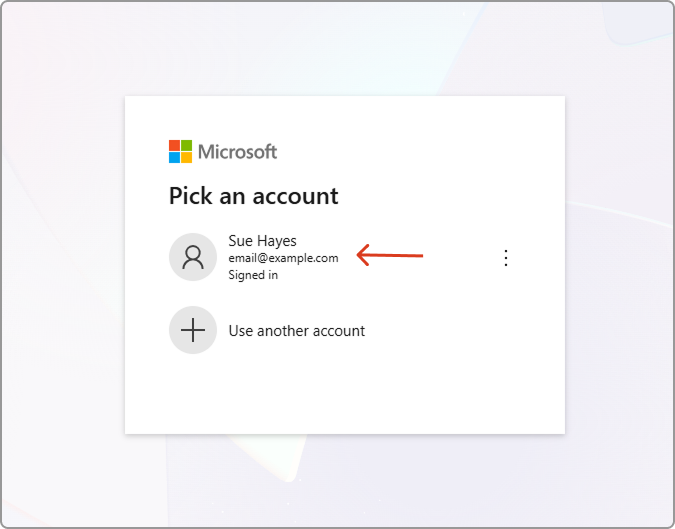
6. Microsoft will open. Sign in, or choose the Microsoft account you want to connect.
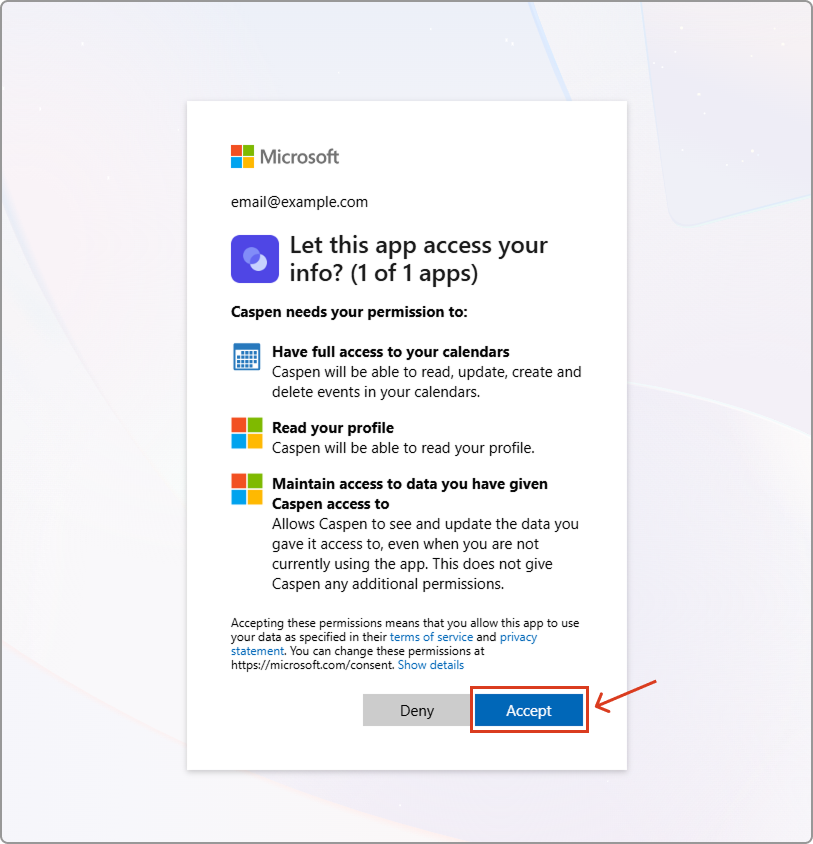
7. Click **Accept** to allow access.
8. You will be redirected back to Caspen. The Microsoft integration will show **Connected**.
**What happens next**
* Caspen creates an Outlook calendar called **Caspen**.
* New events created in Caspen will appear in Outlook under the **Caspen** calendar.
* Caspen will start syncing your events straight away. If you have a lot of existing events, the first sync may take a few minutes. After that, changes you make in Caspen usually show up in Outlook Calendar quickly.
***
## Open an appointment in Outlook Calendar
After an appointment syncs, the appointment in Caspen will show a link to the related Outlook event so you can open it quickly.
***
## Troubleshooting
#### I connected, but I cannot see events in Outlook
* Make sure the **Caspen** calendar is selected in your Outlook calendar.
* Refresh your Outlook calendar, or wait a moment for the first sync to complete.
#### I connected, but Caspen says Teams is not enabled
Your calendar will still sync, but Caspen cannot create Teams meeting links for this Microsoft account.\
This usually happens when the Microsoft account can’t create **scheduled Teams meetings** (for example, free accounts or certain organization accounts).
If you need Teams meeting links, connect a Microsoft account that supports **scheduled Teams meetings**.
***
## Frequently asked questions
Why is the location missing in Outlook Calendar?
If an appointment is showing in Outlook Calendar without a location, it usually means the Caspen location does not have an address saved.
Outlook Calendar can only display a location if Caspen includes an address in the synced event. If the location has no address, the appointment will still sync, but the location field may be blank. \
\
To fix this for future appointments, add an address to your location in **Settings** → **Locations**.
Note: Updating the address won’t change past events already synced.
What happens if I delete an event in Outlook?
If an event is deleted in Outlook, Caspen can’t restore it. The **Open in Outlook** link on the appointment in Caspen may also stop working for that event, because Caspen can no longer find the matching event in Outlook.\
If you need to make changes to an event, update it in Caspen.
Can I change the name of the Caspen calendar in Outlook?
No. We recommend keeping the calendar name as Caspen in Outlook so everything keeps working as expected.
What happens when I cancel an appointment or class in Caspen?
It will still appear in Outlook Calendar, but the title will be prefixed with **\[canceled]**. If you uncancel it later, the prefix is removed.