Set up online bookings
Learn how to set up and customize your online booking page in Caspen.
Overview
Online bookings let clients schedule appointments directly with your clinic. Use this guide to set up online bookings and customize your booking page before you make it live.
Info
Only users with access to Users and Online booking settings will be able to make changes.
Step 1: Assign services to practitioners and locations
Assign which services each practitioner offers and which locations they work at. This is internal setup only and is not visible to clients online yet.
If everything is already assigned correctly, you can skip to Step 2.
Assign from the practitioner profile
- Go to Settings → Users.
- Find the practitioner you want to update, then click Actions → Edit.
- Open the Practitioner tab.
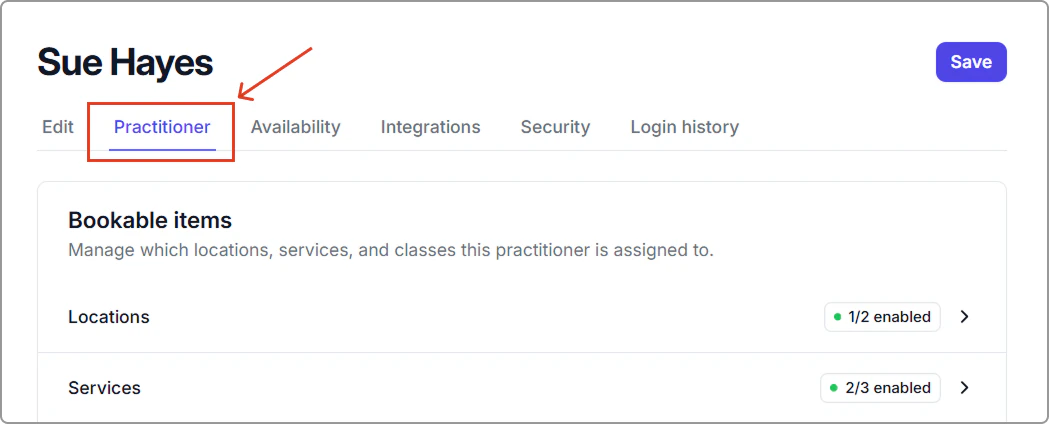
- In Bookable items:
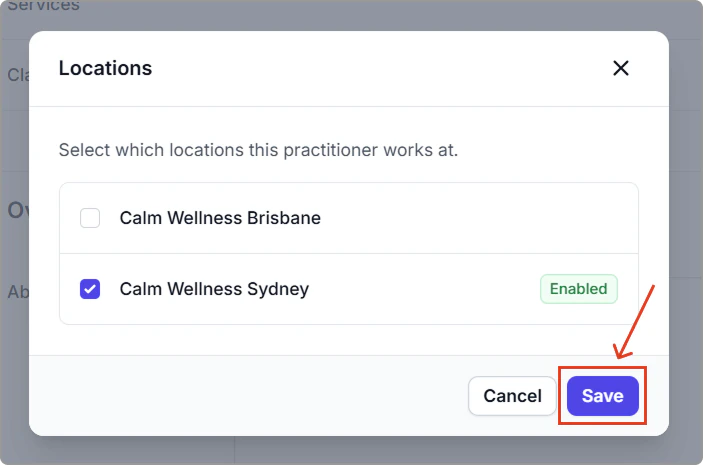
- Open Locations, select where this practitioner works, then click Save.
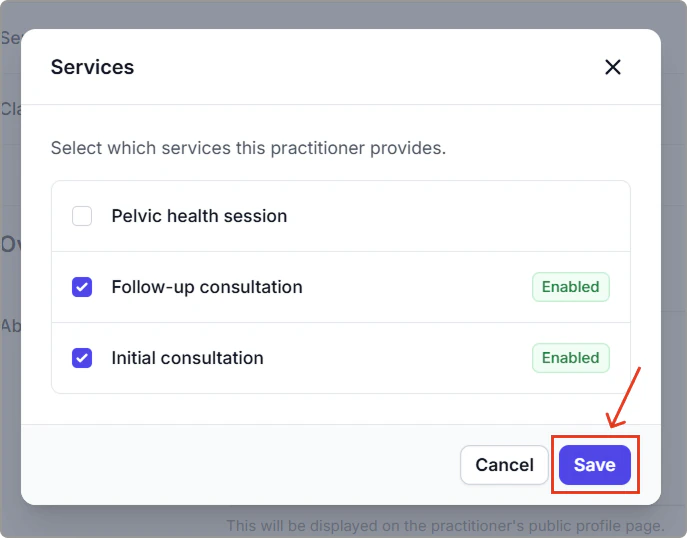
- Open Services, select what services this practitioner offers, then click Save.
- Repeat for each practitioner you want to set up.
Important
A service will only appear in the calendar and online bookings if it is assigned to at least one practitioner and at least one location.
Good to know
These assignments stay in sync with Catalog → Services. Changes made here are reflected in Catalog, and changes made in Catalog are reflected here.
Step 2: Enable online bookings for locations, practitioners, and services
Now choose what clients can book online.
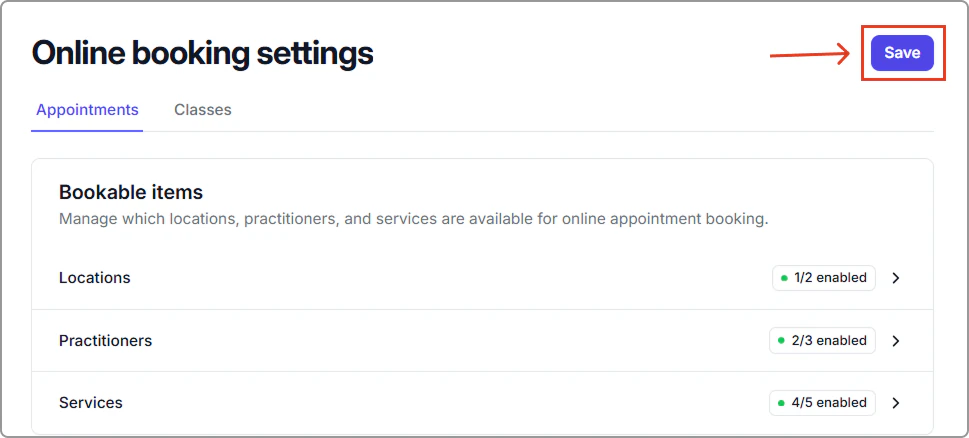
- Go to Settings → Online booking.
- Open the Appointments tab.
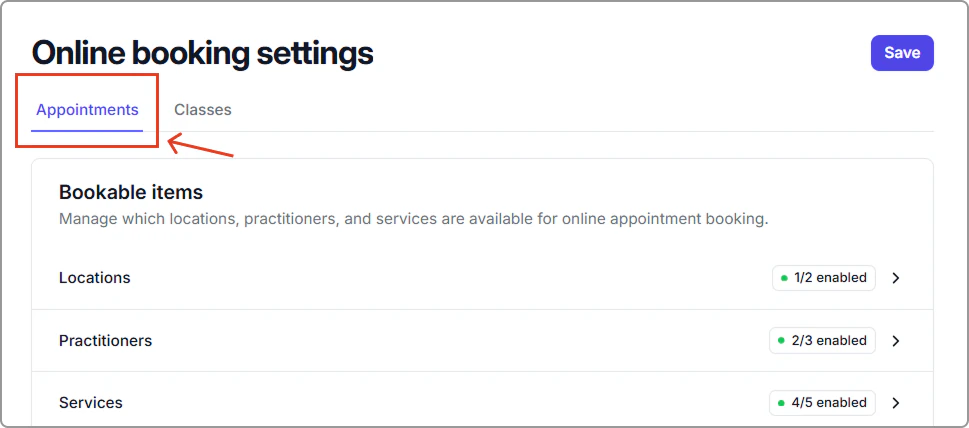
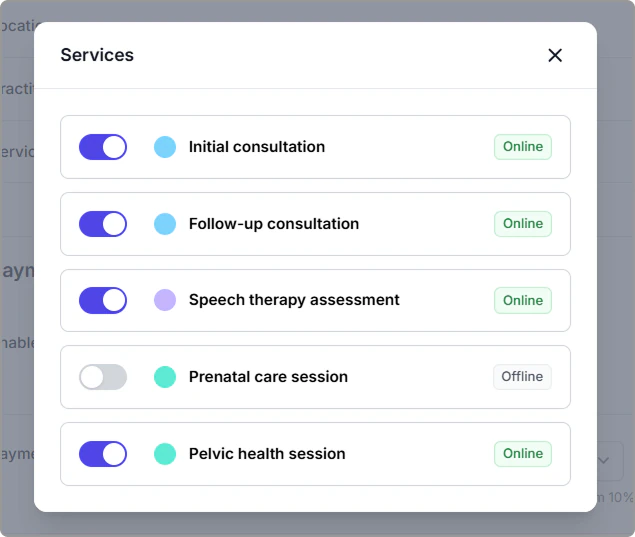
- Under Bookable items, open Locations, Practitioners, and Services. In each list, toggle on the items you want available online, then close the window (click X).
- Click Save (top-right).
How it works
Enabling an item makes it visible on your booking pages. Clients will only see valid combinations based on Step 1.
For example, a practitioner will only appear for a service if they are assigned to that service and a location.
Step 3: Configure online booking settings
- Go to Settings → Online booking.
- Review each section on this page and update what you need.
- Click Save (top-right) when finished.
You can update online booking settings anytime. Changes apply to new online bookings going forward.
Overview of online booking settings
Display ordering
Control the order locations, practitioners, and services appear during online booking.
You can customize the display order to highlight preferred services, locations, or practitioners first on your booking pages.
Reorder locations, practitioners, or services
- Go to Settings → Online booking.
- In the Display ordering section, select Locations, Practitioners, or Services.
- Drag and drop items into your preferred order.
- Click Save order.
Tip
Service categories and services can both be reordered. The order shown here is the same order clients will see during online booking.
Booking page display
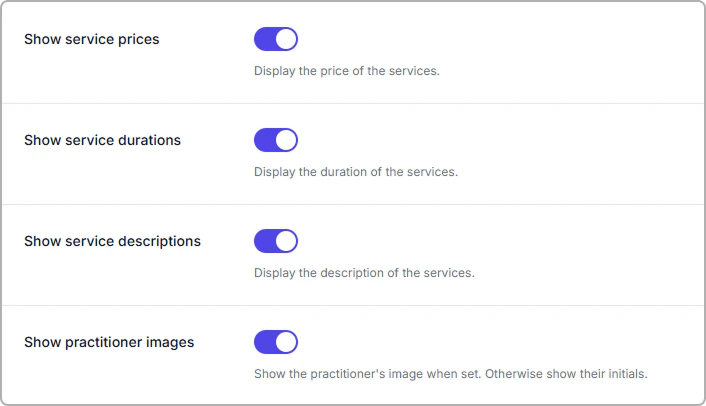
Choose what clients see during online booking.
Show service prices
Display the price of each service during booking.
Show service durations
Display the duration of each service.
Show service descriptions
Display the description for each service.
Show practitioner images
Show practitioner images (or initials if no image is uploaded).
Practitioner notifications
Control whether practitioners receive email notifications about online bookings.
Practitioner notifications
Send email notifications to the assigned practitioner when clients:
- Book appointments
- Reschedule appointments
- Cancel appointments

Cancellation and rescheduling
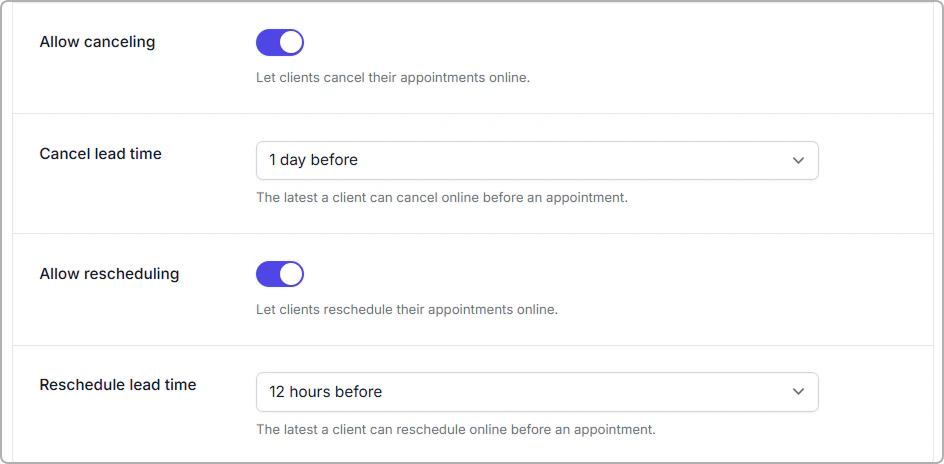
Control whether clients can cancel or reschedule appointments online, and how close to an appointment those changes are allowed.
Allow canceling
Turn this on to let clients cancel appointments through the online booking page.
When disabled, clients must contact your clinic directly to cancel appointments.
Cancel lead time
Choose the latest time a client can cancel before their appointment.
For example: 1 day before means clients can only cancel online more than 24 hours before the appointment start time. Anytime allows cancellations up until the appointment start time.
Allow rescheduling
Turn this on to let clients reschedule appointments through the online booking page.
When disabled, appointment changes must be handled directly by your clinic.
Reschedule lead time
Choose the latest time a client can reschedule before their appointment. For example: 2 hours before means clients can only reschedule online more than 2 hours before the appointment start time. Anytime allows rescheduling up until the appointment start time.
Booking availability rules
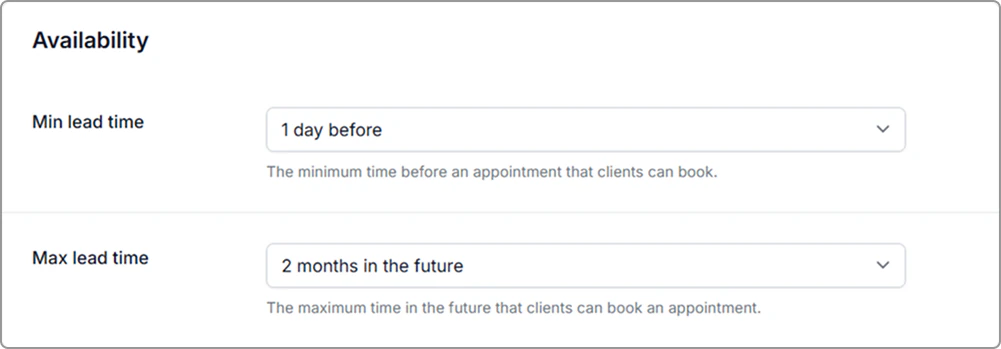
Control how soon before an appointment clients can book, and how far into the future.
Use Min lead time and Max lead time to control how soon clients can book and how far ahead.
Terms & policies
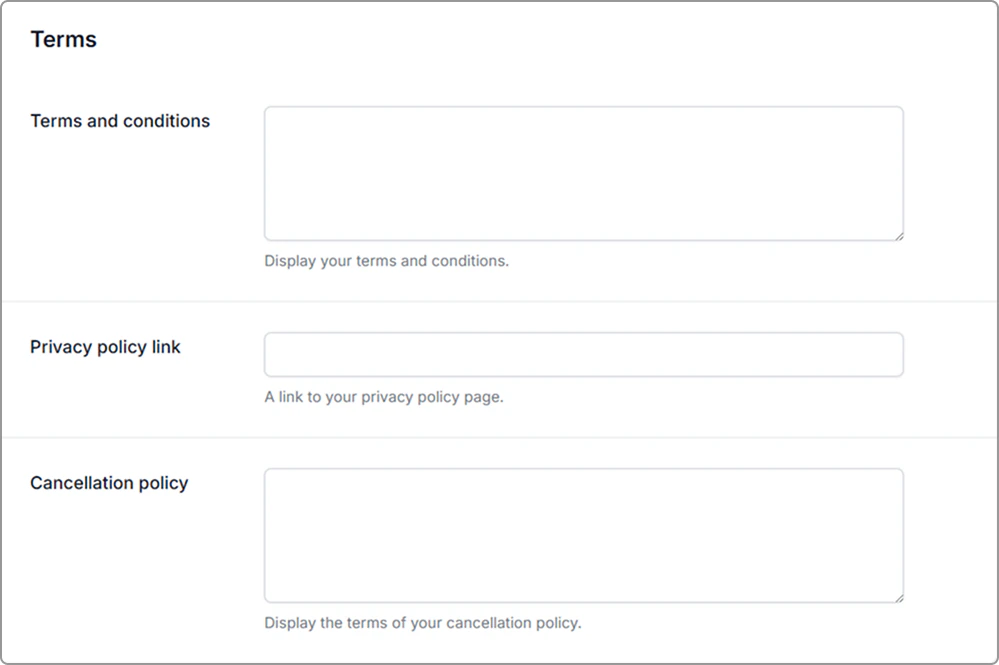
Add your terms and conditions, privacy policy link, and cancellation policy.
Add your terms and conditions, privacy policy link, and cancellation policy. These appear before clients confirm an online booking.
Booking page notices
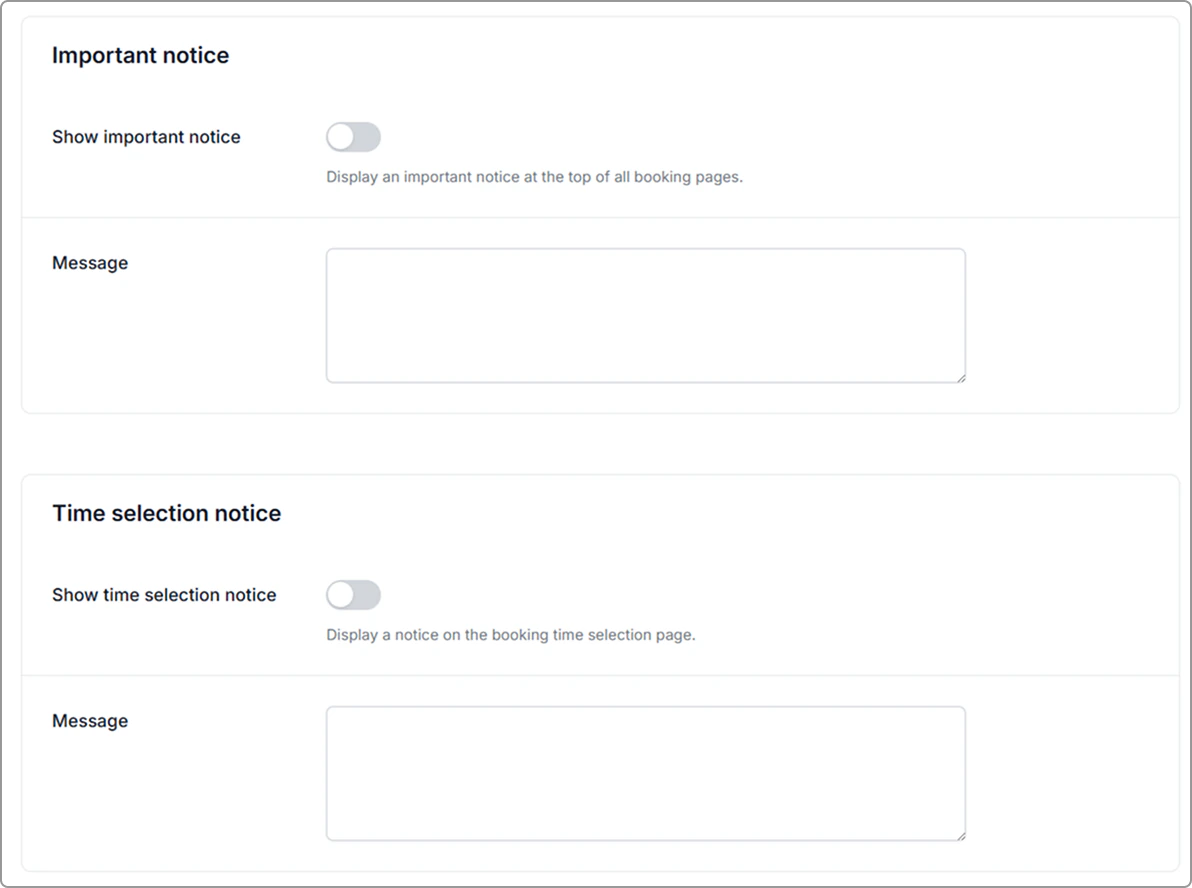
Add an important banner or time-specific notice to appear on your booking pages.
- Important notice appears at the top of all booking pages.
- Time selection notice appears on the time selection page.
Completion message
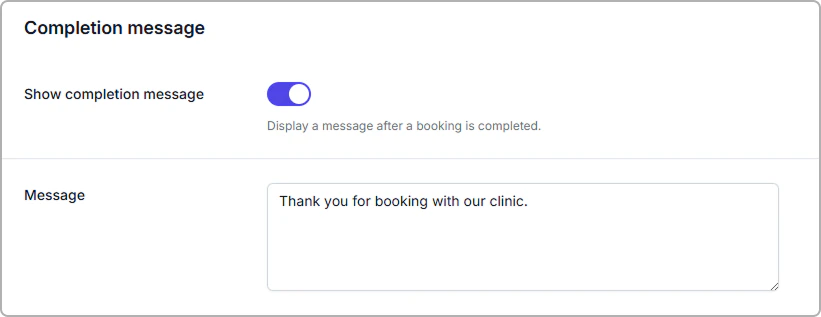
Confirmation screen message
You can customize the confirmation message clients see after completing an online booking.
Before going live with online payments
Online payment settings are configured individually for each service in your catalog.
If you plan to accept deposits or require payment during booking, make sure each service has the correct online payment settings enabled.
Info
Please note: Stripe integration must also be connected before clients can pay online.
To review service payment settings:
- Go to Catalog → Services.
- Open a service.
- Review the Online payment section.
- Configure:
- Whether online payment is enabled
- Whether payment is required or optional
- The payment amount or deposit percentage
Info
Important note:
Enabling online payments in booking settings does not automatically apply payment rules to all services. Each service must be configured individually.
Step 4: Update your booking page details
- Go to Settings → Locations.
- Find the location you want to customize, then click Actions → Edit.
- Add your clinic logo, featured image, address, and opening hours.
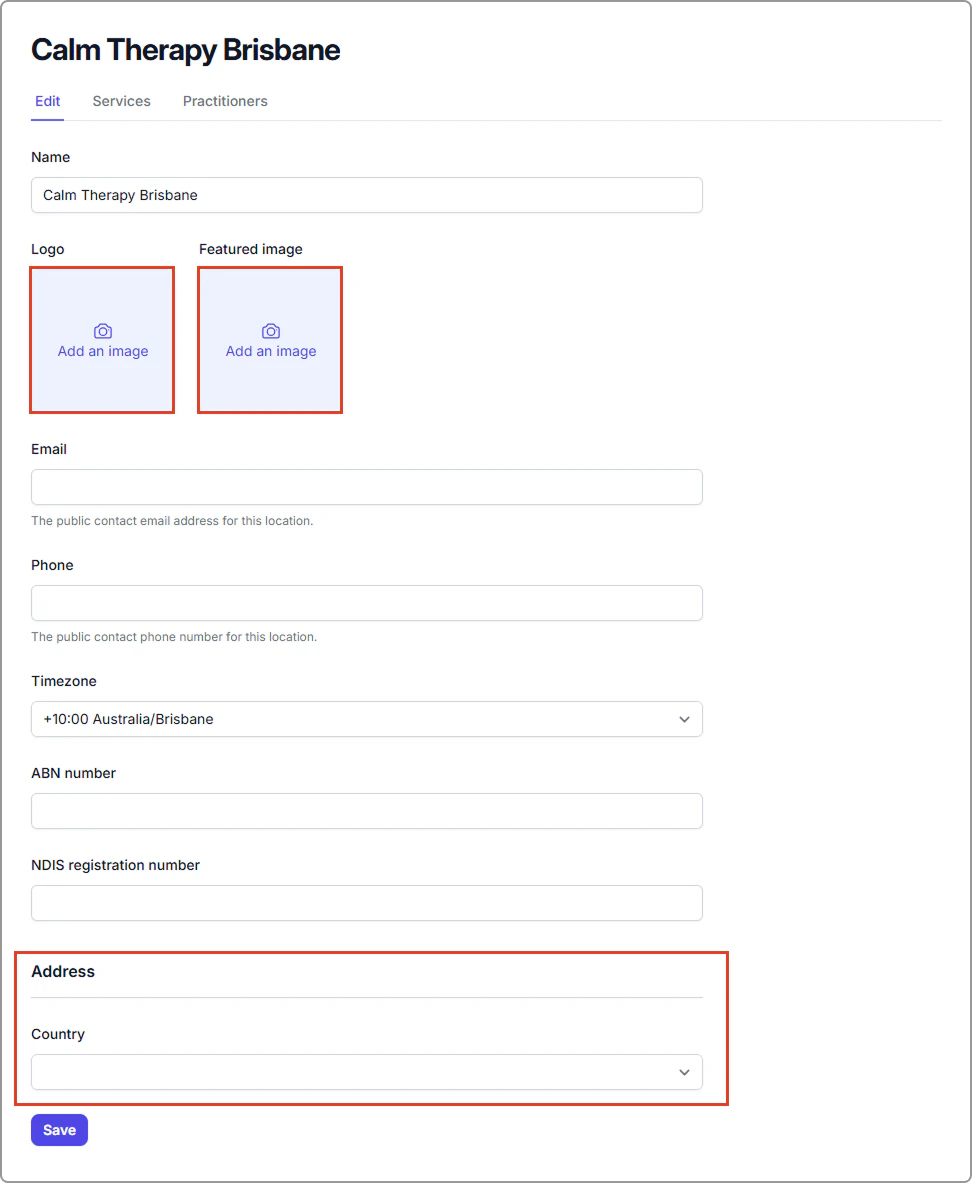
- Click Save.
Share your booking link
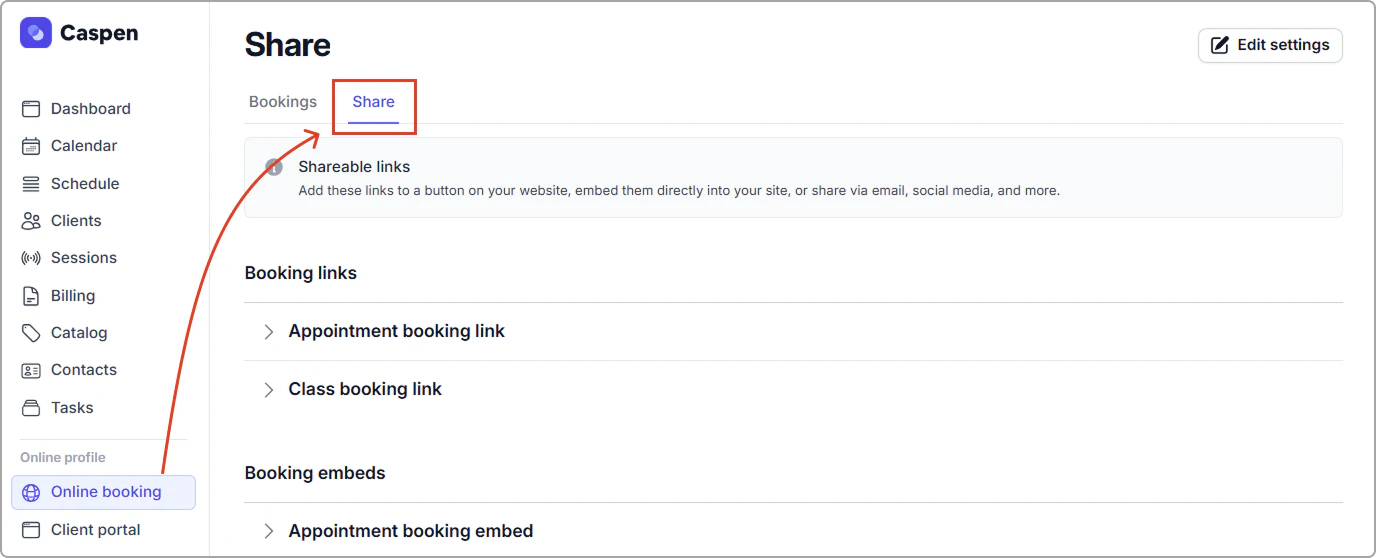
- In the left main menu go to Online booking.
- Open the Share tab.
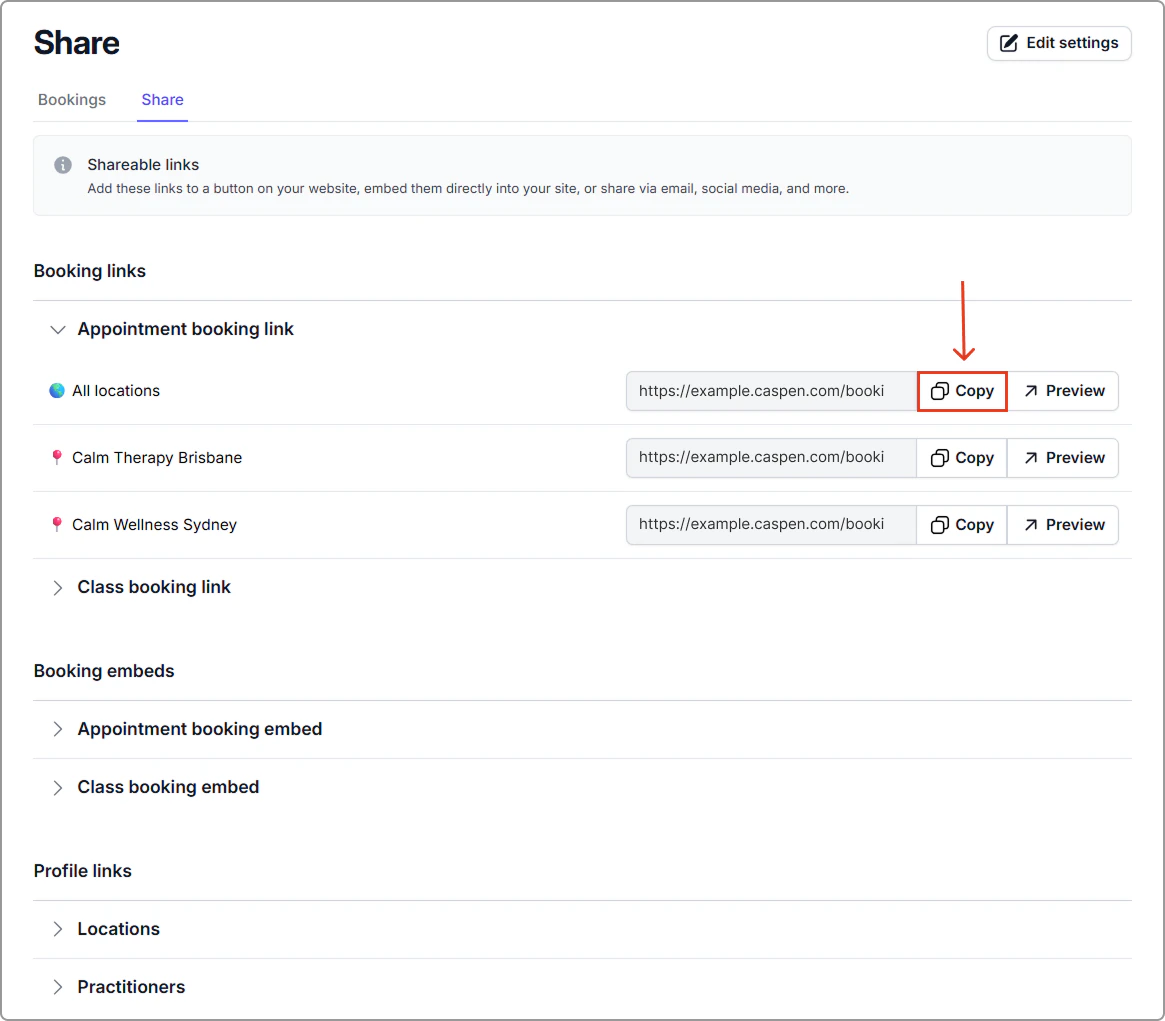
- Copy a shareable link for emails, templates, or your website, or copy the embed code to insert the booking page directly into a website page.
Tip before going live
Before sharing your booking page publicly:
- Check each service you have has at least one practitioner and one location linked.
- Review online payment settings for any services requiring deposits or prepayment.
- Confirm Stripe integration is connected if accepting online payments
- Preview the booking page to confirm prices, durations, payment requirements, and notices display as expected.
To preview your booking page
- Go to Online booking (left main menu).
- Open the Share tab.
- Click Preview beside any booking link.
Frequently asked questions
Why isn’t a service showing online?
Check the following:
- In Catalog → Services, make sure the service is assigned to at least one practitioner and one location.
- In Settings → Online booking → Bookable items → Services, make sure the service is turned On.
A service will not appear online unless it is active, assigned to a practitioner, and available at an enabled location.
If everything looks correct and the service is still not visible, contact Support and we will help you troubleshoot.
My location isn’t showing online. What should I check?
In Settings → go to Online booking → Bookable items → Locations and turn the location On.
Verify the location has both active services and practitioners assigned.
Can I control which services are bookable online?
Yes. Only the services you switch on under Settings → Online booking → Bookable items → Services will appear to clients. You can keep internal or referral-only services switched Off.