Create an appointment
Learn how to create an appointment in your calendar.
Overview
Create a new appointment from the calendar, add client and service details, choose date and time, and optionally add room, vehicle, resources, notes, or a repeat series.
Create an appointment
- Open Calendar and set the location (clinic/practice) and practitioner.
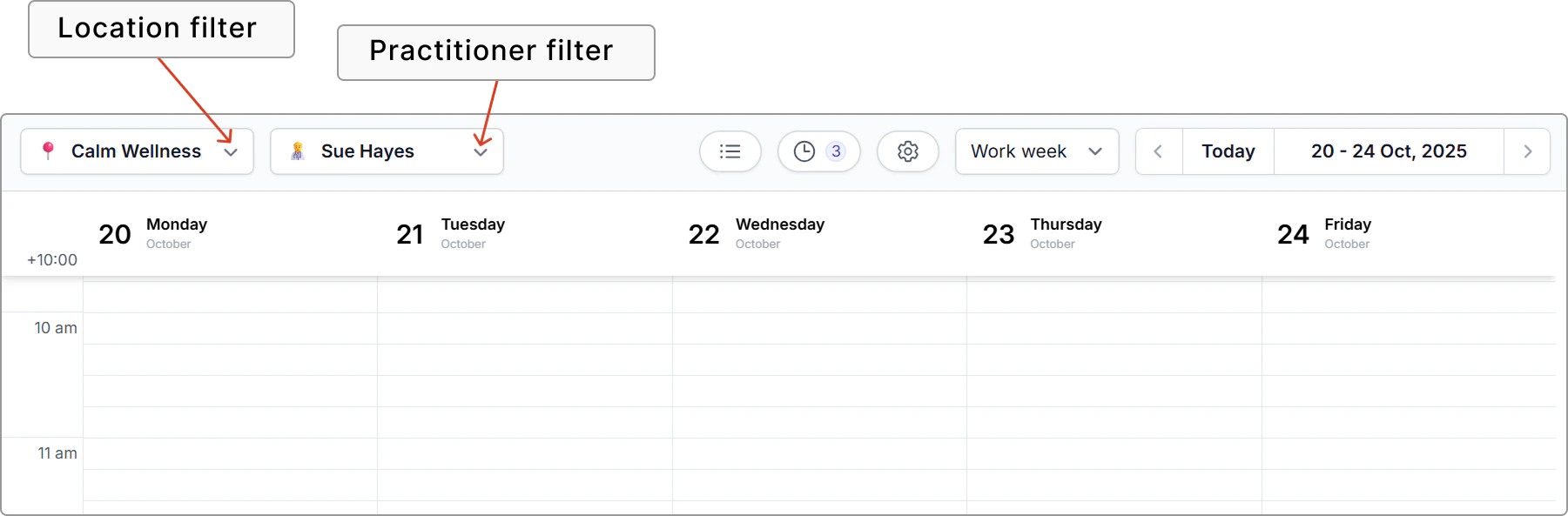
- Click a time slot, then choose Appointment.
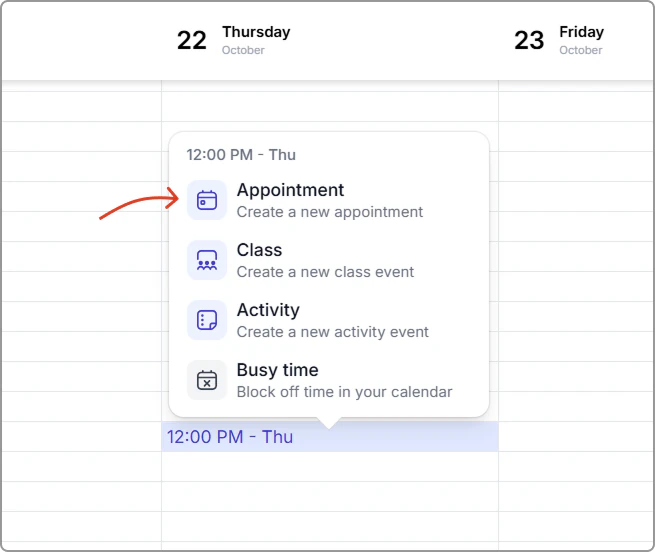
- Enter the appointment details (see the Field reference below).
- Client: Search and select an existing client, or click Create client.
- Service: Select a service, or click Create service.
- Date and time: When you click a time slot, the start time is prefilled. After you select a service, the end time is automatically calculated from the service duration.
- Duration and buffers: After you select a service, any default buffers (if the service has them) are applied and the buffer start and end times are shown under the time fields. To change the buffers, toggle Edit buffers on, then set Buffer before and Buffer after. You can also add buffers for this appointment even if the service has none.
- More options (optional): Room, Vehicle, Resources, Internal note, or make appointment a Repeat.
Note: Buffers updated here apply to this appointment only. They do not update the service defaults.
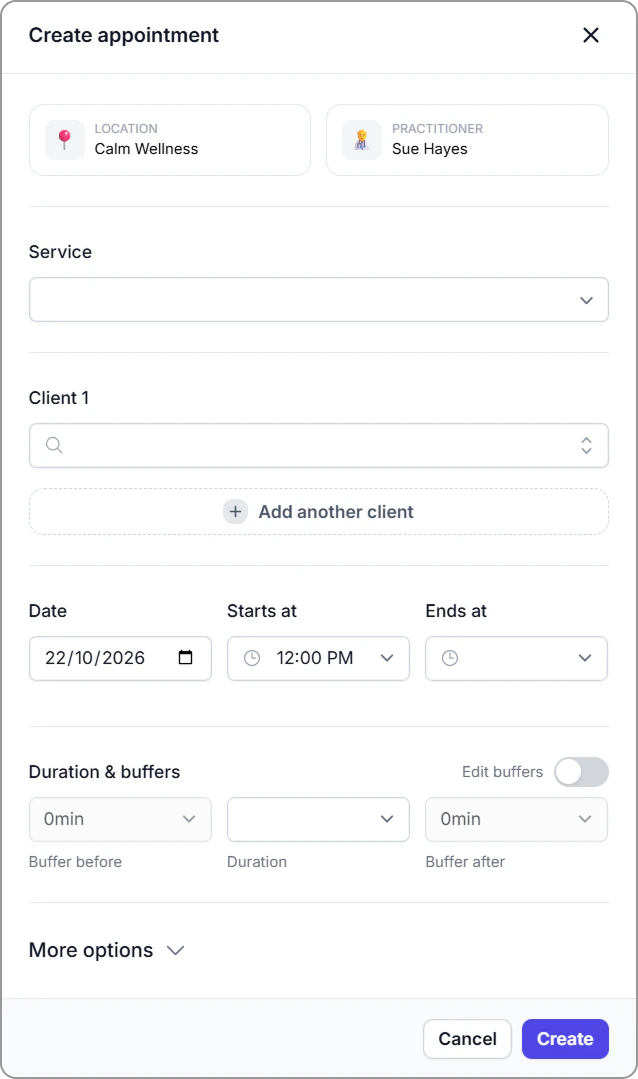
- Click Create appointment.
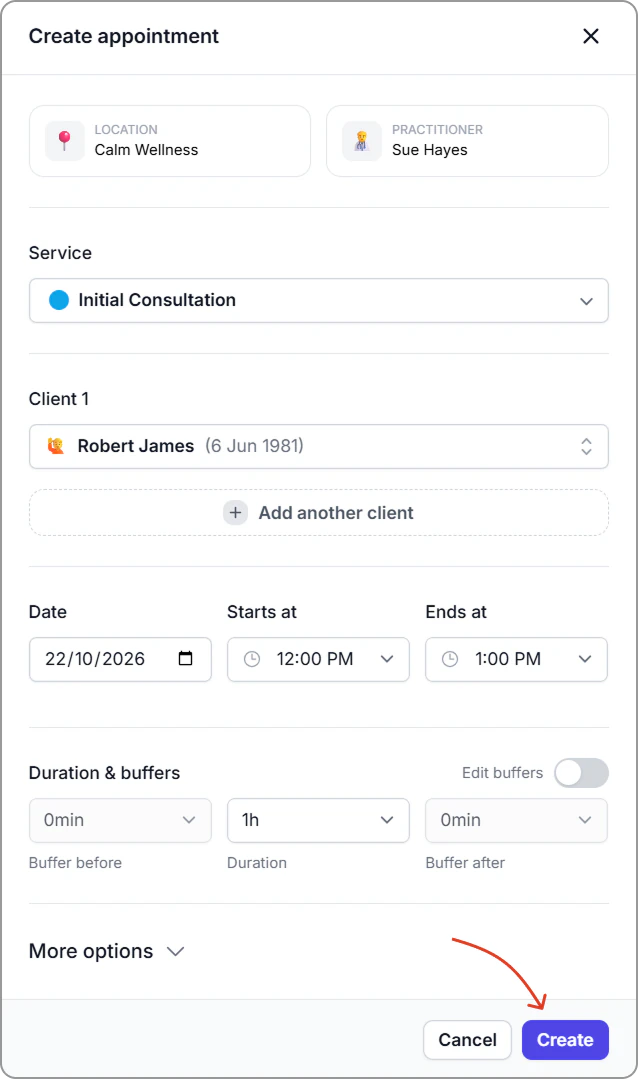
Info
The client receives a confirmation based on your notification settings.
Want to create a repeating appointment? See Create a repeat appointment.
Fields reference
| Field | Description |
|---|---|
| Location | Where the appointment will occur. Prefilled from the selected calendar location. |
| Practitioner | Who will deliver the service. Prefilled from the practitioner you've selected in the calendar. |
| Service | The service to be provided (sets default duration and buffers if configured). |
| Client | The client attending. |
| Date | Date of the appointment. |
| Time | Start time is prefilled from the slot you click.
End time auto-calculates from the selected service duration (plus buffer time, if applicable). You can override either time before saving. |
| Duration | Length of the appointment (in hours and minutes). |
| Buffers | Edit buffers: Toggle to adjust buffers for this appointment. Buffer before: Time blocked before the appointment |
| Room | Reserve a room if required. |
| Vehicle | Reserve a vehicle if required. |
| Resources | Reserve equipment or items. |
| Note | Internal notes for staff. Applies to this appointment only. |
| Repeat | Create a repeating series:
|
Add rooms, vehicles, and resources
When creating or editing an appointment click More options and select Room, Vehicle, or Resources to reserve what you need.
Defaults: To set defaults, go to Settings → Rooms, vehicles and resources.
After you create the appointment
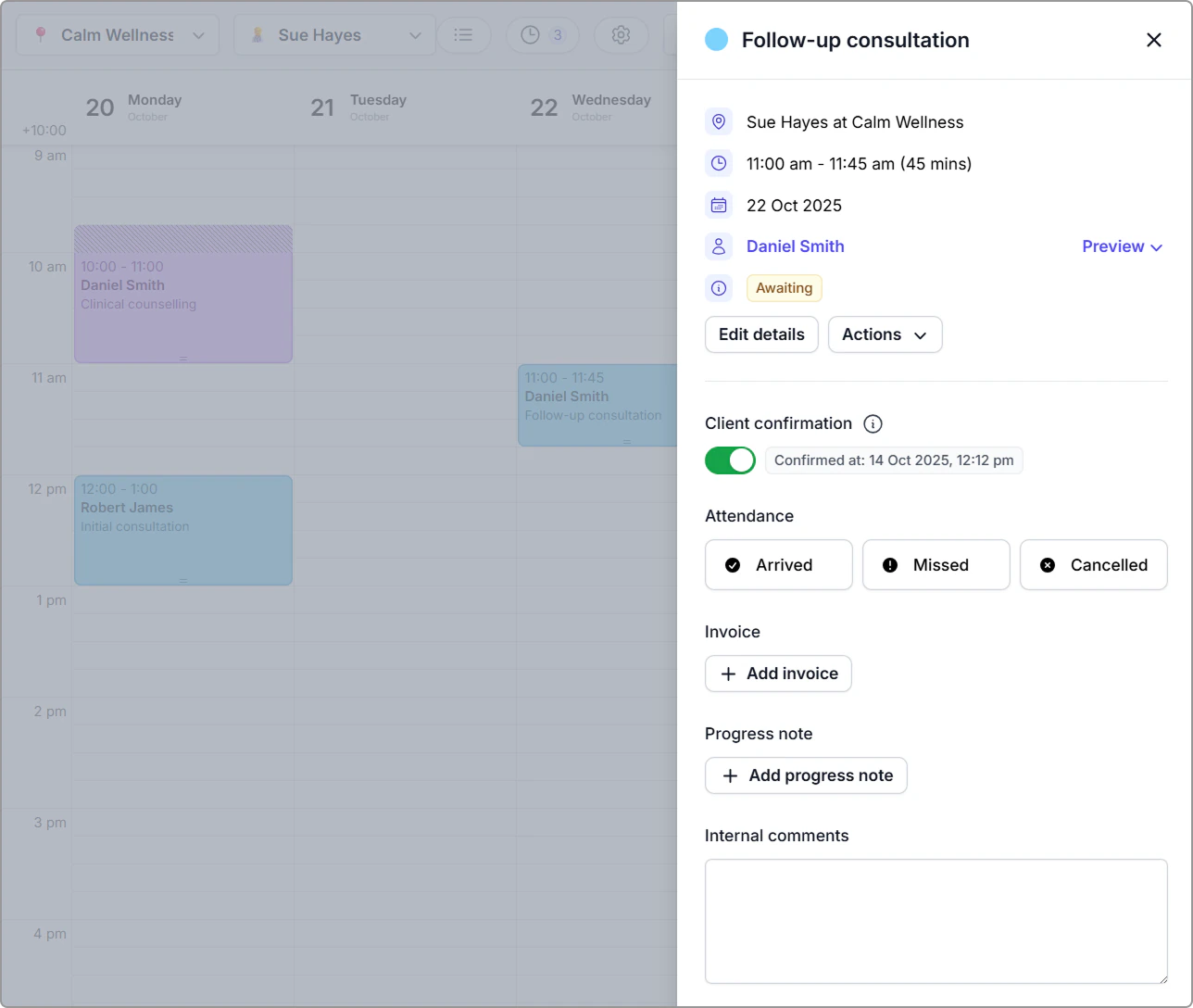
Example: Appointment information panel.
From the appointment info panel you can:
- Invoice the appointment (click Add invoice).
- Add a progress note
- Update an appointment status
- Edit an appointment
- Reschedule an appointment
- Cancel an appointment
- Add internal comments: Staff only notes for this appointment. Autosaves as you type. Not shown on the client record or other appointments.
- Client confirmation: Toggle Client confirmation on to mark the booking as confirmed. Clients can also confirm using the link in your notification email or SMS. See Client confirmations.
- Preview (contains quick actions)
- Address: Opens directions in Google Maps in a new tab.
- Email: Opens your email app with the client’s address.
- Phone: Opens the dialler (with the number pre-filled). On desktop, it uses your default calling app. On mobile it opens the phone dialler.
Frequently asked questions
What if I need extra time before and/or after an appointment set by default?
If you need extra time before or after your appointment you can set what we call buffer times. This time will be blocked off automatically in your calendar and online bookings. You can set default buffer times per service in your catalog. See Add buffer times to services.