Mark an appointment as missed
Learn how to mark a missed appointment when a client is a no-show.
Info
Hint: Appointments can only be marked missed (no-shows) after the scheduled start time has passed.
If a client tells you in advance that they will not attend, you can cancel the appointment instead.
How to mark an appointment as missed
When a client does not arrive after the scheduled time you can mark the appointment as missed (no-show).
- Click the appointment in your Calendar to open the information panel.
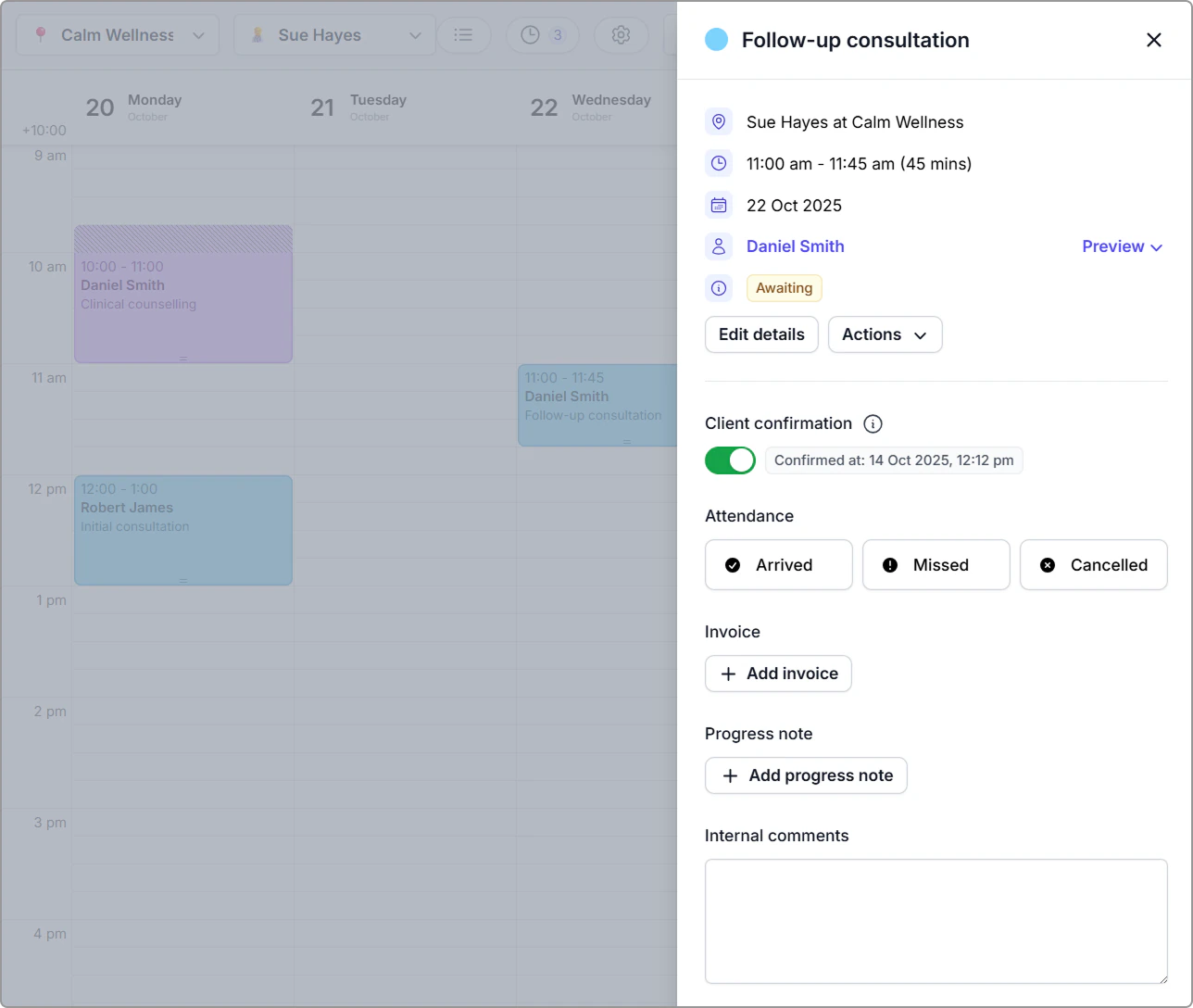
- Under Attendance, click Missed.
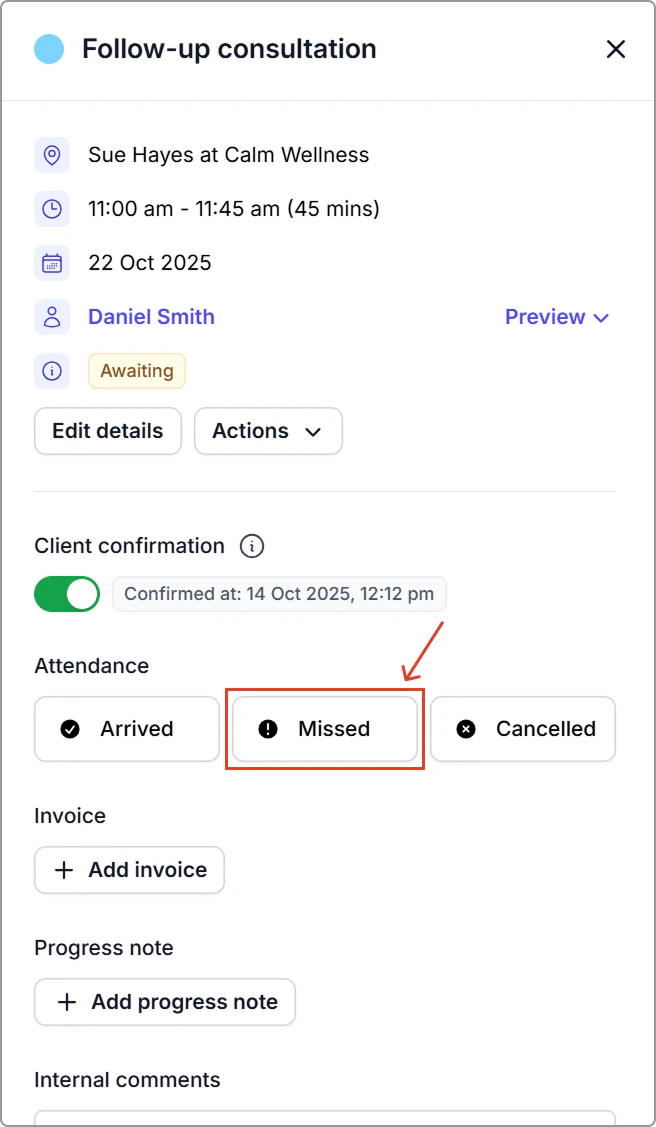
What you’ll see
- The Missed status appears in the appointment information panel.
- The appointment colour appears red in your calendar with an exclamation mark.
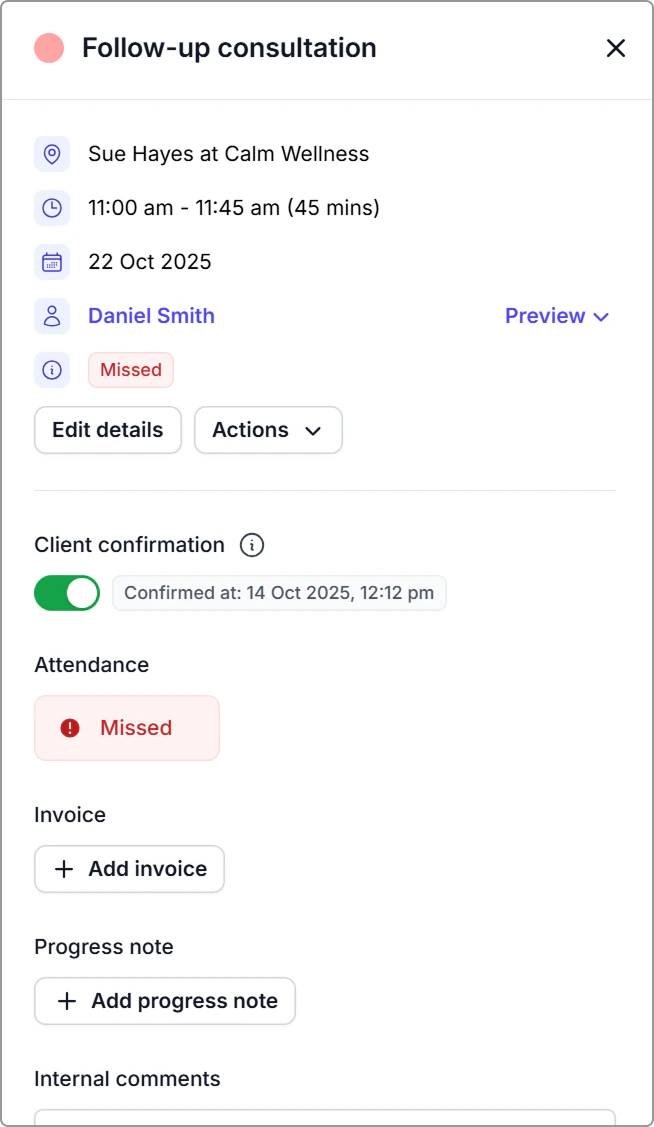
Appointment information panel showing “Missed” status.
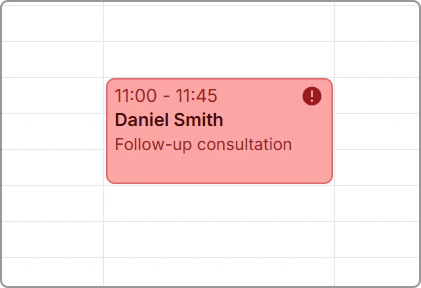
Missed appointment on the calendar (red with an exclamation-mark badge)
Info
You can also find this booking by opening Schedule and filtering the Status dropdown to Missed. See Schedule for how to access and use the list view.
Notes
- Even when an appointment is marked missed, you can still link a progress note and invoice in line with your policy.
- Client notifications are not sent for no-shows.
- To change the status later, open the appointment, click the current Missed status under Attendance, and choose Arrived or Canceled.
Frequently asked questions
Can I undo a missed status?
Yes. Click Missed under Attendance to reopen the status options, then select Arrived, Missed, or Canceled.
How can I track missed appointments?
Open the Schedule from the left main menu.
Use the Status filter and select Missed to view a list of all missed appointments.
You can also filter by Canceled if you want to review cancellations.
See Schedule for how to access and use the list view.