Reschedule an appointment
Learn how to move an existing appointment to a new time or day.
2 min readUpdated 8 months ago
Ways to reschedule
- Drag and drop on the calendar (fastest), or
- Edit the appointment and change the date and/or time (opens the edit window)
Drag and drop
Drag an appointment to a new time or day in the same week, then release to place it and confirm any prompts.
- Go to the Calendar.
- Click and drag the appointment to the new time and/or day in the week.
- Release to place it and confirm the change by clicking Reschedule appointment.
Edit the appointment
- Click on the exisiting appointment to open the information panel, then select Edit details.
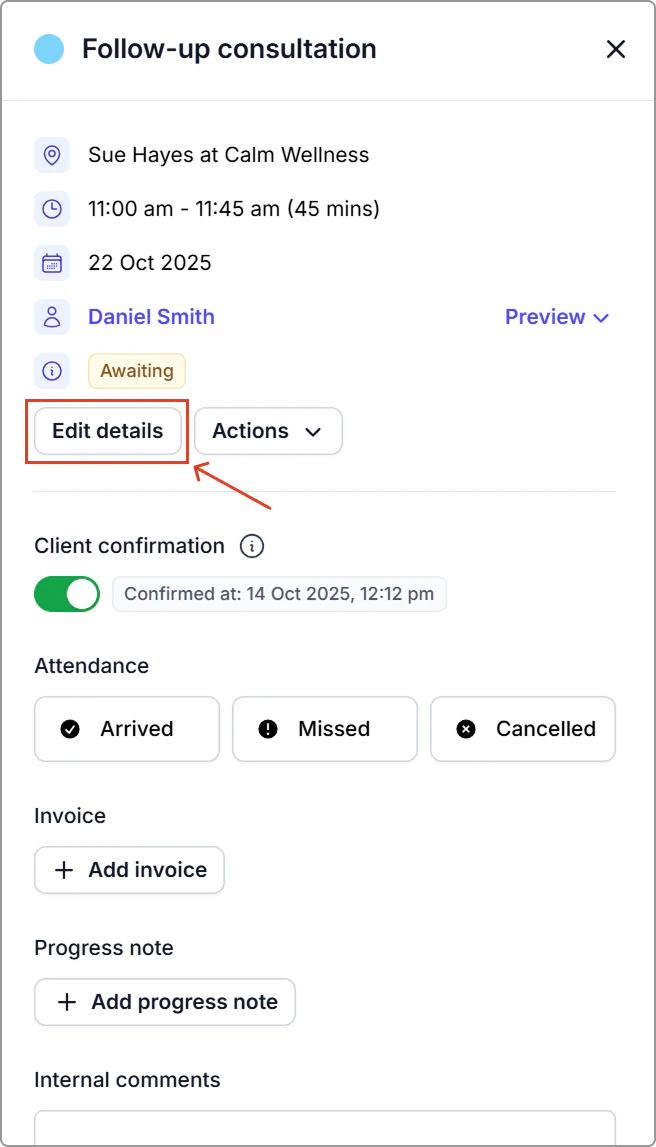
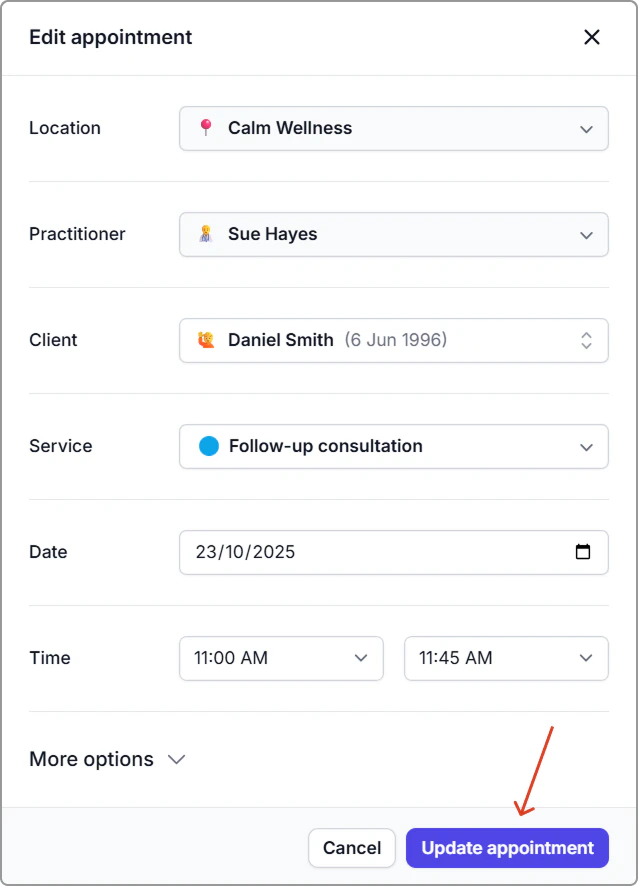
- Update Date and/or Time.
- Click Update appointment.
What happens next
- The calendar updates immediately.
- If notifications for rescheduling are enabled, changing the date or time sends a reschedule message with the updated details.
Notes and tips
- Availability & buffers: Rescheduling respects existing bookings, room/resource reservations, and buffer times. If there isn’t space at the new time, pick another time that has availability.
- Rooms/resources: If a room or resource was reserved, make sure it’s available at the new time (adjust if needed).
- Online bookings: Availability in online bookings updates immediately after a reschedule.