Edit an appointment
Learn how to edit an existing appointment in your calendar.
1 min readUpdated 8 months ago
Edit an appointment
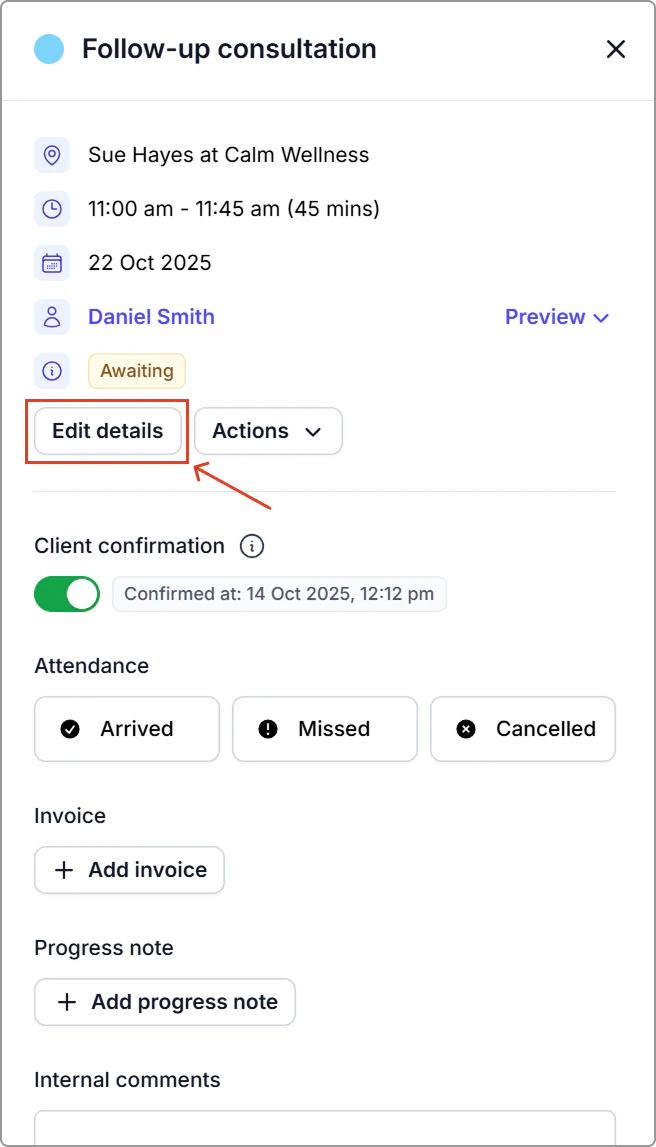
- Go to the Calendar, then click on the appointment.
- In the appointment information panel, click Edit details.
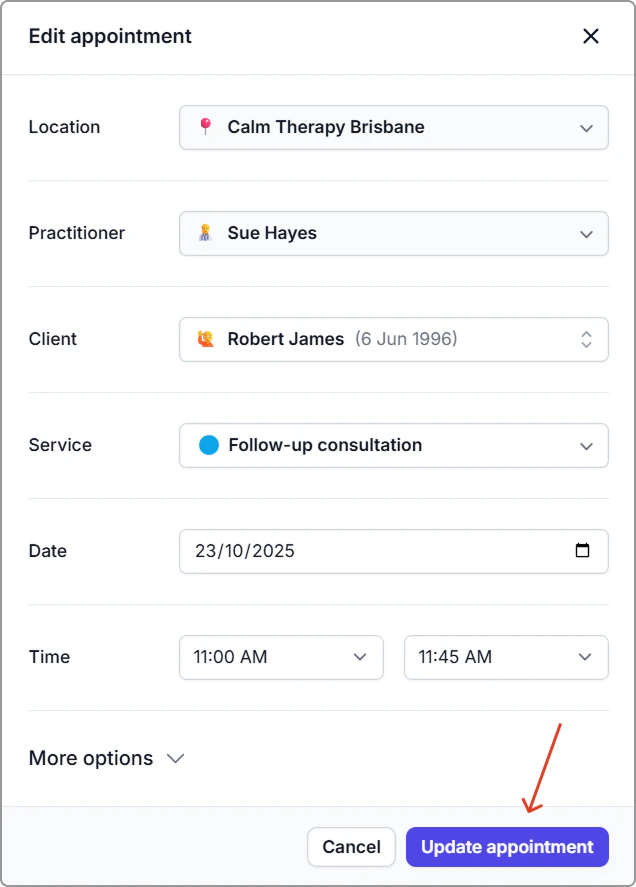
- Make your changes, then click Update appointment.
What happens next:
- Your calendar updates immediately.
- Client messages follow your notification settings. If notifications are enabled, changing the date or time sends a reschedule message with the updated details.
Info
Tip: Want a quick way to lengthen the duration of an appointment? On the calendar, drag the bottom edge of the appointment down to extend the end time.
\