Cancel an appointment
Learn how to cancel an appointment in your calendar.
2 min readUpdated 4 months ago
Info
Hint: Past appointments can’t be marked Canceled. Mark them Missed instead.
How to cancel an appointment
- Click the appointment in the Calendar to open the info panel.
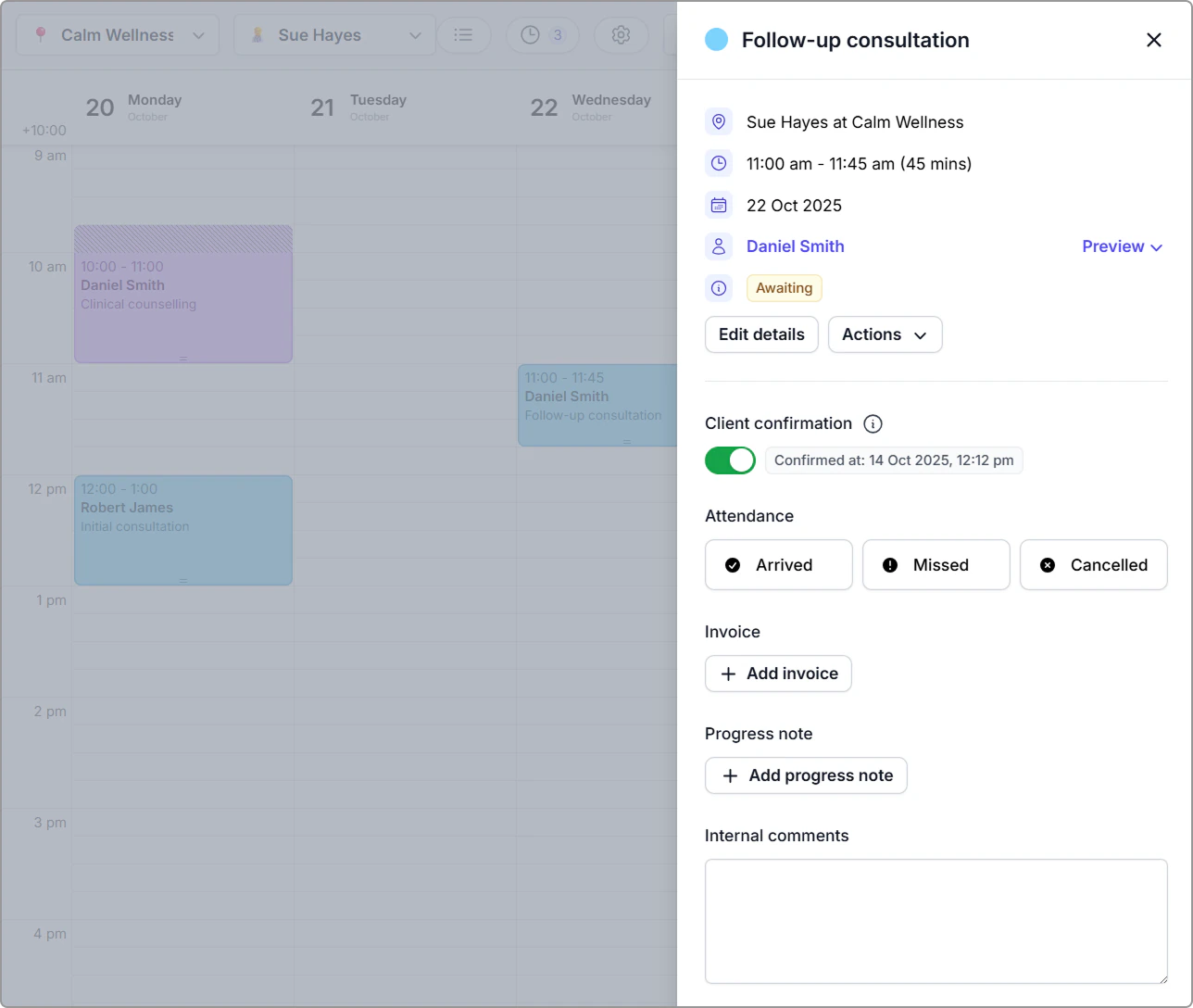
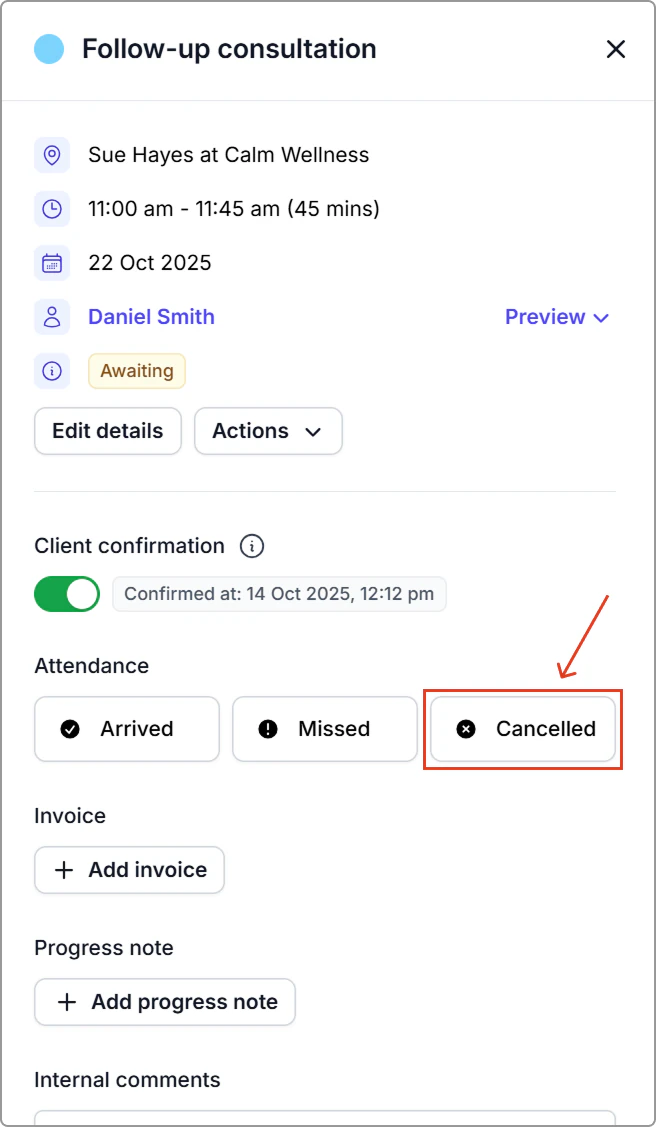
- Under Attendance, click Canceled to open the Cancel appointment window.
- Complete the fields:
- Cancellation reason
- Cancellation time
- Cancellation note (optional)
- Repeating group (shown for repeating appointments only) — Turn On to also cancel future appointments in the series. Leave Off to cancel only this appointment.
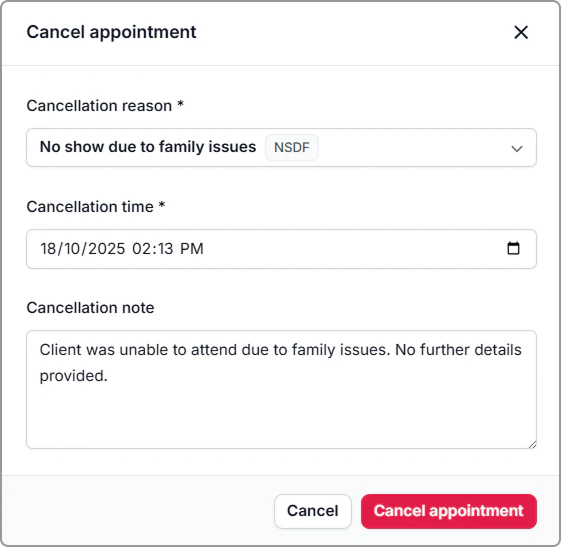
- Click Cancel appointment to confirm.
What you’ll see
- The appointment is removed from the calendar, freeing the time for new bookings.
- Any rooms or resources linked to the appointment become available again.
Notifications
- Client messages follow your notification settings.
- If cancelation notifications are enabled, canceling an appointment sends a canceled message to the client.
Find Canceled appointments
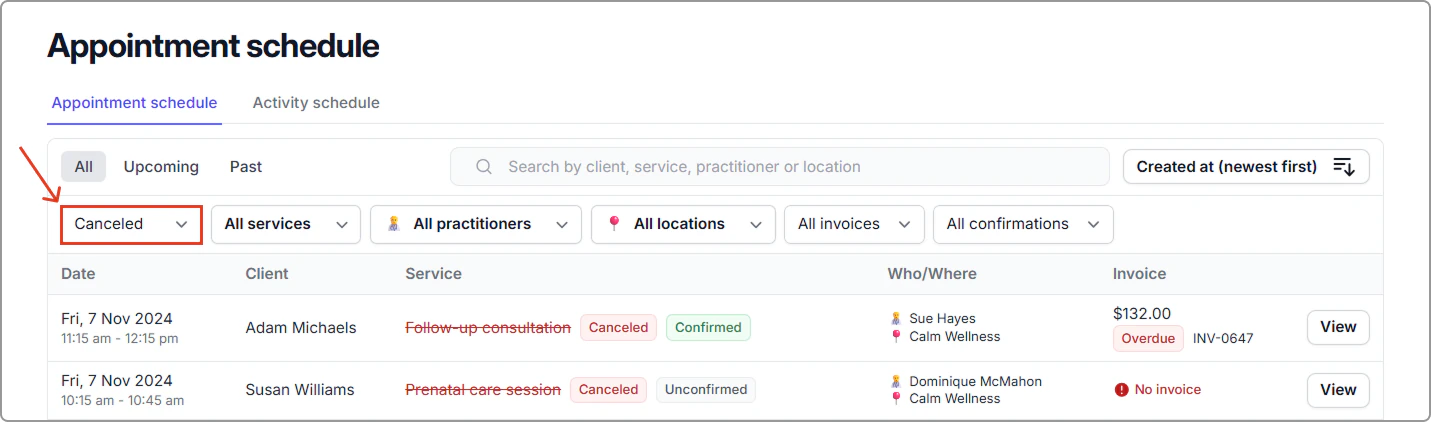
You can view canceled appointments in Schedule (left-hand menu).
Filter Status → Canceled to see all cancelled bookings.
Tip
Click View on any row to open the appointment information panel.
For details on adding invoices see Schedule.
Frequently asked questions
Can I customize the cancellation reasons?
Yes. Go to Settings → Cancellation reasons to add, edit, archive, or unarchive reasons.