Create a repeat appointment
Learn how to create recurring appointments from the calendar.
2 min readUpdated 8 months ago
How to create a repeat appointment
If you often book the same service at the same time, use Repeat to create a short series, then adjust individual occurrences as needed.
- Open Calendar and set the location (clinic/practice) and then a practitioner.
- Click a time slot, then choose Appointment.
- Enter the appointment details.
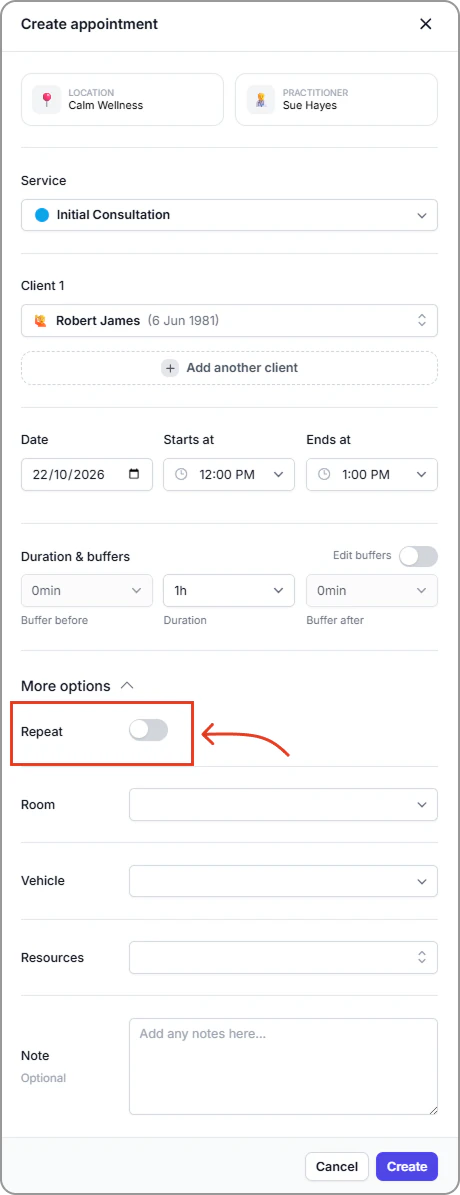
- Open More options, toggle Repeat On.
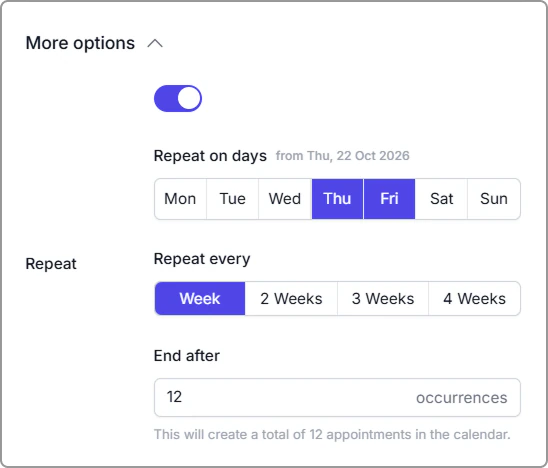
- Enter the repeat details.
- Repeat on days: Select the weekdays you want.
- Repeat every: Choose Week, 2 weeks, 3 weeks, or 4 weeks.
This sets how often the appointments repeat, not the appointment duration. For example, 2 weeks creates appointments on the selected days every second week. - End after: Enter the number of occurrences (how many appointments to create).
- Review details, then click Create appointment.
Notes
- The helper note under End after shows how many appointments will be added.
- Each appointment in the series appears in your calendar. Edit or cancel any one as needed.
- If a clash occurs when booking a repeating appointment, Caspen will show the conflicts and let you skip them, or you can exit, reschedule the clashes, and then create the series.
Example: Create four appointments across two weeks on Wednesday and Thursday
Repeat on days: Wed and Thu
Repeat every: Week
End after: 4
This creates weekly appointments on Wed and Thu in Week 1, and Wed and Thu in Week 2 (4 appointments total).
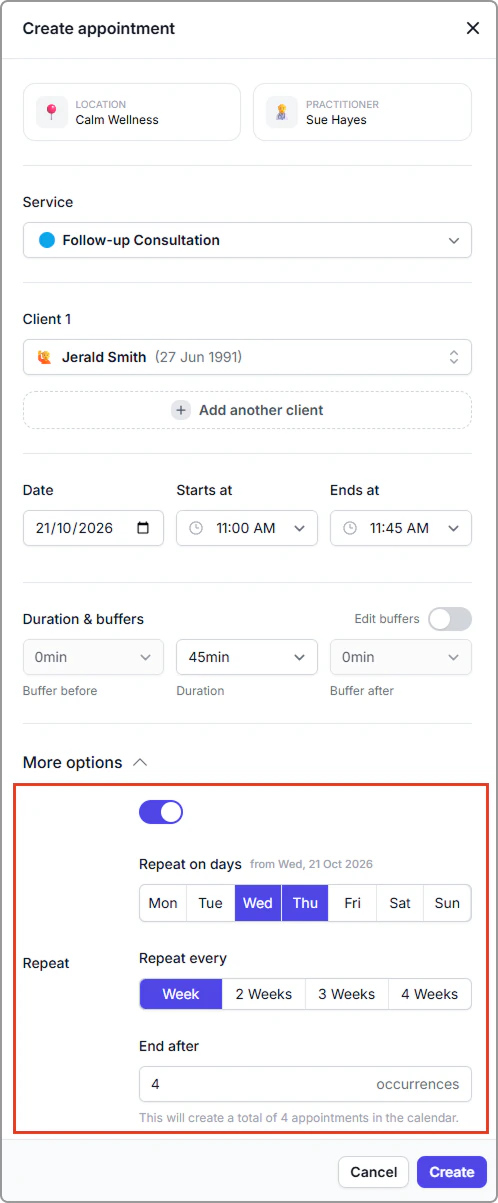
If you select Repeat every: 2 weeks, appointments run every second week on the selected days. This creates appointments on Wed and Thu in Week 1, skips Week 2, then Wed and Thu in Week 3 (4 appointments total).