> For the complete documentation index, see [llms.txt](https://support.caspen.com/llms.txt). Markdown versions of documentation pages are available by appending `.md` to page URLs; this page is available as [Markdown](https://support.caspen.com/integrations/stripe/set-up-stripe-integration.md).
# Set up Stripe integration
Learn how to connect Stripe to Caspen to accept secure online payments.
## Overview
Stripe is a secure online payment processor that gives clients a fast way to pay invoices. With Stripe, you only pay fees when you successfully process a payment, with no setup or monthly fees.
Once Stripe is connected to Caspen, you can:
* Add a "**Pay Invoice**" **button to invoices** you send to clients and contacts, so they can pay online
* **Enable card payments for online bookings** so you can collect payment upfront
* **Save a client’s card to their profile** and process invoice payments in Caspen using the saved card
***
## Before you start
* You will need a **Stripe account**. You can create one during the connection steps below.
* Stripe processing fees apply, plus a **0.75 percent Caspen platform fee** on successful payments.
***
## How to connect Stripe to Caspen
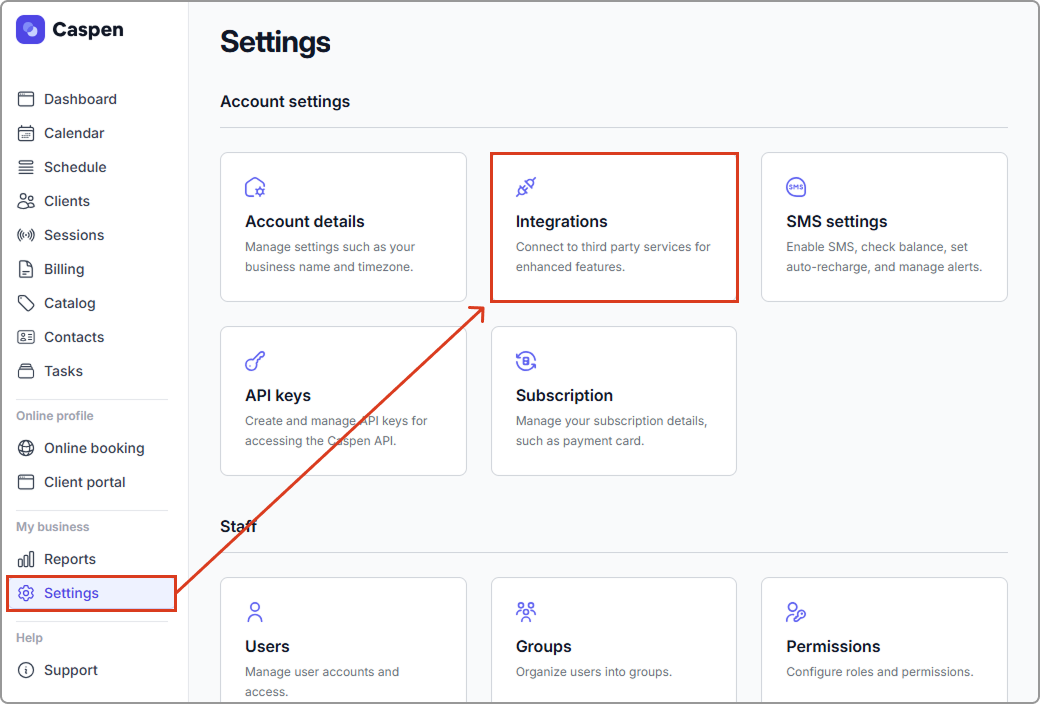
1. Go to **Settings** → **Integrations**.
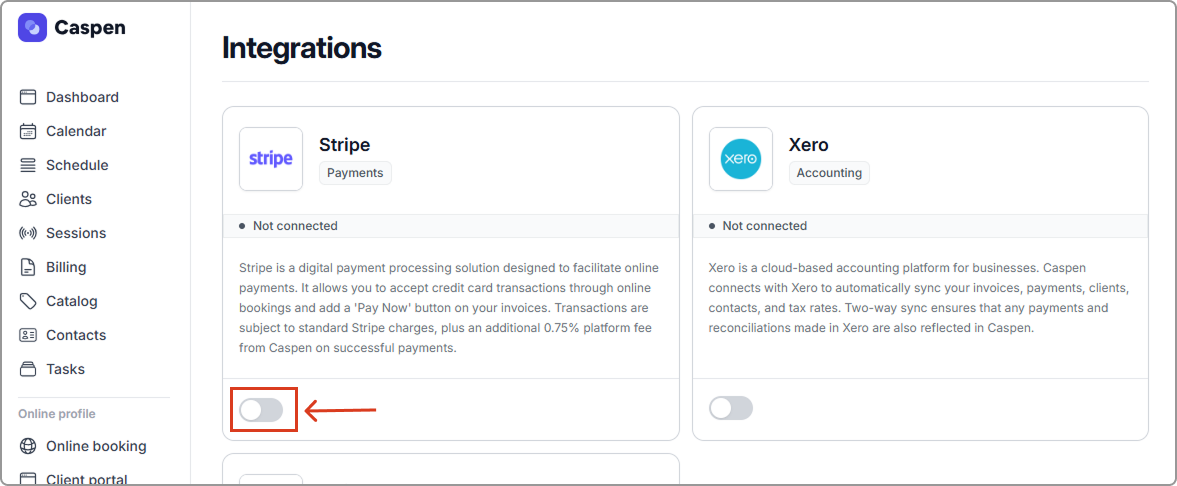
2. Find **Stripe** and toggle it on to connect.
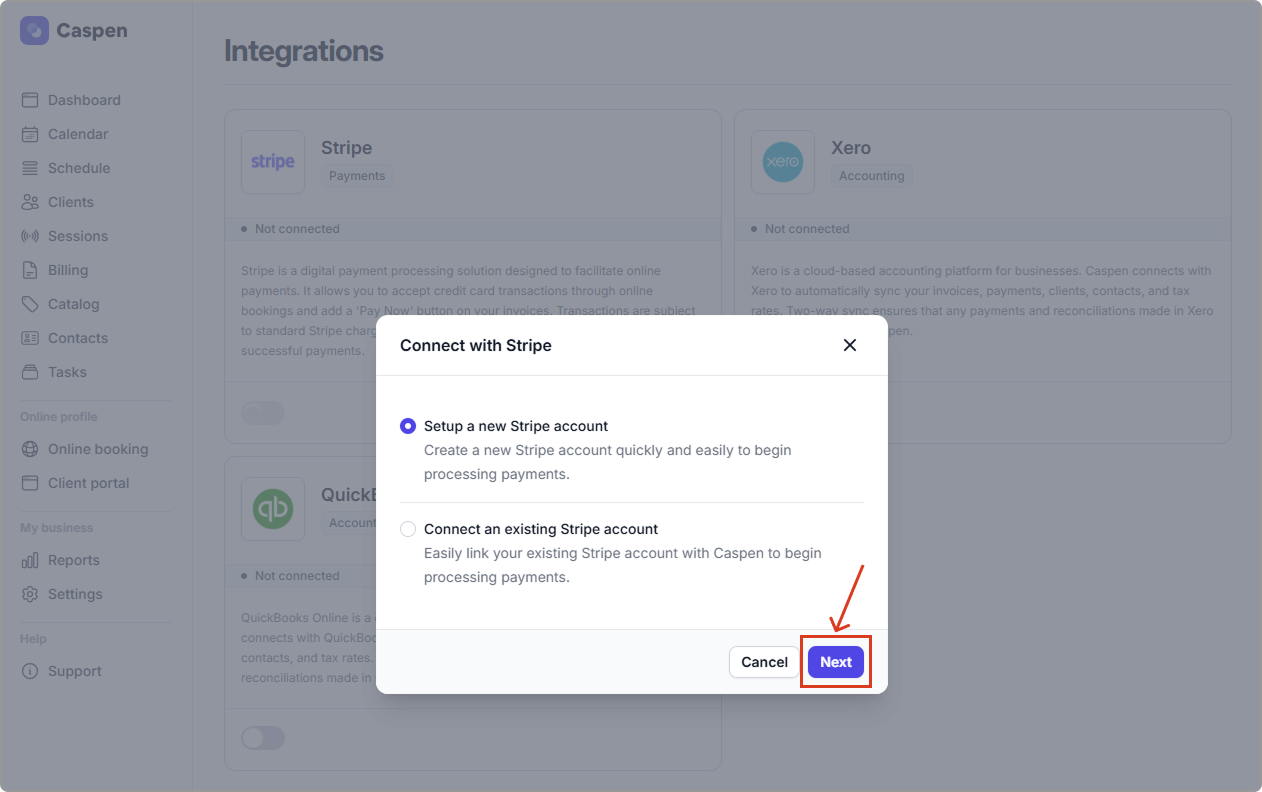
3. In the pop-up, choose **Create a new Stripe account** or **Connect an existing Stripe account**, then click **Next.** Caspen will open Stripe.
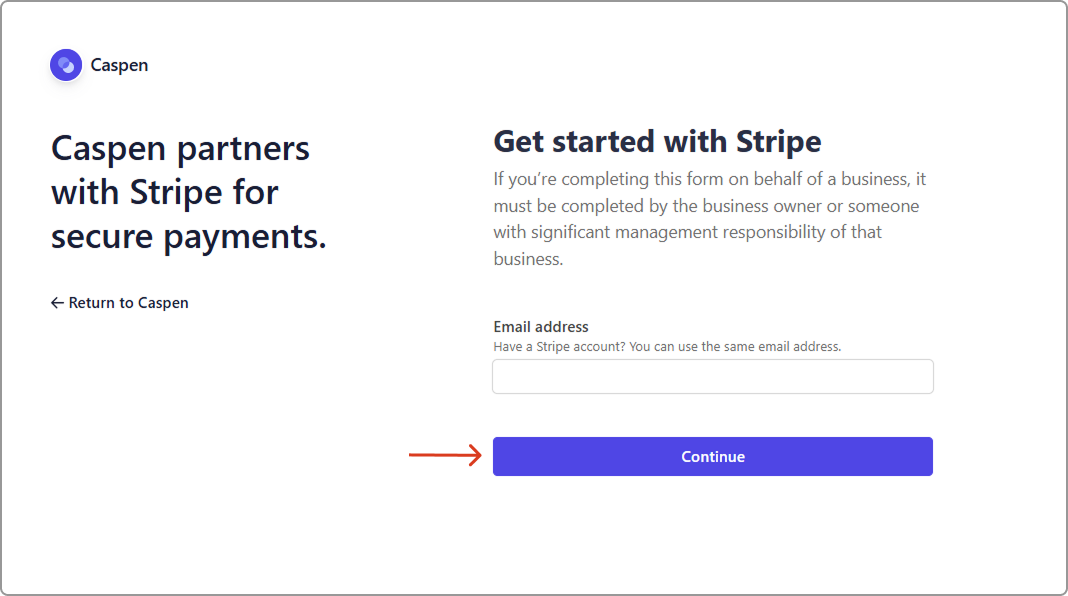
4. Enter your **email address**, then click **continue**.\
**Note:** Stripe asks for an email address in both cases (new or existing account).
5. If you already have a Stripe account, **sign in** and follow the prompts.\
If you do not have a Stripe account, follow the prompts to **create one**.
6. When you finish, you will be redirected back to Caspen.
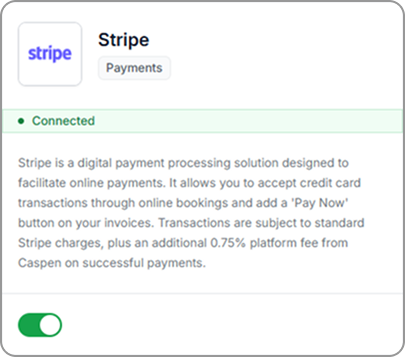
7. When you finish, you will be redirected back to Caspen. Confirm the Stripe tile shows **Connected**. You have successfully connected Stripe with Caspen.
***
## Turn on Stripe payments for online bookings
To accept payments for online bookings:
1. Go to **Settings** → **Online booking**.
2. In the **Appointments** tab, under **Payment**, turn on **Enable online payment**.
3. Set the **Payment amount** as a percentage (minimum 10 percent). This is the percentage of the appointment price you will charge at the time of booking.\
To take full payment, set the percentage to 100 percent.
4. Click **Save** (top-right corner).
**What happens after a client pays**
* **Full payment (100 percent):** Caspen automatically creates the invoice and marks it as **Paid** once the Stripe payment is successful.
* **Partial payment:** The invoice will show **Partially paid**, and the Stripe payment will appear on the invoice as a payment applied.
> **Tip:** Upfront payment works best when you usually keep the booked appointment as-is (for example, you do not often change the service, price, or duration after booking).
***
## Add a "Pay Invoice" button to invoices
To add a Pay Invoice button so clients can pay invoices you send them:
1. Go to **Settings** → **Invoices**.
2. Turn on **Enable online payments**.
Once turned on, the **Pay Invoice** button will appear on invoices you send to clients or contacts. Clients can click **Pay Invoice** and enter their card details to pay securely.
***
## Frequently asked questions
A client is having issues paying. What should I do?
If the payment is not going through, ask your client to try again using another card. Most major credit and debit cards are supported by Stripe.
The ‘Pay Invoice’ button is not showing on invoices sent to clients or contacts?
Make sure **online payments are enabled** in your invoice settings (**Settings** → **Invoices** → **Enable online payments**). Once this is turned on, the "Pay Invoice" button will appear on invoices you send to clients or contacts.