> For the complete documentation index, see [llms.txt](https://support.caspen.com/llms.txt). Markdown versions of documentation pages are available by appending `.md` to page URLs; this page is available as [Markdown](https://support.caspen.com/using-caspen/client-portal/setting-up-your-client-portal.md).
# Setting up your client portal
Learn how to customize your client portal, adjust display settings, and share it with clients.
## Overview
The **Client Portal** is included free with your Caspen account and is ready to use immediately.\
It allows your **existing** clients to securely log in, view and manage appointments, access invoices, and download shared files.
Before sharing your portal, we recommend customizing it with your business branding and choosing whether to display your booking link.
\
Setup only takes a few minutes. Once complete, you can share your portal link on your website, social pages, or directly via client invitations.
***
## Inside the Client Portal
### Profile
Displays basic information such as name and email.
### Appointments
Clients can:
* View upcoming and past appointments.
* See appointment details like date/time, location, practitioner, service type, and duration.
* Confirm, reschedule or cancel upcoming appointments.
### Billing
Lists all invoices with amount, outstanding amount, status, and due date.\
Clients can:
* View, download, or pay invoices online.
### Files
A secure space for sharing documents.
* Client’s shared folder: Files your team shares with the client
* Team’s shared folder: Where the client can upload their own files to share with your team.
To learn more about uploading or sharing files with a client, see [Upload files for a client](/using-caspen/clients/client-files/upload-files-for-a-client.md).
### Book Online
If enabled, a 'Book Online' button opens your live booking page, allowing clients to schedule new sessions anytime from within their client portal. See [Display or hide your booking link](#display-or-hide-your-booking-link) below for setup details.
### Switch Profile
If clients are linked to more than one profile (e.g. family members), they’ll be prompted to choose a profile at login.
***
## Customizing the Client Portal
### Add your branding
Add your logo and featured image to make your portal professional and on-brand.
You can upload your logo and a featured image for each location:
* **Logo:** Appears in the top left corner of the client portal and on appointment cards.
* **Featured Image:** Displays in the appointment details panel as a banner.
**Steps to upload your logo and featured image:**
1. Go to **Settings** → **Locations**.
2. Select a location and click **Actions → Edit** (or click the location name).
3. Upload your **Logo** and **Featured Image**.
4. At the bottom of the page, click **Save**.
### Display or hide your booking link
If you want clients to access your online booking page directly from the portal:
1. Go to **Settings** → **Client Portal**.
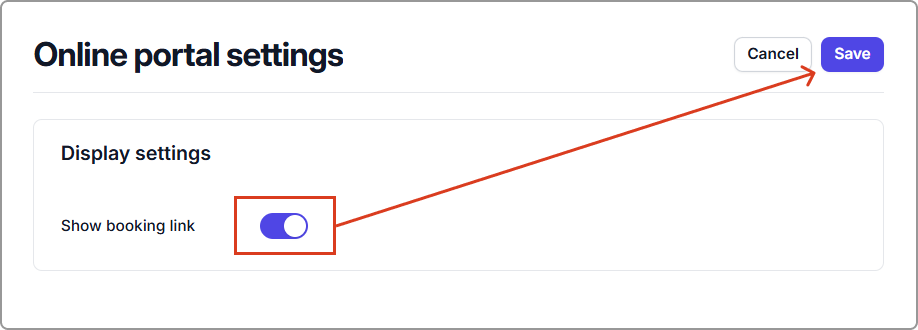
2. Toggle **Show booking link** on, then click Save.
This adds a **Book Online** button to the client portal navigation.
***
## Preview your client portal
You can view the portal exactly as a client would. To do this, create a new test client the same way you would add any client, using either your own email address or another one you have access to.
Once the test client is created, go to the **Client Portal** tab *(from the left-hand menu)*, and next to the **Shareable link**, click **Preview**. Log in using the secure link sent to your test client’s email.
This allows you to see how appointments, invoices, files, and your branding appear from the client’s perspective.
***
## Next Steps
After setting up your client portal:
* Learn how to invite clients and send login links. See [Invite clients to the client portal](/using-caspen/client-portal/invite-clients-to-the-client-portal.md).
***
## Frequently asked questions
Do clients need an email address?
Yes. Clients must have a valid email saved on their Caspen profile before they can log in.
What if a client doesn’t receive their login email?
Ask them to check their spam or junk folder. You can resend a login link anytime from their client profile.
Can I test my portal before sharing it?
Yes. Add your own email as a test client and send yourself a login link.