> For the complete documentation index, see [llms.txt](https://support.caspen.com/llms.txt). Markdown versions of documentation pages are available by appending `.md` to page URLs; this page is available as [Markdown](https://support.caspen.com/using-caspen/letters/create-and-send-a-letter.md).
# Create and send a letter
Create letters for clients using templates and send them to clients or contacts.
## Before you begin
Before you begin, make sure you have a Letter form template. If not, see [Set up letter templates](/using-caspen/settings/templates/set-up-letter-templates.md).
***
## How to create and send a letter
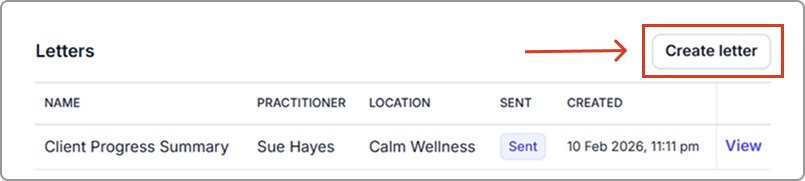
1. Open client profile, click **Create letter**.
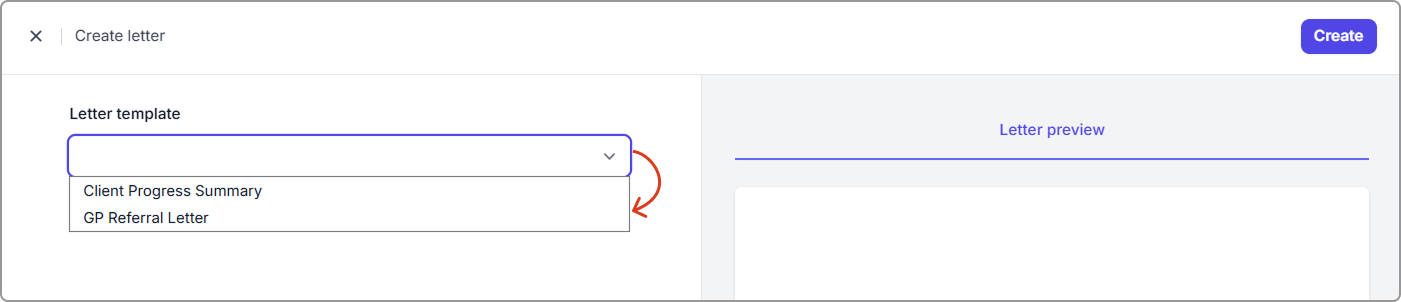
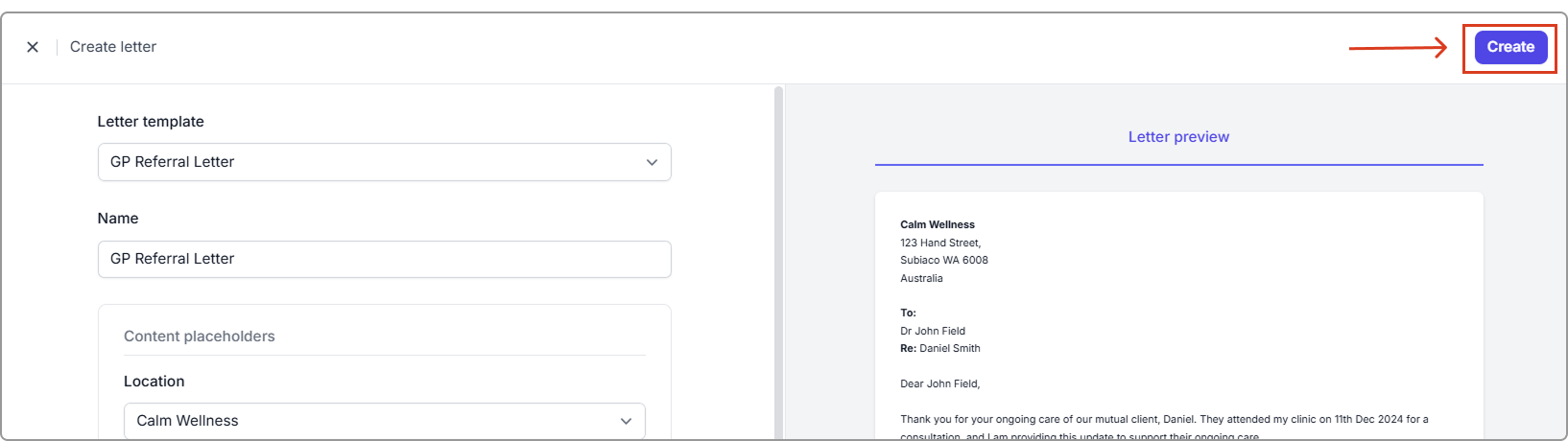
2. Choose a letter template from the dropdown list.
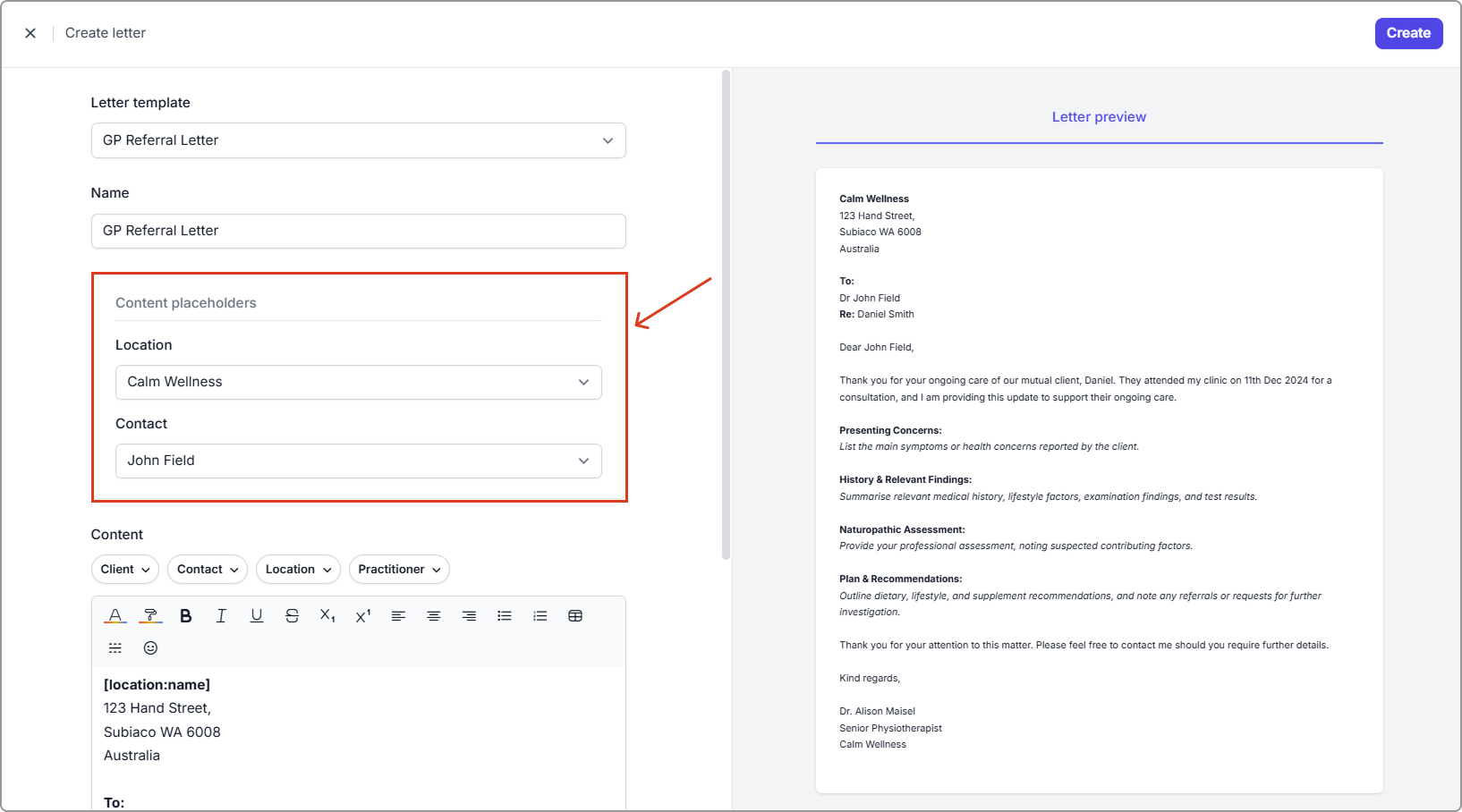
3. Complete any required placeholders.
* If the template includes placeholders (for example, a contact name), you will be prompted to select the correct contact.
* The preview on the right will auto-fill client, practitioner, contact, and location placeholder details.
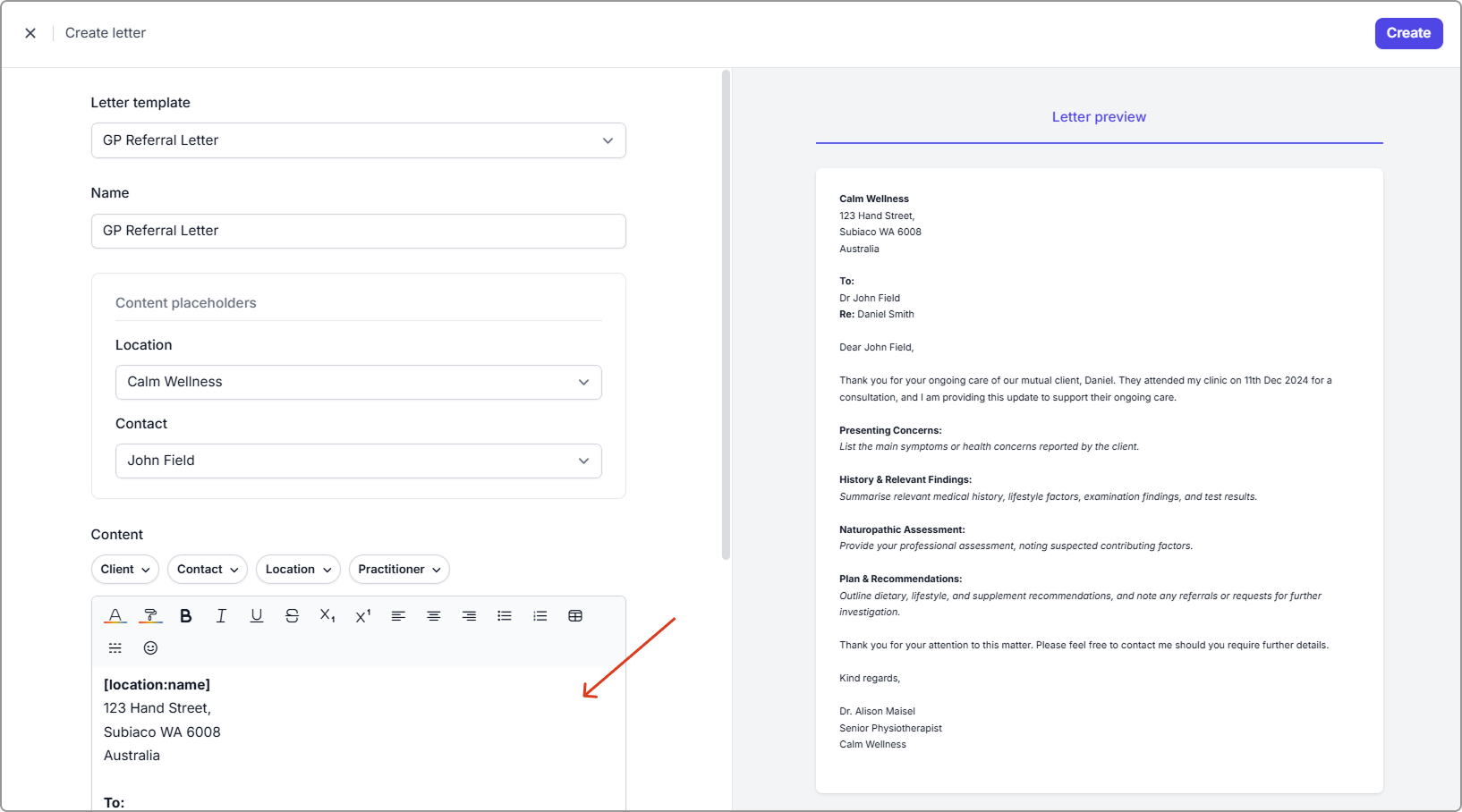
4. **Make any edits** to the letter content.
5. If you are happy with the letter, click **Create** (top-right).
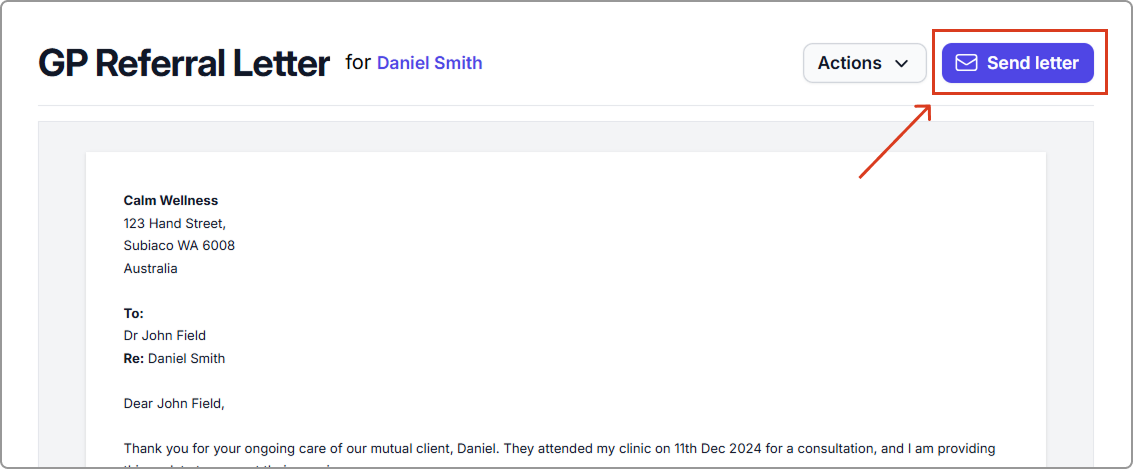
6. To send the letter, click **Send letter**.
7. Enter the client or contact name or email in the **Send to** field.
8. Choose how to send the letter:
* **Send as attachment** – Sends the letter as a PDF attachment.
* **Embed in email** – Sends the letter as the body of the email.
9. If everything looks correct, click **Send**.