> For the complete documentation index, see [llms.txt](https://support.caspen.com/llms.txt). Markdown versions of documentation pages are available by appending `.md` to page URLs; this page is available as [Markdown](https://support.caspen.com/integrations/quickbooks/fix-invoice-sync-errors-with-quickbooks.md).
# Fix invoice sync errors with QuickBooks
Learn what the QuickBooks status card errors mean and how to fix them.
## Common QuickBooks invoice sync errors and fixes
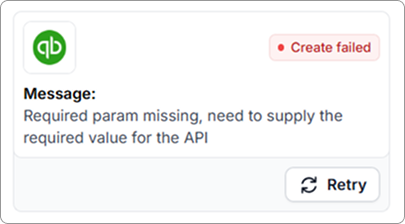
### Create failed: Required param missing
**Cause:**
\
This occurs when an invoice has no line items.
**Fix:**
\
Revert to **Draft**, delete the empty invoice or edit it to add at least one line item (and tax if needed), then **Finalize**. Once you have finalized your invoice with line items it will automatically sync to xero. After you finalize, the invoice will sync to **QuickBooks** automatically.
***
### Update failed: Historical invoice
**Cause:**
\
This is shown on an invoice if it was created before connecting QuickBooks.
**Fix:**
\
Leave it as is, or recreate in Caspen if you need it in QuickBooks.
***
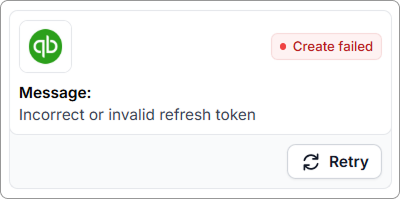
### Invalid refresh token
**Cause:**
\
An invoice fails because the connection to Quickbooks has expired.
**Fix:**
\
Disconnect and reconnect Settings → Integrations → QuickBooks, then click the Retry button.
***
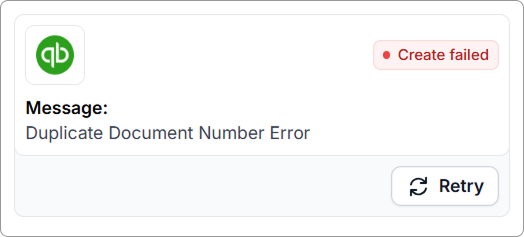
### Duplicate document number
**Cause:**
\
This error occurs when you try to create an invoice where an invoice with the same number already exists in QuickBooks.
**Fix:**
\
Open that document in QuickBooks, change its number to something unique (add a prefix or extra digits), **save**, then return to Caspen and select **Retry**.
\
*For example:* *Use a unique scheme like* **INV{sequence}-{suffix}**, **CN{sequence}**, **ADJ{sequence}** *so they never clash with Caspen invoice numbers.*
***
### Business validation error (tax)
**Cause:**
\
This error occurs when a Caspen tax rate is not linked to a matching QuickBooks tax code (or that code does not exist or is inactive in QuickBooks).
**Fix:**
1. Note the tax on the invoice line items (e.g. GST, GST free).
2. Go to **Settings** → **Taxes**.
3. Find that tax rate and select **Actions** → **Sync with QuickBooks** → choose the matching **QuickBooks Tax Code** → Click **Sync**.
4. If the code is not in QuickBooks: create or enable it in QuickBooks, then repeat step 3.
5. If the rate is not in Caspen: add the tax rate in Caspen, then repeat step 3 to link it.
6. Return to the invoice → **Retry**.
{% hint style="info" %}
**Tip:** The QuickBooks tax code must exist and be active before Caspen can link to it.
{% endhint %}
***
### No QuickBooks status card showing
**Cause:**
\
The invoice was **voided in Caspen**. Caspen sends the void to **QuickBooks** and removes the **QuickBooks status** card from the invoice.
**Fix:**
\
No action needed. This is expected for voided invoices.
***
#### **Not seeing your error here?**
Please contact Caspen Support with: invoice number, a screenshot of the status area, the exact error text (if any), and the time you tried to sync. We will investigate and help you resolve it.