> For the complete documentation index, see [llms.txt](https://support.caspen.com/llms.txt). Markdown versions of documentation pages are available by appending `.md` to page URLs; this page is available as [Markdown](https://support.caspen.com/integrations/quickbooks/set-up-quickbooks-integration.md).
# Set up QuickBooks integration
Set up your QuickBooks two way sync to automate reconciliation and reduce manual data entry.
## At a glance
* Connect one QuickBooks organization to your Caspen account.
* Syncs: invoices, clients, payments, discounts, tax rates, and credit notes.
* You choose one default Service and one default Product item in QuickBooks. Caspen posts all service lines to the default Service and all product lines to the default Product.
* Record payments in Caspen. We send them to QuickBooks.
***
## About QuickBooks
Caspen connects to QuickBooks Online so your invoices and payments appear in your accounts without manual entry.
***
## What syncs
### From Caspen to QuickBooks
**Invoices**\
An invoice syncs to QuickBooks when you finalize it or apply a payment in Caspen. Draft invoices do not sync.
**Clients**
\
When an invoice syncs, Caspen looks for a matching customer in QuickBooks. If a match is found, the invoice is linked to that customer. If not, Caspen creates a new customer contact in QuickBooks.
**How we avoid duplicates with the same name**\
Caspen creates unique customer names in QuickBooks using this format:
* Full name (Caspen #####)
Where ##### is the last 5 digits of the Caspen client ID.\
This reduces the risk of two different people with the same name being merged unintentionally.
**Payments**
\
Payments applied to invoices in Caspen are synced to QuickBooks.
**Discounts**
\
Fixed-amount and percentage discounts on invoice line items are synced to QuickBooks.
**Tax rates**
\
The tax rate on each line (for example, GST or GST free) is synced to QuickBooks.
**Credit notes**
\
Credit notes applied to invoice line items in Caspen are synced to the QuickBooks.
**Totals**
\
The invoice subtotal and tax amount in Caspen are synced to QuickBooks, whether tax is inclusive, exclusive, or no tax.
***
### From QuickBooks to Caspen
**Payments**
A single payment recorded in QuickBooks against a Caspen invoice imports to Caspen and updates the balance.
{% hint style="warning" %}
**Note:** Split payments created in QuickBooks (two or more partials on the same invoice) do not import to Caspen. Why: Caspen treats each sync as one payment record to keep invoices consistent.
{% endhint %}
***
## How to set up QuickBooks
To sync invoices and payments correctly, complete **all three steps** in the checklist.
**Checklist:**
\
1\. Connect QuickBooks
\
2\. Configure your integration settings
\
3\. Link your tax rates
### Connect QuickBooks
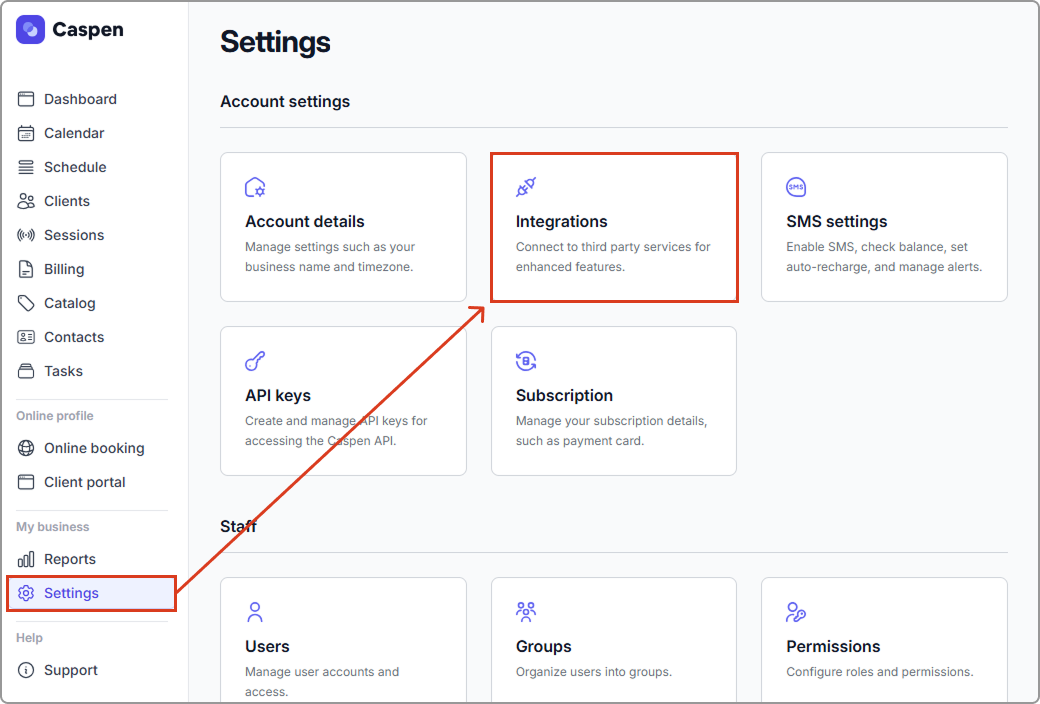
1. Go to **Settings** → **Integrations**
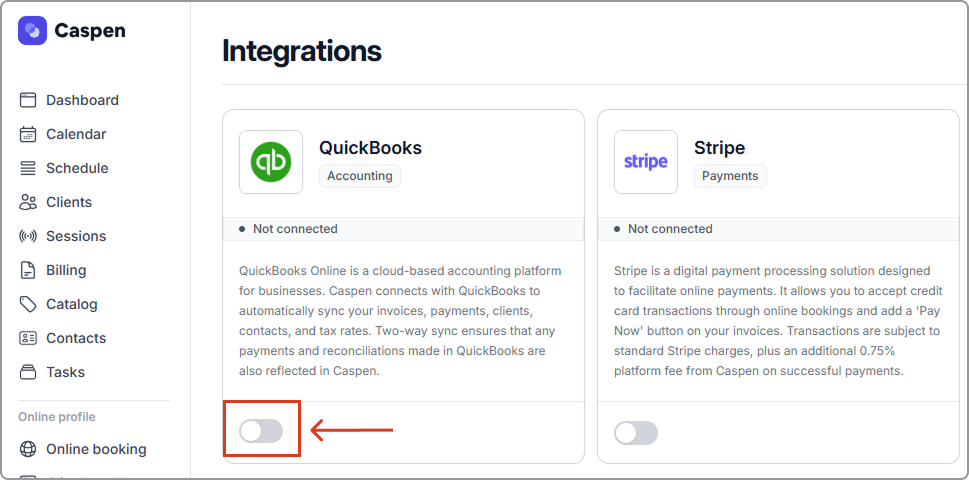
2. Find **QuickBooks** and toggle on.
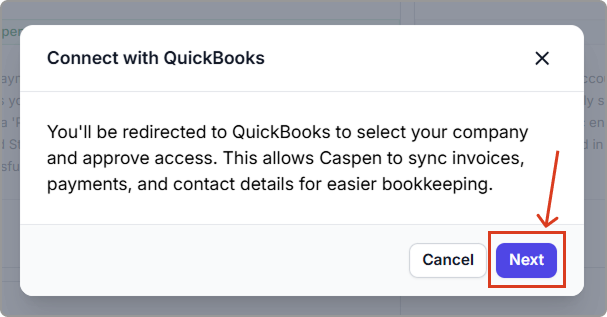
3. In the "Connect with QuickBooks" pop-up click **Next**. You will be redirected to QuickBooks.
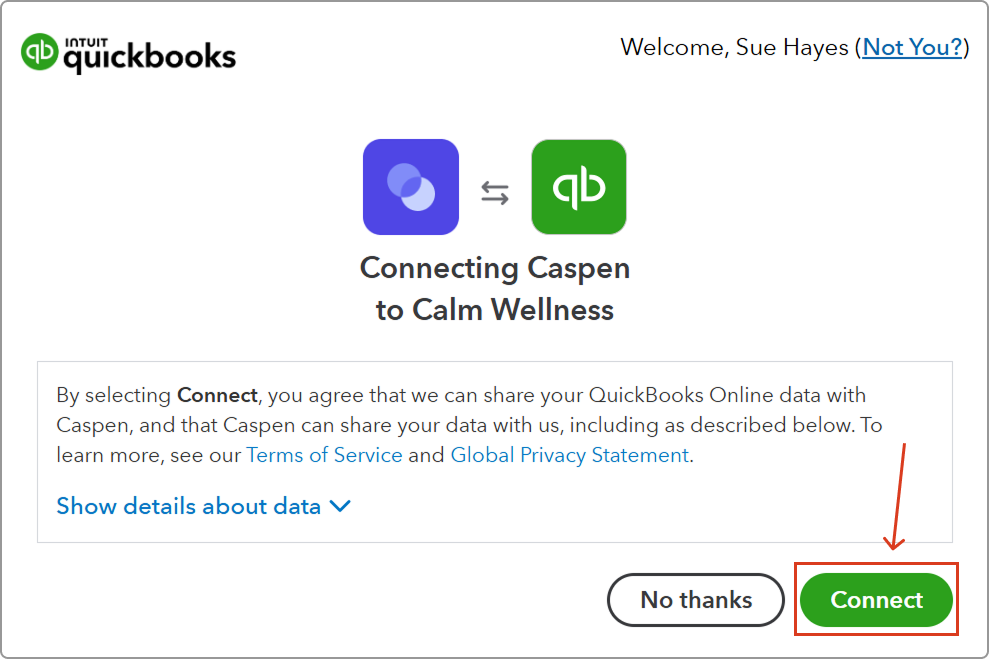
4. Sign in to your QuickBooks account.
5. When prompted, select **Connect** to approve the connection.
6. You will return to Caspen on the **QuickBooks settings** page.
***
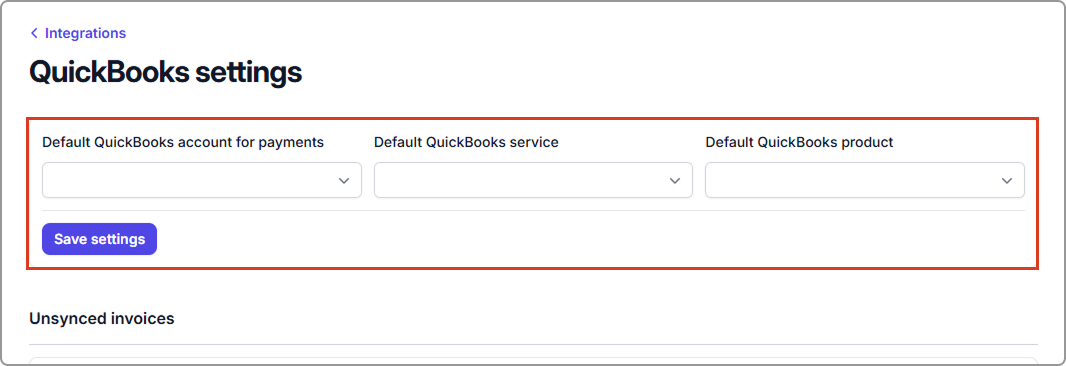
### Configure your integration settings
1. **Default QuickBooks account for payments:** select the bank or clearing account where invoice payments will be recorded in QuickBooks.
2. **Default QuickBooks service:** select one **Service item** in QuickBooks.
3. **Default QuickBooks product:** select one **Non-inventory or Inventory item** in QuickBooks.
4. Click **Save settings**.
{% hint style="info" %}
**Tip:**
If these items do not exist in QuickBooks yet, create one **Service** item and one **Product** item in QuickBooks first, then select them here. We recommend naming them **Caspen service** and **Caspen product**.
{% endhint %}
#### What these choices mean
**Services in Caspen** → **Default Service in QuickBooks**\
All service lines on Caspen invoices are posted to the single Service item you chose.
**Products in Caspen** → **Default Product in QuickBooks**\
All product lines on Caspen invoices are posted to the single Product item you chose.
This keeps the setup simple. You do not need to recreate every service or product in QuickBooks. Posting follows the accounts and tax settings on those QuickBooks items.
Caspen includes the service or product name in the line description so each line is still easy to identify in QuickBooks.
Example:\
If an invoice has 3 physiotherapy consults and 1 knee brace, Caspen posts the 3 consult lines to your Default Service item and the knee brace line to your Default Product item. Subtotal, tax amount, and total then match in QuickBooks.
***
### Link your tax rates to QuickBooks
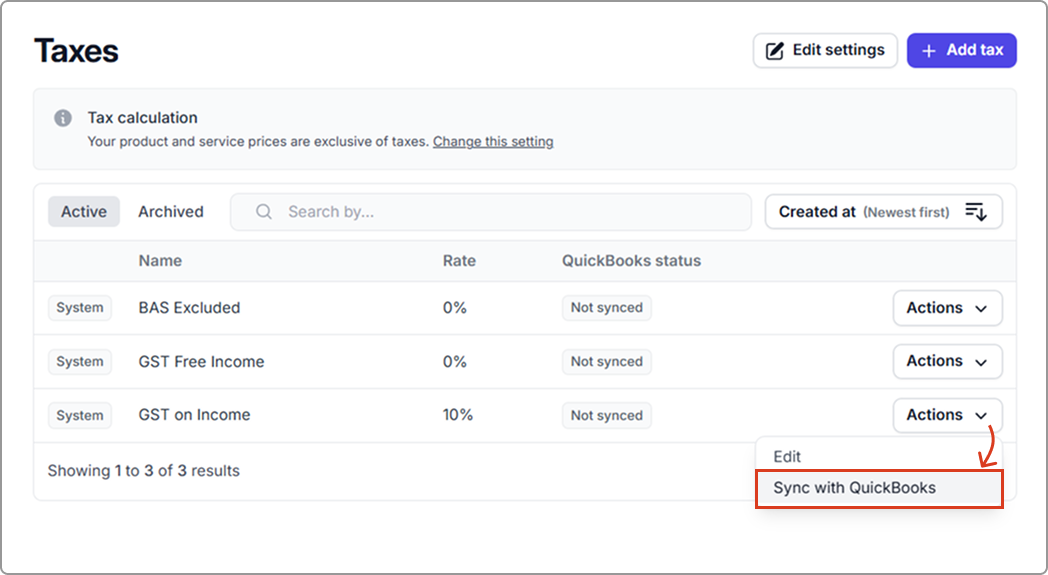
1. In Caspen, go to **Settings** → **Taxes**.
2. For each rate you use, select **Actions** → **Sync with QuickBooks**.
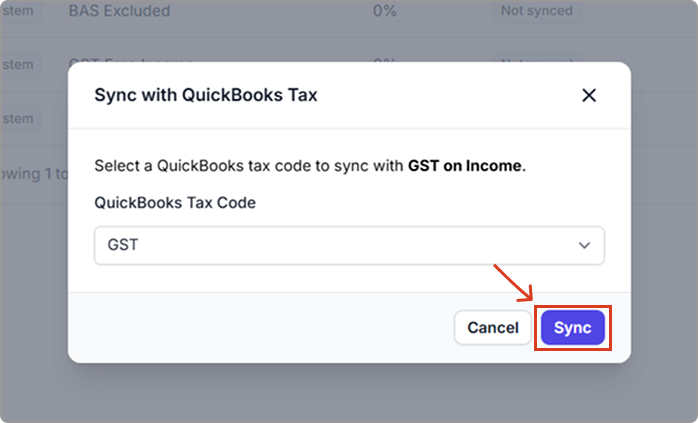
3. In the QuickBooks Tax Code dropdown field, choose the matching code, then select Sync.
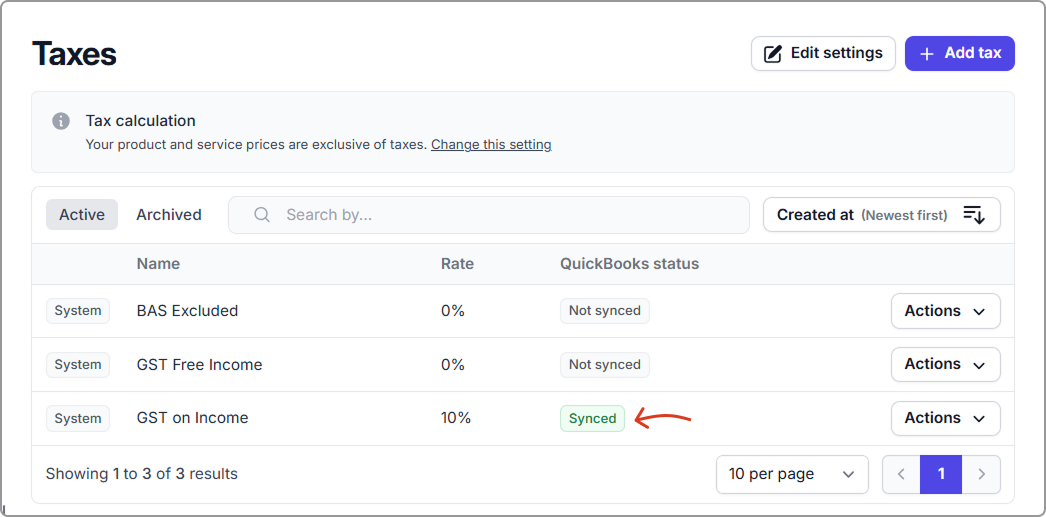
4. Confirm the QuickBooks status changes from Not synced to Synced.
Note: The tax rate will also need to exist in quickbooks in order for Caspen to sync with it.
***
## What a successful sync looks like
**What you will see**
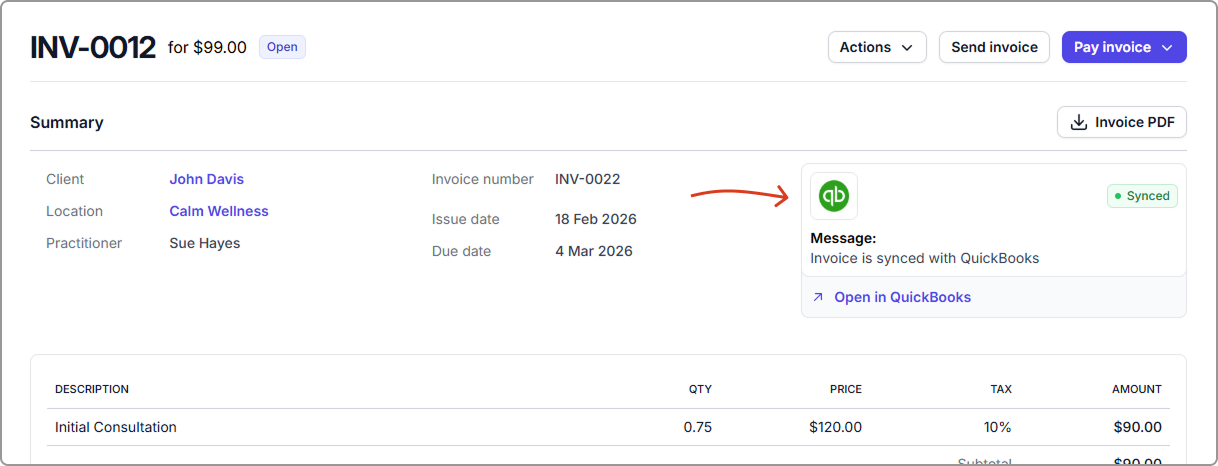
* The invoice in Caspen shows QuickBooks status: Synced.
* The matching invoice appears in QuickBooks with the same subtotal, tax amount, and total.
* Line descriptions include the Caspen service or product name for easy identification.
**Tip:** Only invoices created or finalised **after** connecting **QuickBooks** will sync. Historical invoices do not sync.
***
## Unsynced invoices
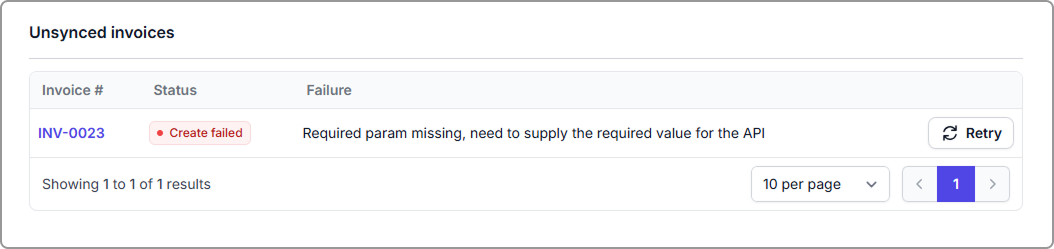
If any invoice fails to sync after you connect **QuickBooks**, they will appear in **Unsynced invoices** in the **QuickBooks settings** page.
For common errors and how to fix them, see [Fix invoice sync errors with QuickBooks](/integrations/quickbooks/fix-invoice-sync-errors-with-quickbooks.md).
***
**Need help?** Feel free to contact support and we will help you connect QuickBooks and get invoices and payments syncing.
***
## Frequently asked questions
How do I get an older invoice into QuickBooks?
If you need an invoice that was created before you connected QuickBooks, recreate it in **Caspen** so it can sync. Alternatively, you can create it directly in **QuickBooks** just keep numbering distinct (for example, use a different prefix) to avoid clashes with Caspen invoice numbers.