Manage incomplete progress notes
Easily find and complete unfinished client notes from your Dashboard.
1 min readUpdated 8 months ago
Overview
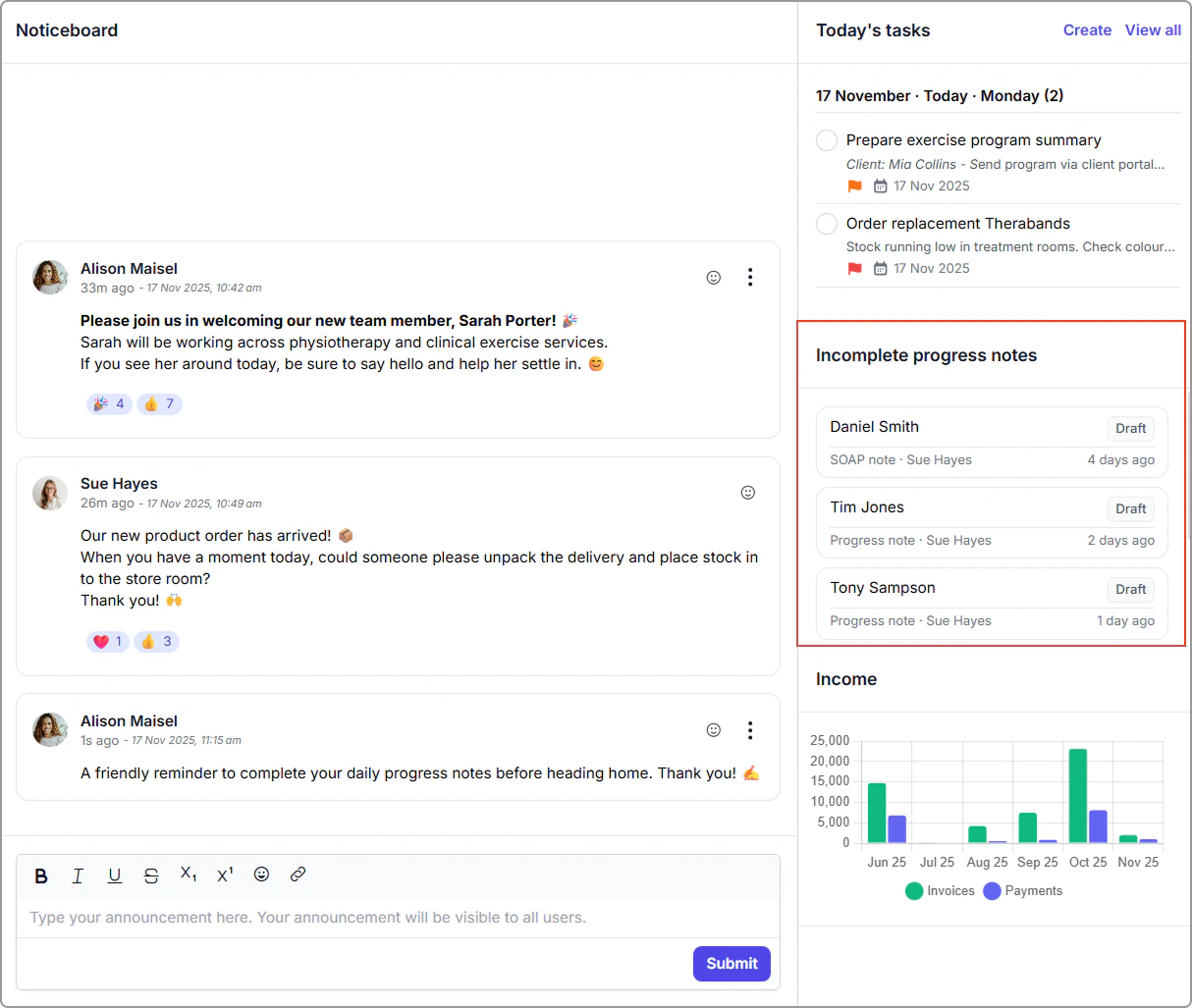
The Incomplete progress notes panel on your Dashboard helps you stay on top of any client notes that have not been finalized. It shows all draft progress notes that were started but not yet completed, ensuring no documentation is missed.
Info
Only progress notes saved as Draft appear here.
If a note has not been started for an appointment, it will not show in this list.
How it works
- Notes remain in this list until they are finalized.
- Once a note is finalized, it automatically disappears from the incomplete progress note list.
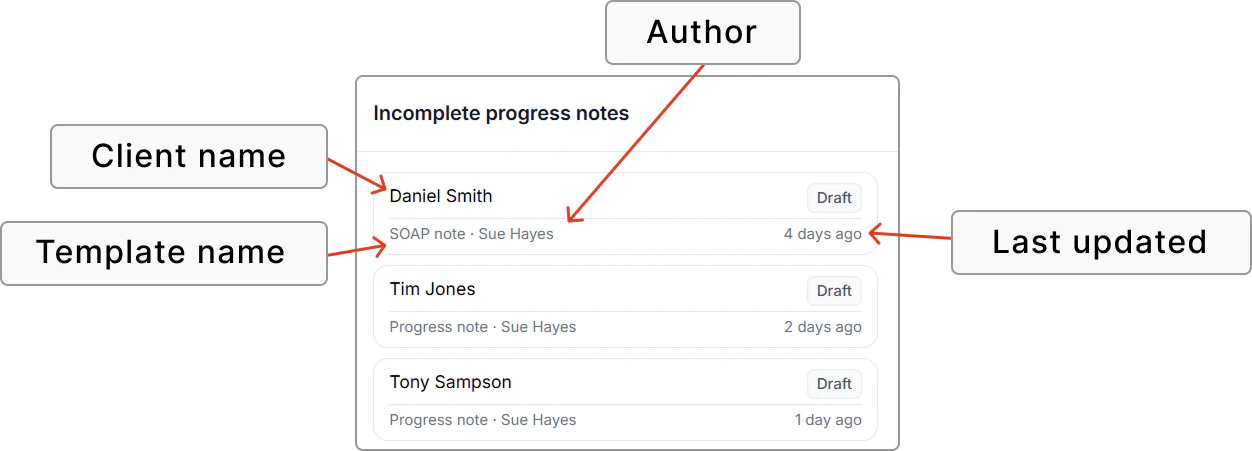
- Each entry shows the client name, progress note template name, status (Draft), author, and last updated date.
Completing a progress note
- Go to your Dashboard.
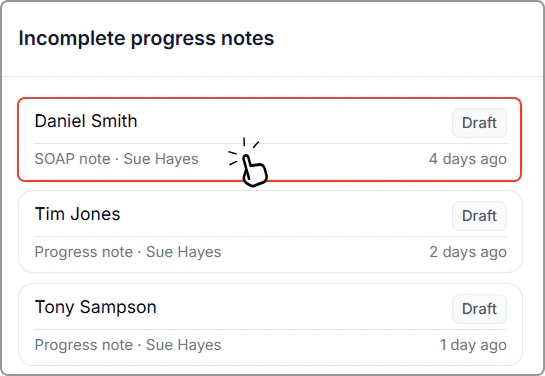
- Under Incomplete progress notes, click any Draft note you authored.
- The note opens in the Progress notes editor.
- Review, complete, and Finalize the note.
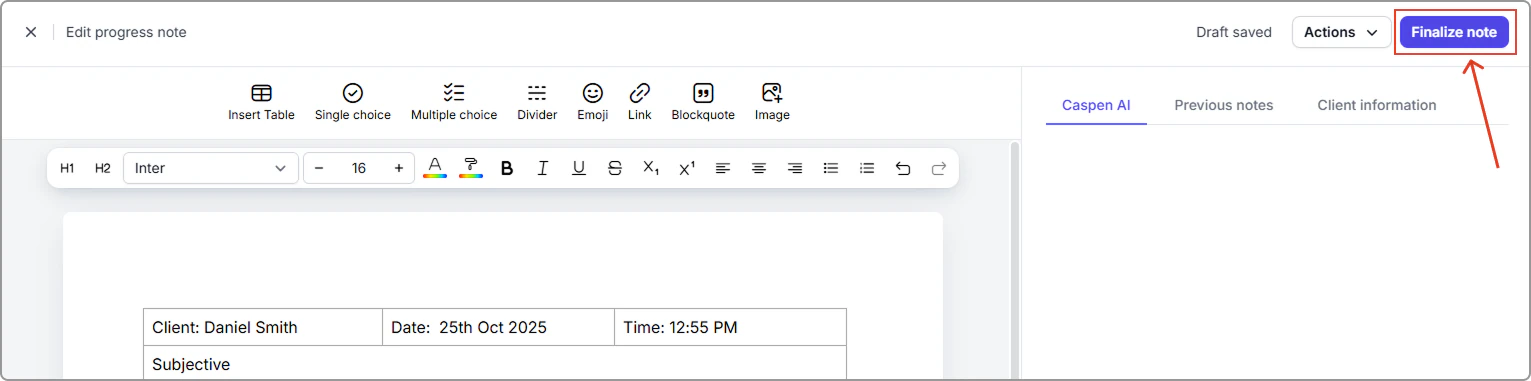
Once finalized, it will be removed from your Incomplete progress notes panel.