> For the complete documentation index, see [llms.txt](https://support.caspen.com/llms.txt). Markdown versions of documentation pages are available by appending `.md` to page URLs; this page is available as [Markdown](https://support.caspen.com/using-caspen/calendar/busy-times/add-a-busy-time.md).
# Add a busy time
Learn how to add a busy time in your calendar to block out time for lunch, meetings, and other unavailable time.
## Overview
Block out time in your calendar for non-appointment work (for example, lunch, meetings, self-education). **Busy time** prevents new bookings during that period and helps your team see when you are unavailable.
## Add a busy time in your calendar
1. Open **Calendar** and set the **location** (clinic/practice) and **practitioner**.
2. Click a time slot and select **Busy time**.
3. Enter the busy time details:
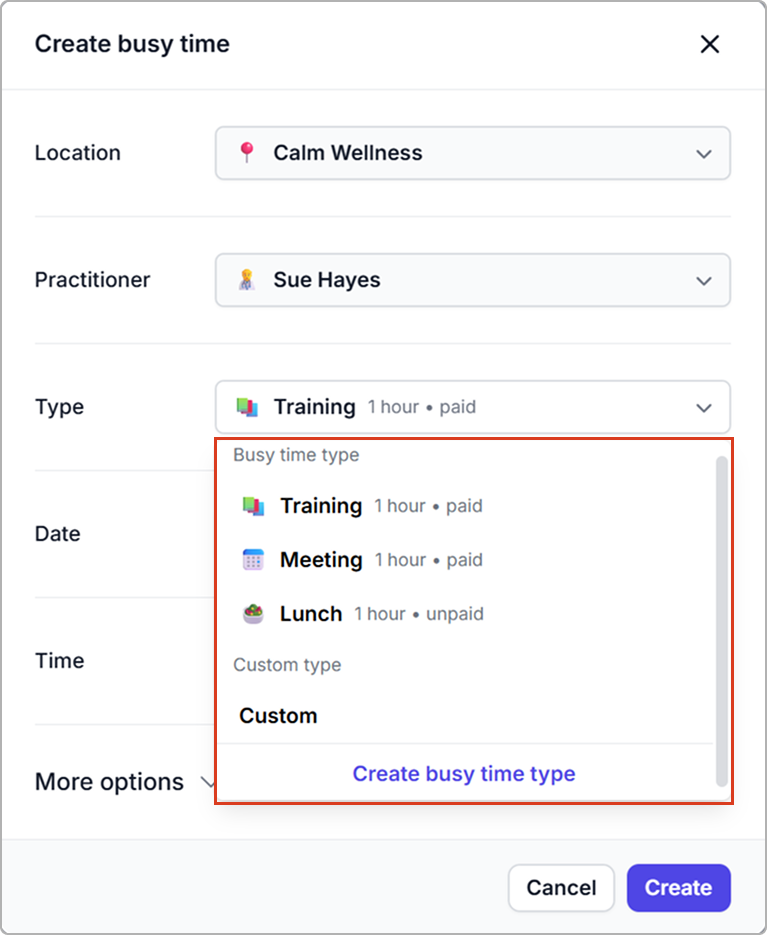
1. **Busy time type:** Choose a default type (for example, **Training**, **Meeting**, **Lunch**, or **Custom**).
2. **Date and time:** Set the date, start time, and duration.
3. **More options (optional):** Add a **Note**, turn on **Repeat**, or add a **Resource**.
4. Click **Create**.
**Result**
* New bookings cannot be made during that time either in the calendar or through online bookings.
Busy time example.
***
### Choose a busy time type
* **Training / Meeting / Lunch:** Preset name, emoji, and default duration. You can change the duration when adding it, or edit the presets in **Settings** → **Busy time types**.
* **Custom:** One off entry. Set a name for this entry only (optional).
> Select **Create busy time type** in **Busy time type**, set the details, and it will be available in the dropdown and in **Settings** → **Busy time types**. See [Manage busy time types](/using-caspen/settings/appointments/manage-busy-time-types.md).
### Fields reference
| Field | Description |
| ------------ | ------------------------------------------------------------------------------------------------------------------------------------------------------------------------------------------------------------- |
| Location |
Where the busy time applies. Prefilled from the selected calendar location.
|
| Practitioner |
Who the busy time block belongs to. Prefilled from the practitioner you’ve selected in the calendar.
|
| Type |
Pick a preset (Training, Meeting, Lunch, etc.) or Custom.
Presets include a default duration and paid or unpaid flag that you can change.
|
| Date | The day for the block. |
| Time | Start and end. You can override the default duration here. |
| Repeat |
Create a repeating series.
Repeat on days – Select the days of the week.
Repeat every – Choose Week, 2 Weeks, 3 Weeks, or 4 Weeks.
End after – Number of occurrences.
|
| Room | Reserve a room. |
| Vehicle | Reserve a vehicle. |
| Resources | Reserve any items you need. |
| Note | Add context such as the meeting topic or location details. |
***
Example: : Set a repeating lunch break for Monday–Friday.
1. Got to the **Calendar.** Set the **location** (clinic/practice) and **practitioner**.
2. Click a desired time slot in the calendar and select **Busy time**.
3. Enter the busy time details.
* Type: Lunch
* Time: 12:00 pm–1:00 pm
* More options → Repeat: On
* Repeat on days: Mon, Tue, Wed, Thu, Fri
* Repeat every: Week
* End after: entered 10 occurrences to create two weeks of weekday lunch blocks (one per day).
2. Click **Create.** You’ll see the repeated busy times on the selected days.