> For the complete documentation index, see [llms.txt](https://support.caspen.com/llms.txt). Markdown versions of documentation pages are available by appending `.md` to page URLs; this page is available as [Markdown](https://support.caspen.com/using-caspen/settings/appointments/set-up-email-and-sms-appointment-notification-sets.md).
# Set up email and SMS appointment notification sets
Learn how to set up templates for appointment booking confirmations, reminders, reschedules, and cancellations.
## Before you start
Make sure clients can receive automated messages:
* Clients have a valid mobile number and email.
* You have SMS credits available: **Settings** → **SMS Credits**.
* **Note:** SMS is sent to the client’s **primary** phone number, and it must be a mobile number.
***
## How notification sets work
The **default appointment notification set** is used for any service that does not have a specific set assigned.
Create **custom sets** when a service needs different wording or reminder timing.
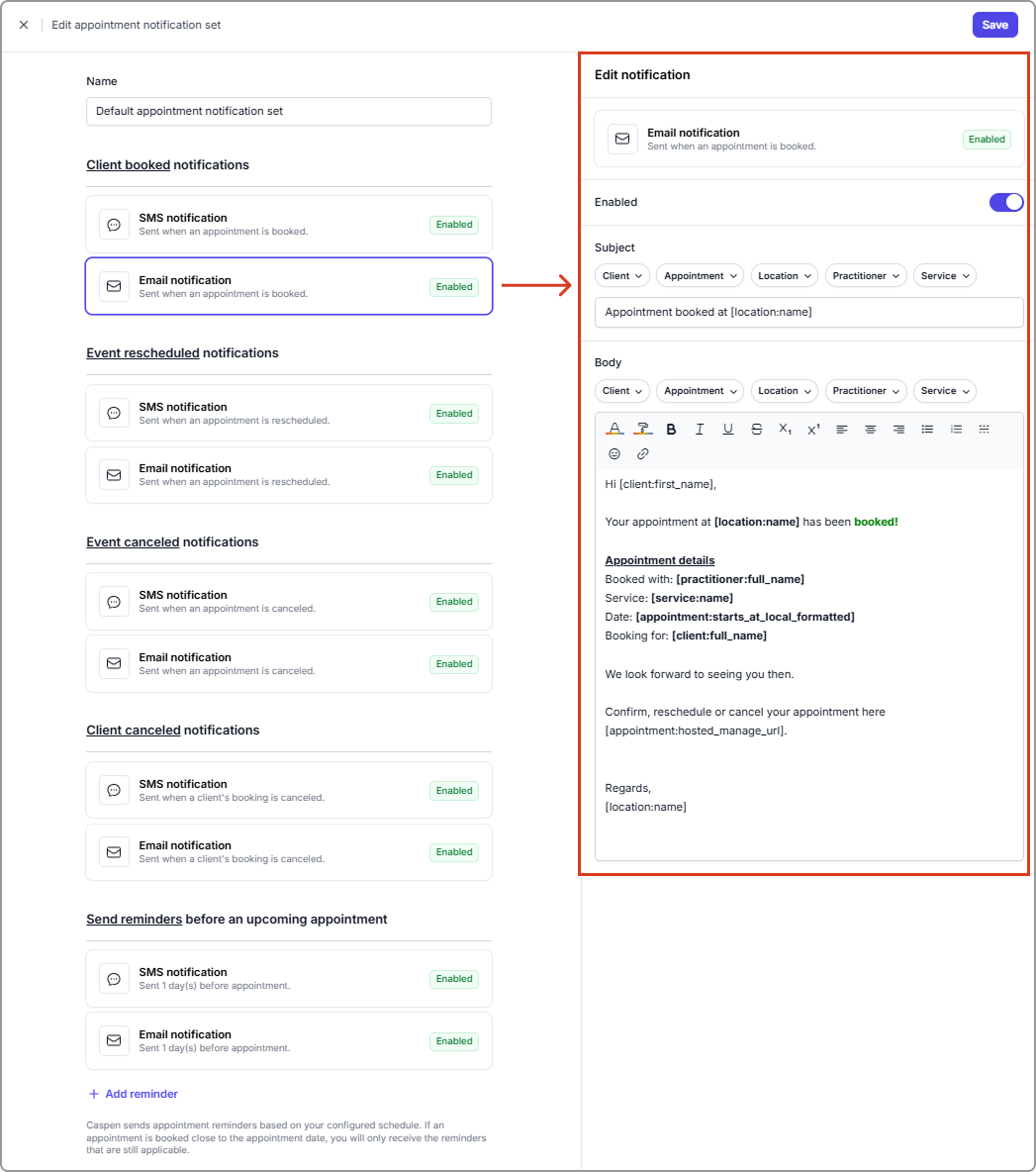
Each set includes templates for:
* **Client booked** notifications (SMS, Email)
* **Event rescheduled** notifications (SMS, Email)
* **Event canceled** notifications (SMS, Email)
* **Client canceled** notifications (SMS, Email)
* **Reminders** before the appointment (SMS, Email; one or more)
Each message type has:
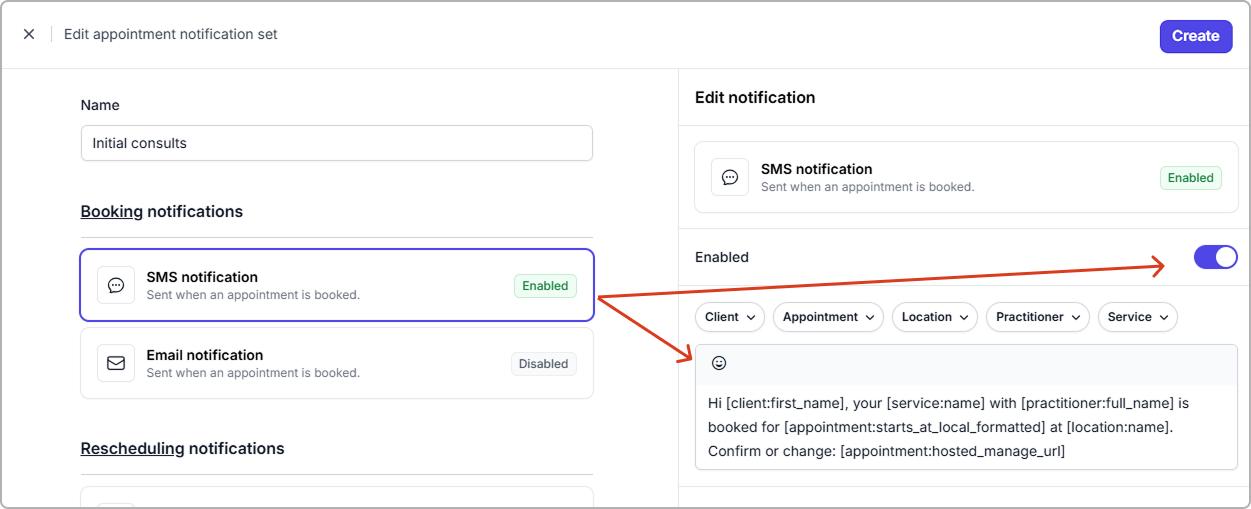
* An **Enabled** toggle
* When off, the tile shows **Disabled** and Caspen will **not send** that specific SMS or email for that notification type.
* A content editor with placeholders for **Client**, **Appointment**, **Location**, **Practitioner**, and **Service** details
> **Tip:** In the set editor, templates are grouped into sections (for example, **Client booked** and **Event canceled**). Select the **SMS notification** or **Email notification** tile in the section you want to update.
***
## Triggers at a glance
| Message type | What it is | When it sends |
| ----------------- | ------------------------------------------------------ | -------------------------------------------------------------------------- |
| Client booked | Sends the booking confirmation message. | When an appointment is booked online or created in the calendar. |
| Event rescheduled | Notifies the client that the date or time has changed. | When an appointment is rescheduled. |
| Event canceled | Notifies the client that the appointment was canceled. | When an appointment is canceled. |
| Client canceled | Notifies the client that their booking was canceled. | When a client cancels their booking. |
| Reminders | Reminds the client before the appointment. | At the reminder intervals you set, relative to the appointment start time. |
> **Reminders:**
>
> Sent only if the reminder window still applies. Appointments created close to the start time may skip earlier reminders.
>
> **Example:** If you have a 24 hour reminder and a 2 hour reminder, and you book at 1:30 pm for a 3:00 pm appointment, those reminders will not send because their send times have already passed. Only a reminder that still falls before the start time would send (for example, a 1 hour reminder).
***
## Edit the default set
> **Tip:** By default, all services use the **default** set. You can edit the **default**, or **duplicate** it to test changes without affecting current messages. If you create another set, link only the services that need different reminders. Others will keep using the **default** automatically.
Use this when the same wording and timing should apply to most or all services.
1. Go to **Settings** → **Appointment notification sets**.
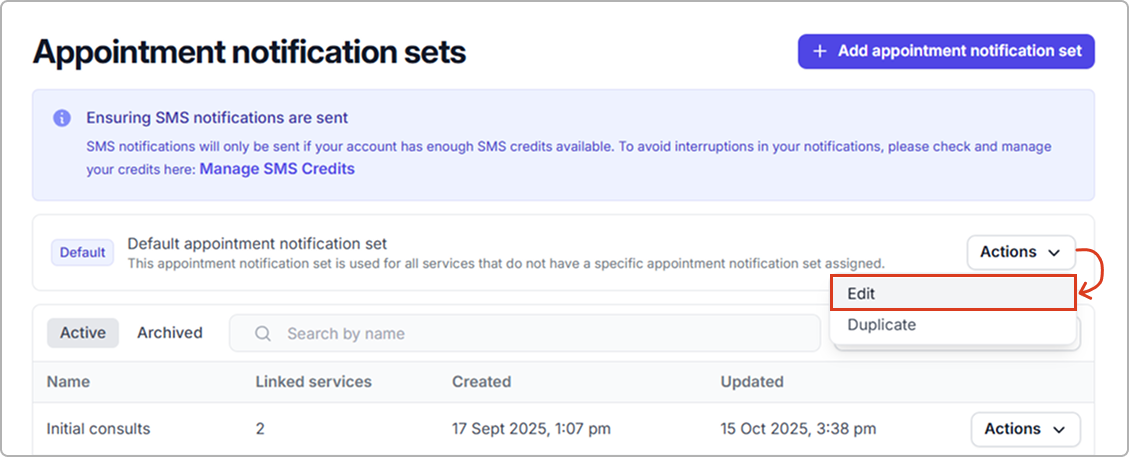
2. Next to the **default appointment notification set**, select **Actions** → **Edit**.
3. In the left column, select the message type you want to change.
4. In the editor on the right, toggle **Enabled** on or off (when off, it shows **Disabled**) and update the message.
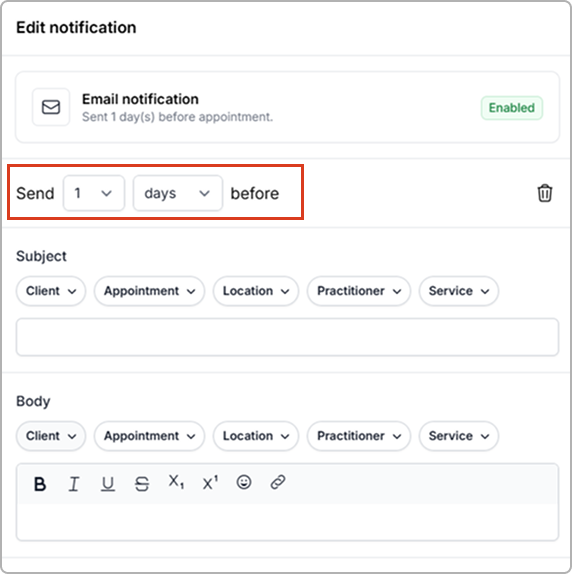
5. For **Reminders** set **Send** to the number of **hours** or **days** before the appointment (to dictate when reminders are sent).
6. Click **Save**.
> Add or adjust reminders in this set — see [**Add reminders**](#add-reminders) for more info**.**
***
## Create a custom set
Use this when a service needs different wording or reminder timing.
1. Go to **Settings** → **Appointment notification sets**.
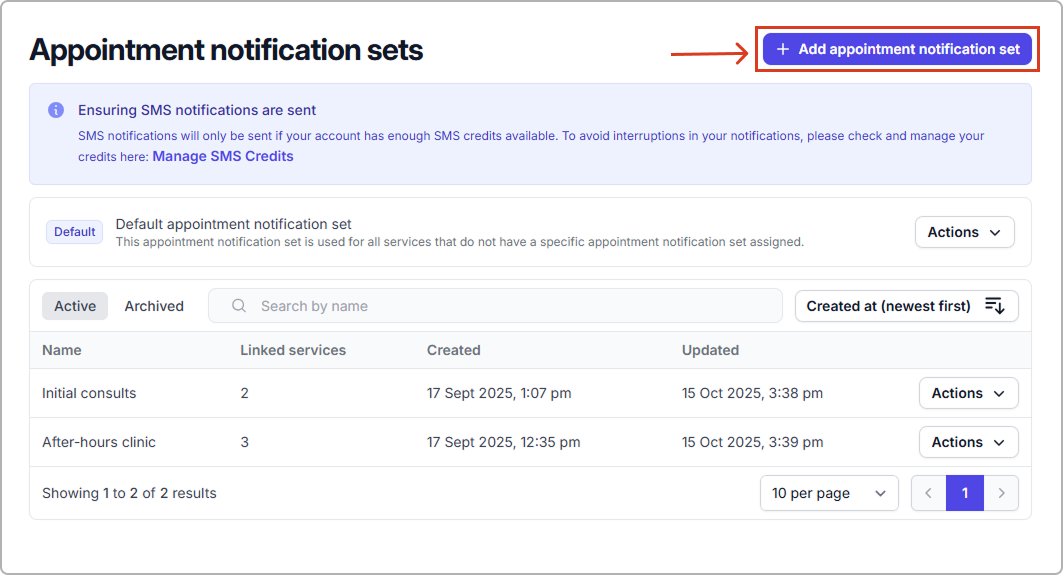
2. Click **Add appointment notification set**.
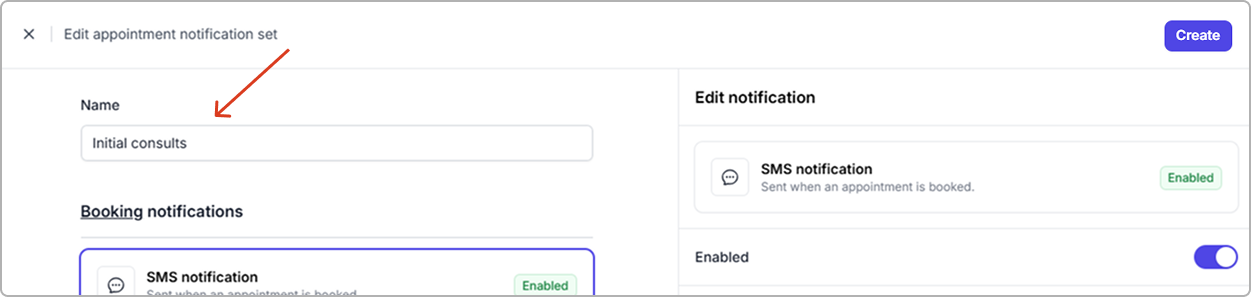
3. **Name** the set (top-left).
4. Turn **Enabled** on for the message types you want to send and write the content.
5. Add one or more **Reminders** and set the timing (when the reminders should be sent.
6. Click **Create** (top-right).
> Add or adjust reminders in this set — see [**Add reminders**](#add-reminders) for more info.
{% hint style="success" %}
**Next:** Link your new set to a service so it is used for bookings.
{% endhint %}
***
## Link a set to a service
Assign a custom set so those messages and reminders apply to that service.
**Steps**
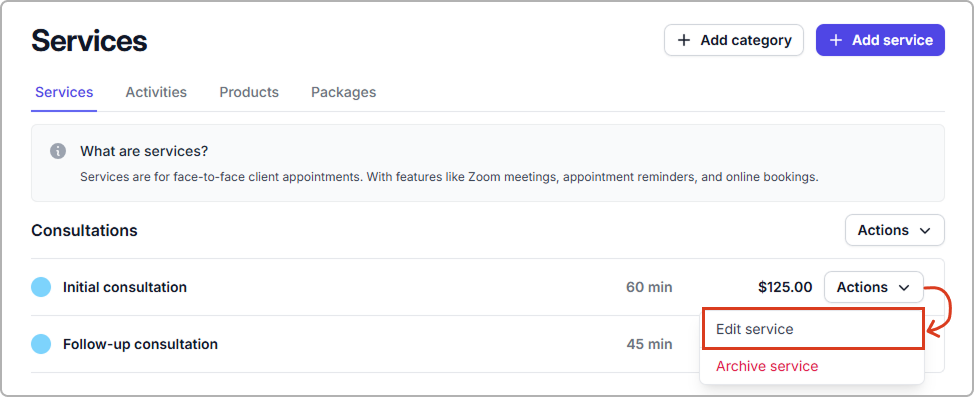
1. Go to **Catalog** → **Services.**
2. Find the service you want to link to a notification set, then click **Actions** → **Edit service**.
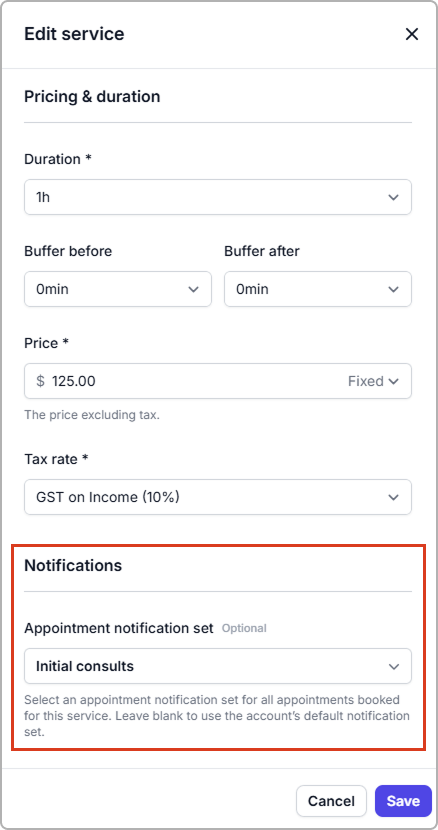
3. Scroll to **Notifications**. In **Appointment notification set**, choose the set you want. If none is selected, the **Default** **set** is used.
4. Click **Save** (bottom-right).
**Result**
* That service now uses the selected set.
* Services without a selection continue to use the **default** set.
***
## Add reminders
You can add multiple reminders to the same set. Each reminder can be scheduled in **hours** or **days** before the appointment.
{% hint style="info" %}
You can send reminders up to **7 business days** in advance, or as close as **1 hour** before the appointment.
{% endhint %}
**To add a reminder**
1. Go to **Settings** → **Appointment notification sets**.
2. Find the set and select **Actions** → **Edit**.
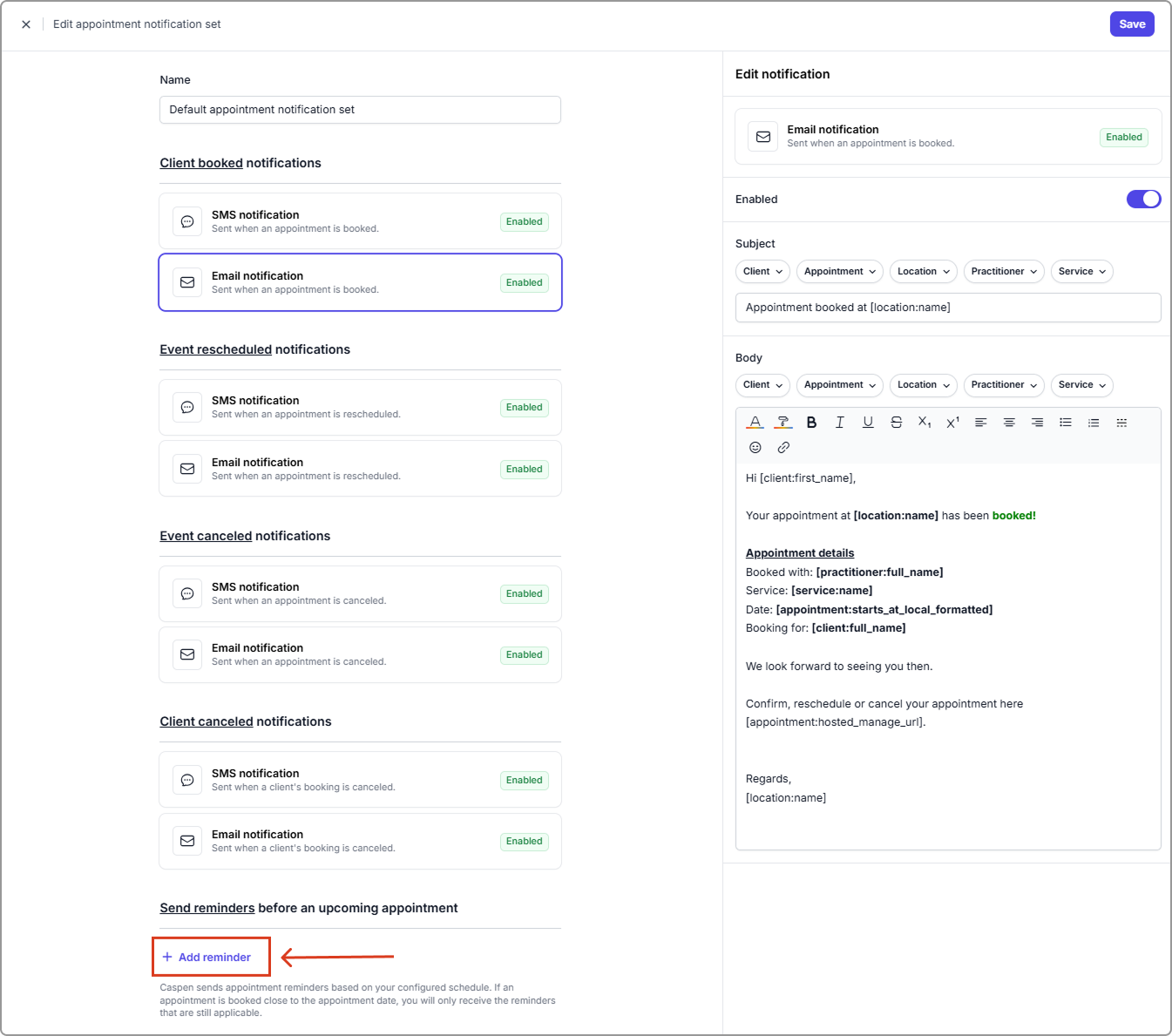
3. Under **Send reminders**, click **Add reminder**, then select **Add SMS reminder** or **Add Email reminder**.
4. In the editor on the right, set **Send** to how many hours or days before the appointment the reminder should be sent.
5. **Write your message** and click **Save** (top-right).
***
## Duplicate or archive a set
Duplicate when you want a copy to adjust instead of starting from scratch.\
Archive when you no longer want a set selectable for new services.
Steps
1. Go to **Settings** → **Appointment notification sets**.
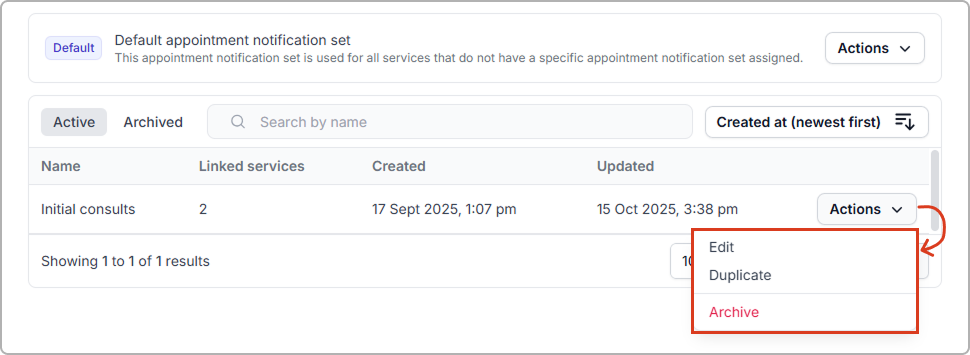
2. In the list, open **Actions** for the set.
3. Choose **Duplicate** or **Archive**.
**What happens when archived**
* The set moves to the **Archived** tab and cannot be edited or linked to new services.
* **Old messages don’t disappear.** If a service was using that set, any messages already sent (or logged) will still be visible in the client’s communication history.
> **Note:** You cannot archive the **default** set.
{% hint style="info" %}
To archive a set, first **unlink** it from every service: **Catalog** → **Actions** → **Edit** the service → clear the **Appointment notification set** → **Save**.
{% endhint %}
***
**Related articles:**
* [SMS character limits and credit usage guide](/using-caspen/settings/billing/sms-character-limits-and-credit-usage-guide.md) (explains segments and credits)
* [Set up email and SMS class notification sets](/using-caspen/settings/appointments/set-up-email-and-sms-class-notification-sets.md) – Customize messages for class bookings, moved or canceled bookings, event changes, and reminders before upcoming classes.
***
## Frequently asked questions
Why aren’t my clients getting SMS notifications?
Work through these checks:
* **SMS credits:** Confirm you have credits in Settings → SMS Credits.
* **Enabled:** Make sure the relevant message type (Booking, Reminder, Reschedule, Cancellation) is Enabled in the set.
* **Correct set:** Check the service is linked to the intended notification set; otherwise it uses the default set.
* **Client mobile:** Verify the client’s primary phone is a valid mobile (not a landline), and check that the correct country code is selected. What if the wrong wording was sent?
Make sure the service is linked to the correct notification set. Changes apply to future sends only.
Why did my reminder not send?
* The appointment was created or edited after that reminder’s send window (e.g., booked too close to the start time).
* The reminder is disabled in the set, or its send time had already passed when the appointment was made.
* Also worth checking: SMS credits, the service is linked to the intended set, and the client has a valid mobile number.