> For the complete documentation index, see [llms.txt](https://support.caspen.com/llms.txt). Markdown versions of documentation pages are available by appending `.md` to page URLs; this page is available as [Markdown](https://support.caspen.com/using-caspen/settings/customize-your-online-branding.md).
# Customize your online branding
Customize the look of your online booking, profile, and client portal pages.
## Overview
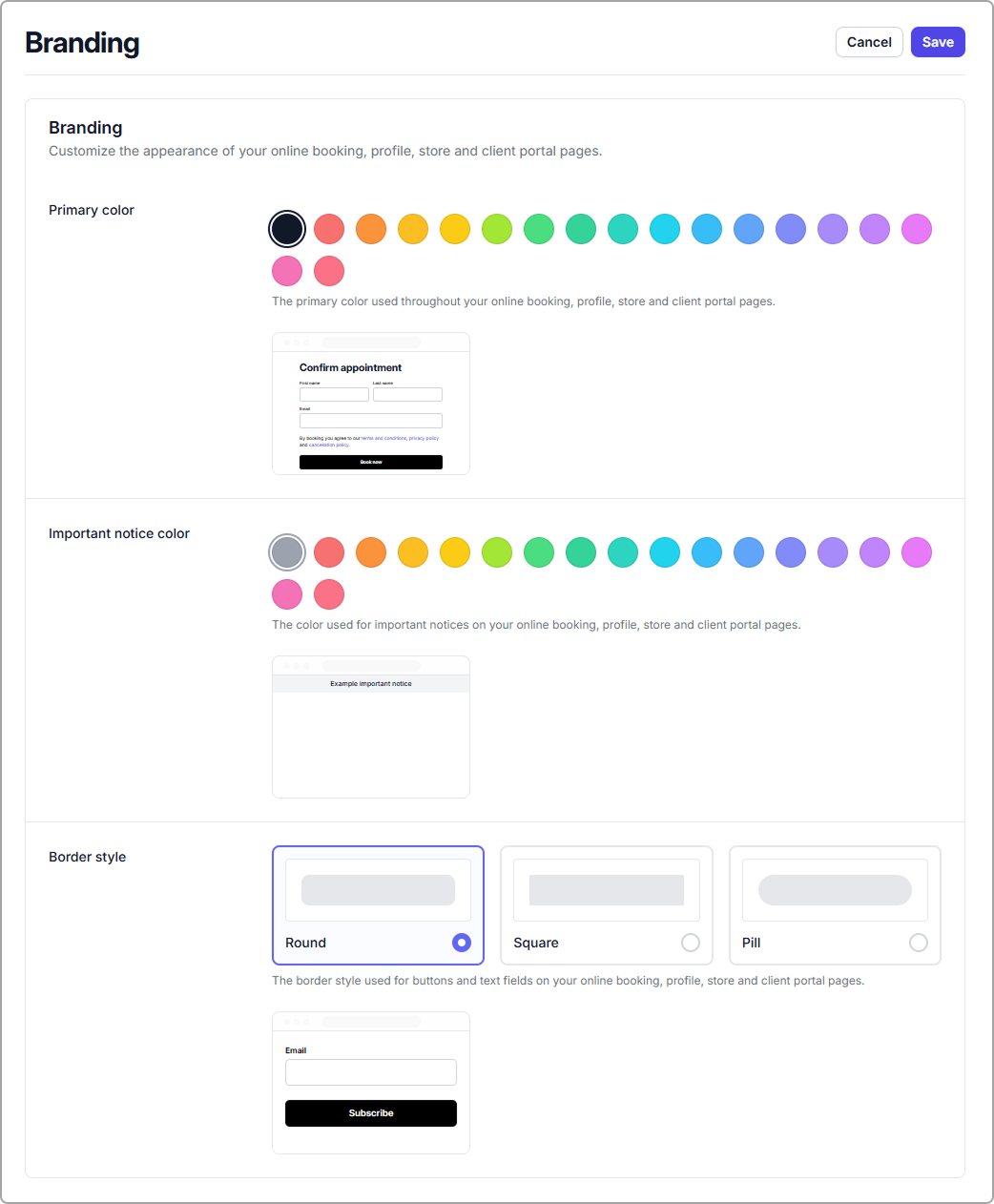
Branding settings let you choose your colors and styling so your client facing pages match your brand. You can set:
* **Primary color** for buttons, links, and highlights
* **Important notice color** for banners and key messages
* **Border style** for buttons and text fields
These changes apply to your online pages (booking, profile, client portal). You can update them anytime.
***
## Open branding settings
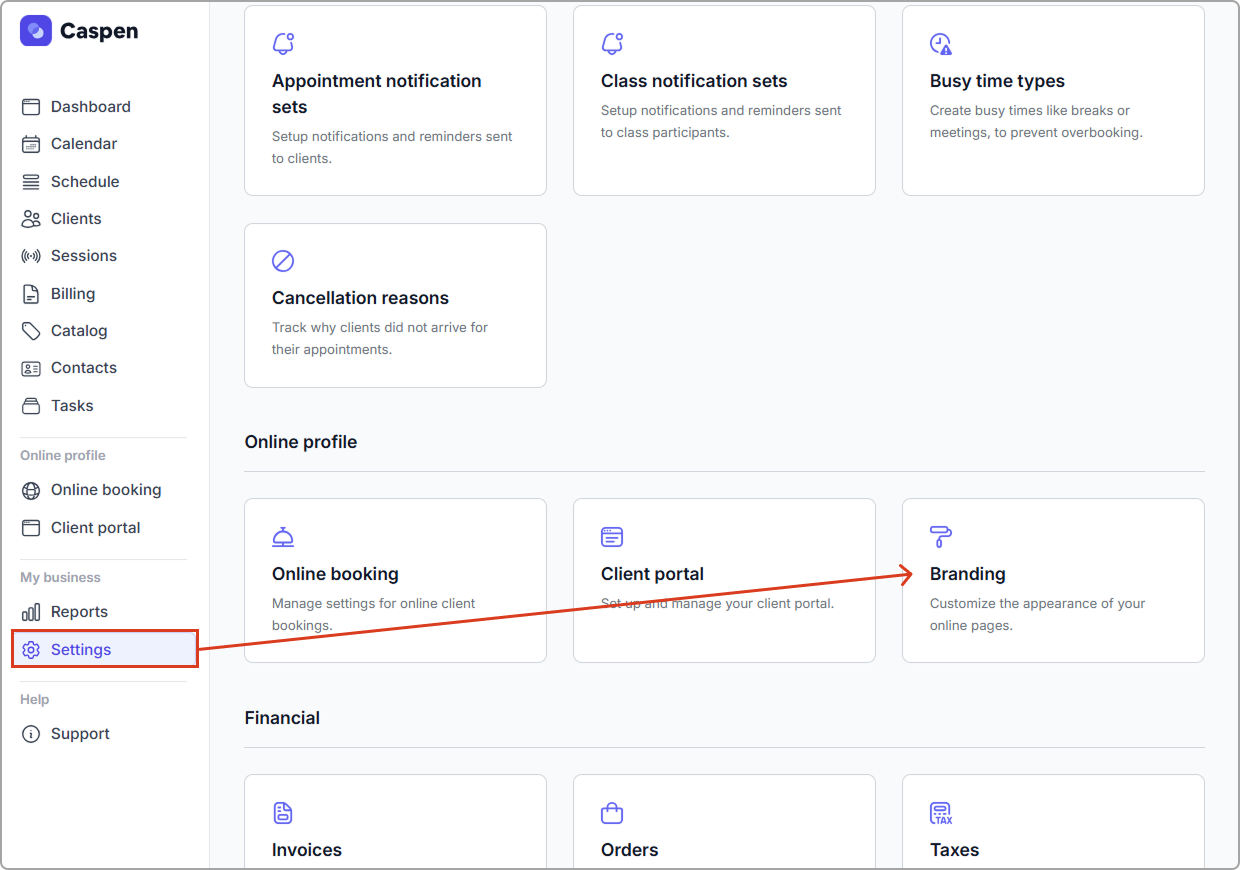
1. Go to **Settings** → **Branding**.
2. Update any of the branding options.
3. Click **Save** (top-right) to apply changes.
Tip: If you want to exit without applying changes, click Cancel.
**After you save:**
* Preview your booking page or client portal to see the latest styling.
* If you do not see the update straight away, try refreshing your page.
***
## Branding options:
### Primary color
**What it controls**\
Your primary color is used throughout your online pages for key UI elements like buttons and highlights.
**Example**\
Your logo is teal, so you choose a teal primary color to match your brand across booking buttons and headings.
**Good to know**\
If you pick a very light color, make sure text and buttons still have strong contrast for readability.
***
### Important notice color
**What it controls**\
This color is used for important notices shown on your online pages, like alert banners or callouts.
Examples
* Choose amber for general attention messages (like “Please arrive 10 minutes early”).
* Choose red for urgent messages (like “Bookings close in 2 hours”).
**Tip**
* Pick a notice color that stands out from your primary color so notices are clearly visible.
***
### Border style
**What it controls**\
Border style changes the shape of buttons and text fields on your online pages.
Options include:
* **Round** (soft corners)
* **Square** (sharp corners)
* **Pill** (fully rounded)