> For the complete documentation index, see [llms.txt](https://support.caspen.com/llms.txt). Markdown versions of documentation pages are available by appending `.md` to page URLs; this page is available as [Markdown](https://support.caspen.com/using-caspen/settings/staff/create-user-groups.md).
# Create user groups
Learn how to organize and group users in Caspen.
## Overview
User groups let you organize users into meaningful categories based on your practice needs. Groups can represent professions, areas of interest, specialty services, availability, or any structure that helps you manage your team more effectively.
Creating user groups helps keep your workspace organized and makes it easier to reference and work with sets of users as your practice grows.
\
**Examples of user groups you might create**
* Physiotherapists
* Psychologists
* Practitioners who treat children
* After hours clinicians
* Telehealth providers
* Contractors
* Admin team
These are only examples. You can create any group that reflects how your practice operates.
***
## How to create a user group
1. Go to **Settings** → **Groups**.
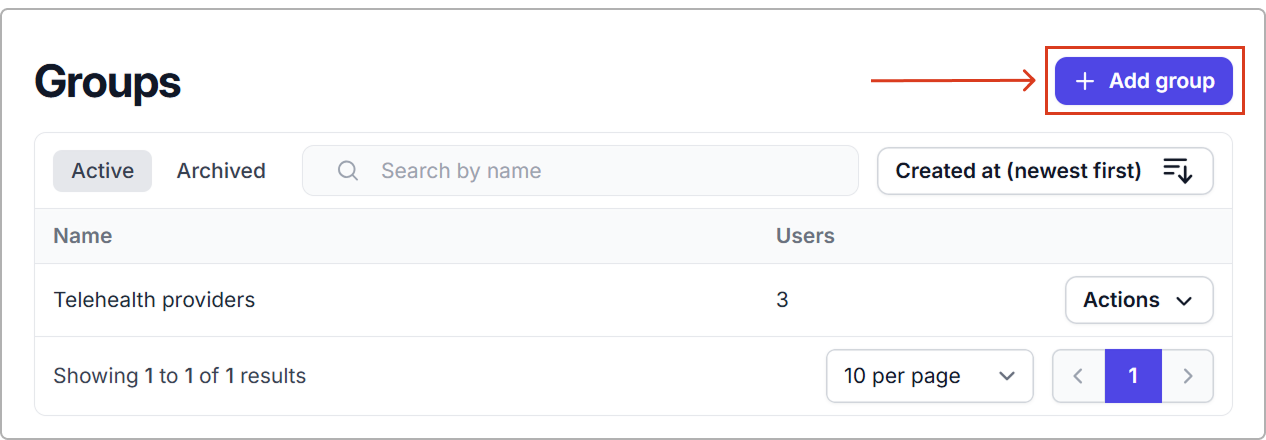
2. Click **Add group**.
3. Enter a name for the group.
4. Select the users you want to include.
5. Click **Save**.
Your new group will appear in the list, along with the number of users assigned to it.
***
## Managing groups
From the Groups page, you can:
* **See how many users are in each group**\
The **Users** column shows the total number of users currently assigned to the group.
* **View and update group members**\
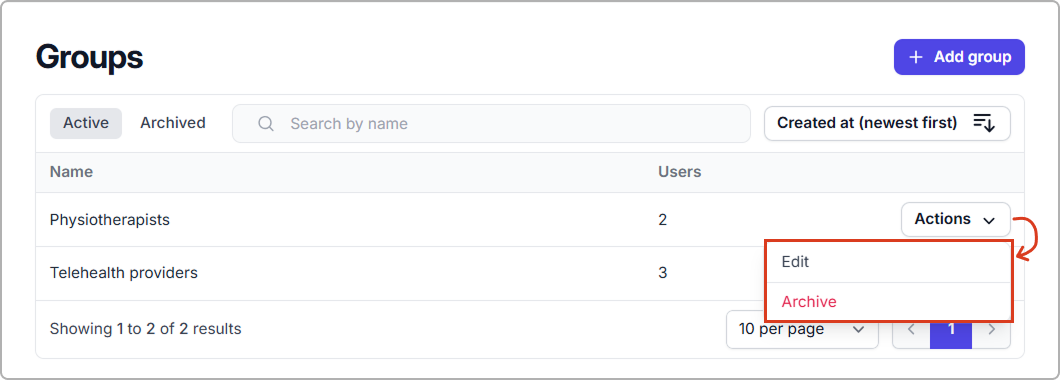
Click **Actions** → **Edit** to see which users belong to the group, add or remove users, or rename the group.
* **Archive a group**\
Click **Actions** → **Archive** to move the group out of your active list without losing it.
* **Restore an archived group**\
Go to the **Archived** tab, then click **Actions** → **Restore** to move the group back to Active.
Changes apply immediately.\