> For the complete documentation index, see [llms.txt](https://support.caspen.com/llms.txt). Markdown versions of documentation pages are available by appending `.md` to page URLs; this page is available as [Markdown](https://support.caspen.com/using-caspen/settings/templates/set-up-form-templates.md).
# Set up form templates
Create professional forms for new clients, existing clients, and other practice workflows.
## Overview
Form templates let you create reusable digital forms for existing clients and public intake workflows, such as intake forms, consent forms, screening tools, questionnaires, and referral forms.
Templates can include text fields, choice fields, signatures, images, and client fields such as name, email, phone, and date of birth.
Caspen supports two types of form templates:
* **Client form**\
Used by clients who already exist in Caspen. Client forms are sent from a client profile or completed in person during a session.
* *Examples: consent forms, clinical questionnaires, pre-session check-ins, intake forms.*
* **Intake form**\
Intake forms are public-facing forms used for people who are not yet clients in your Caspen account. When submitted, Caspen automatically creates a new client record using the information provided.
Intake forms can be shared externally via link, QR code, email, SMS, or **embedded** on your website.
* *Examples: referral forms, prospective client enquiries, pre-screening questionnaires.*
{% hint style="warning" %}
**Important**\
Form types cannot be changed after creation. Decide which form type you need (Client form or Intake form) before continuing.
{% endhint %}
***
## Add a form template
1. Go to **Settings** → **Form templates**.
2. Click **Add form template**.
3. Choose **Client form** or **Intake form**, then click **Create**.
4. **Add the basics**
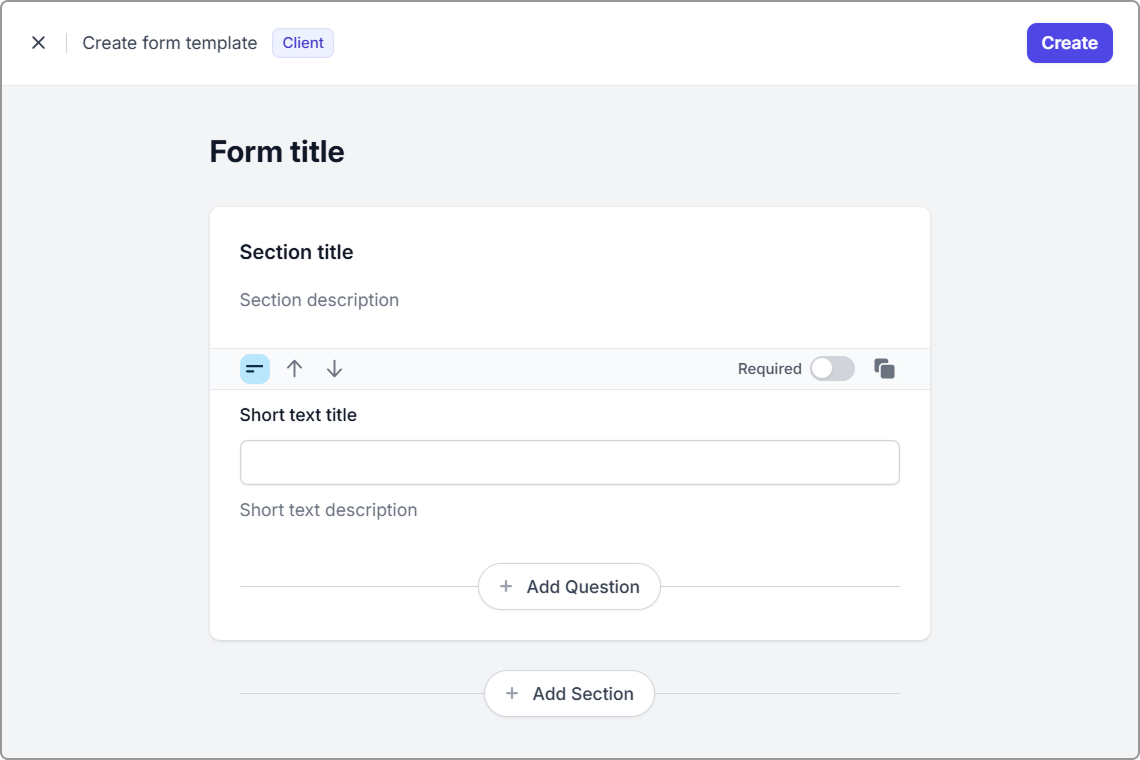
Give your form a structure by adding a title and organizing content into sections.
**4.1 Add a title**
Name your form so clients understand what it is for\
(e.g. *Initial consultation intake*, *Consent to treatment*).
**4.2 Add sections *****(optional)***
Create logical groupings of related questions, each with its own heading and optional description, such as:
* Personal Information
* Consent,
* Medical History
Use **Add section** to create each group before adding questions to it.
**4.3 Add questions**
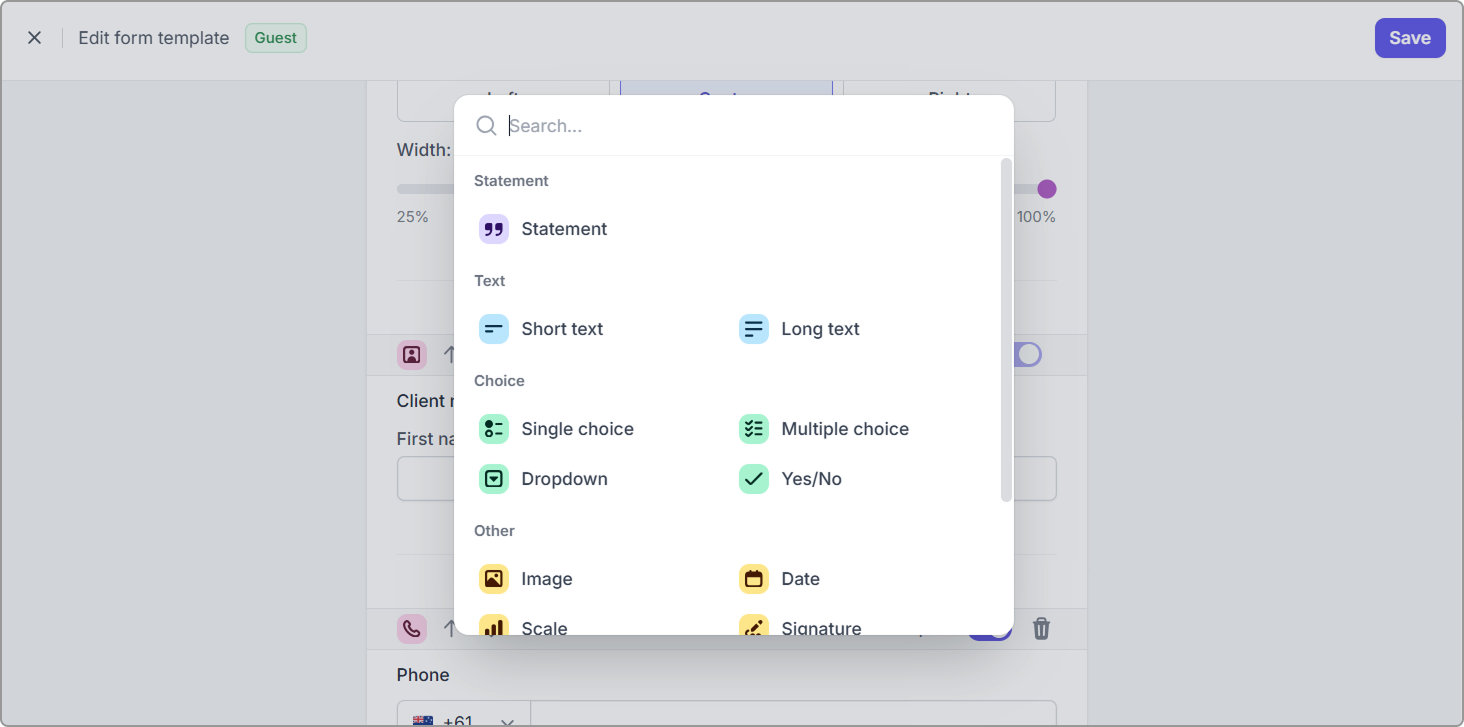
Inside each section, click **Add question** to add fields that collect or display information (e.g. Statement, Image).
You can mark a question as **Required** if it must be completed before the form can be submitted.
> **Tip:** Use the arrow icons to reorder questions, and use the bin icon to delete any you no longer need.
>
> **Note:** Some question types (called **Client fields**) can update the client record automatically, depending on your form template settings.
5\. Click **Create.**
Your form template now appears in **Form templates**.
* **Client forms** can be sent directly from a client profile.
* **Intake forms** can be shared via a link or embedded on your website.
***
## Configure form template settings
To access and customize the settings for a specific form template:
* From the Form templates list, click **Actions** next to the template and select **Settings**, or
* View the form template and click **Settings** in the top right.
The settings panel includes **Design**, **Completion messages**, **Actions**, and **Notifications**. Click **Save** (top-right) to apply changes.
***
#### Design
🗂️ **Category (optional)**
Assign a category to help organize your templates. If you do not choose one, the template stays **Uncategorized**.
Related article: [Manage form template categories](/using-caspen/settings/templates/manage-form-template-categories.md)
🎨 **Theme color**
Choose a theme color. This becomes the primary accent in your form, including the submit button and other interactive elements.
🖼️ **Header image**
Set the header image shown at the top of the form.
* **Default:** your account logo
* **Custom:** upload your own image
***
#### Completion message
Set the message shown to after the form is submitted.\
Example: “Thank you, your form has been received. We will review it shortly.”
***
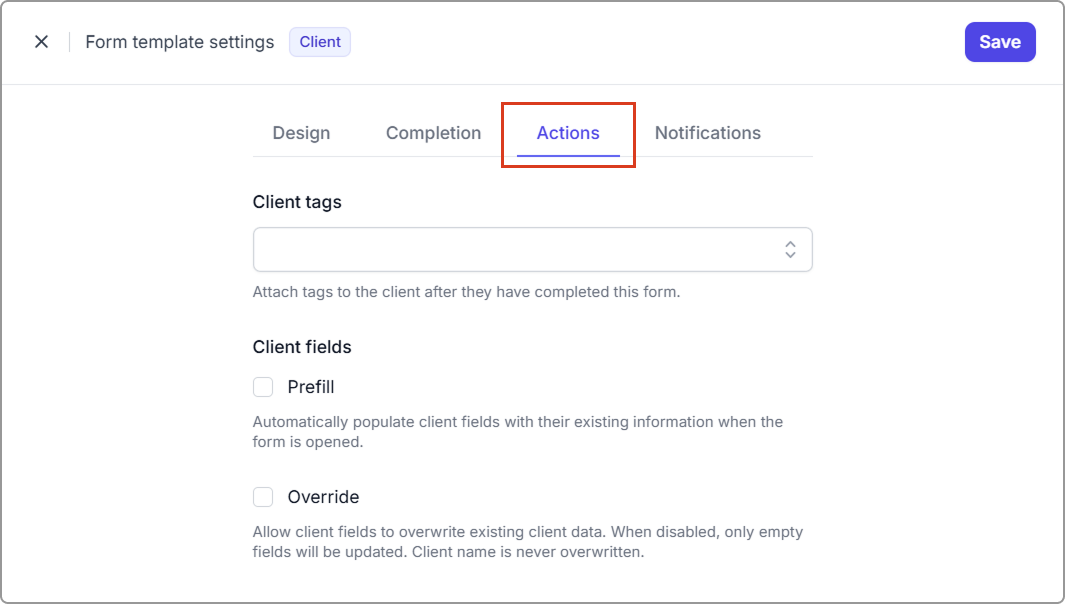
#### Actions
**🏷️Client tags**
Add tags that will automatically be applied to the client after the form is submitted\
(e.g., *New client*, *Prospective client*, *Review*).
No tags yet? See [Set up tags](/using-caspen/settings/set-up-tags.md)
👤**Client fields (Client forms only)**
These settings control how submitted form data interacts with existing client information.
**Prefill**
* **On**: Client fields appear prefilled using existing client details.
* **Off**: Fields stay blank for the client to complete.
**Override**
* **On**: Submitted values replace existing data in the client record.
Important note: *Client name is never overwritten.*
* **Off**: Only empty fields are updated. Existing data remains unchanged.
If Override is off, changes to existing client details will not update the client record automatically. You can review the submission and update the client profile manually if needed.
These settings act as defaults for the template. You can change them each time you create an actual form for a client.
Intake forms do not show Client fields settings because they always create a new client record on submission.
***
#### Notifications
Choose **who, if anyone,** should receive a copy of the completed form.
* **Client**: Enable this option to automatically email clients a PDF copy of their completed form. *Important note: Ensure you include a required email field in your form to ensure delivery.*
* **Users in your practice**: Select specific internal users to notify, and optionally attach a PDF of the completed form.
***
#### Form reminders (Client forms only)
Automatically send reminder emails to your clients for incomplete Client forms using customizable reminder schedules.
***
## Manage form templates
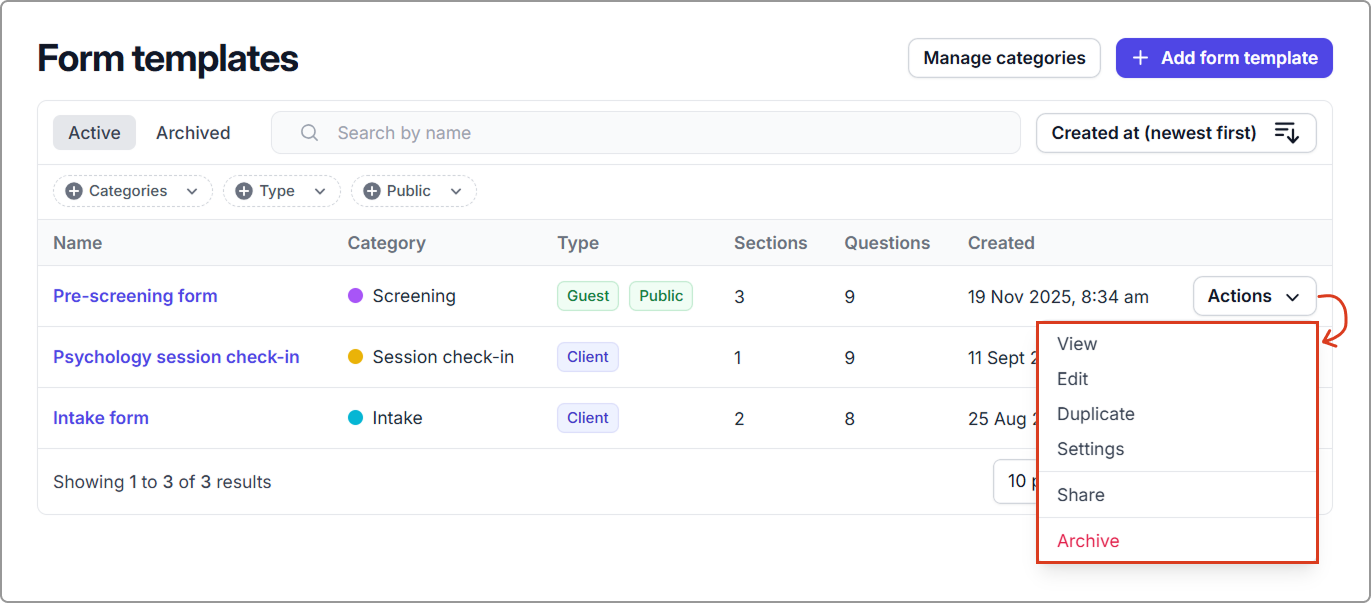
From the **Form templates** list, you can manage, update, or archive templates as needed using the **Actions** menu.
**Screenshot example: Form template Actions menu**
Shows where to view, edit, duplicate, open settings, share an intake form, or archive a form template.
#### **Available actions for active templates**
* **View**
Preview the form as clients will see it.
* **Edit**
Update the form name or template structure (sections and questions).\
*Note: Editing a template does not modify forms already submitted.*
* **Duplicate**
Make a copy of an existing template to use as a starting point.
* **Settings**\
Open the template settings. See [Configure form template settings](#configure-form-template-settings) above for more details.
* **Share** (Intake forms only)\
Copy the public form link, QR code, or embed code to share the form externally or place it on your website.
* **Archive**
Move the template out of active use.\
Archived templates cannot be submitted.
#### **For archived templates**
**Restore**\
Go to the **Archived** tab and select **Actions → Restore** to reactivate the template.
***
## Next steps
Once your template is created:
* Send Client forms directly from a client profile
* Share Intake forms publicly via link, QR code, or website embed
***
**Related articles:**
* [Send a client form](/using-caspen/forms/send-a-client-form.md) - Learn how to send Client forms from a client profile.
* [Share an intake form](/using-caspen/forms/share-an-intake-form.md) - Turn on public access, copy a link, or embed an intake form on your website.
## Frequently asked questions
Can I categorize my form templates?
Yes. You can assign a category to each form template to help you keep templates organized.
How do I set or change a category?
From the left hand main menu, open **Settings → Form templates**. Find your template, then go to **Actions → Settings**. In the settings panel, open **Design** and select a category, then remember to click **Save** (top-right).