> For the complete documentation index, see [llms.txt](https://support.caspen.com/llms.txt). Markdown versions of documentation pages are available by appending `.md` to page URLs; this page is available as [Markdown](https://support.caspen.com/using-caspen/settings/templates/set-up-invoice-templates.md).
# Set up invoice templates
Create and manage invoice templates that fit your business needs. From simple branding updates to detailed layouts for specific clients or funding types.
## Overview
Caspen includes a **standard invoice template** by default. This template is used for invoices unless you select a different one.
You can:
* Edit the standard invoice template.
* Create additional templates for different clients, funders, or services.
* Choose which template to use when you create an invoice.
***
## **Add an invoice template**
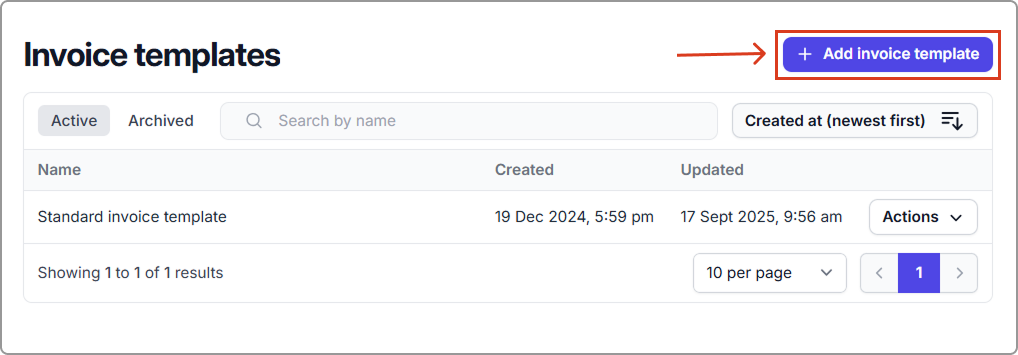
1. Go to **Settings** → **Invoice templates**.
2. Click **Add invoice template**.
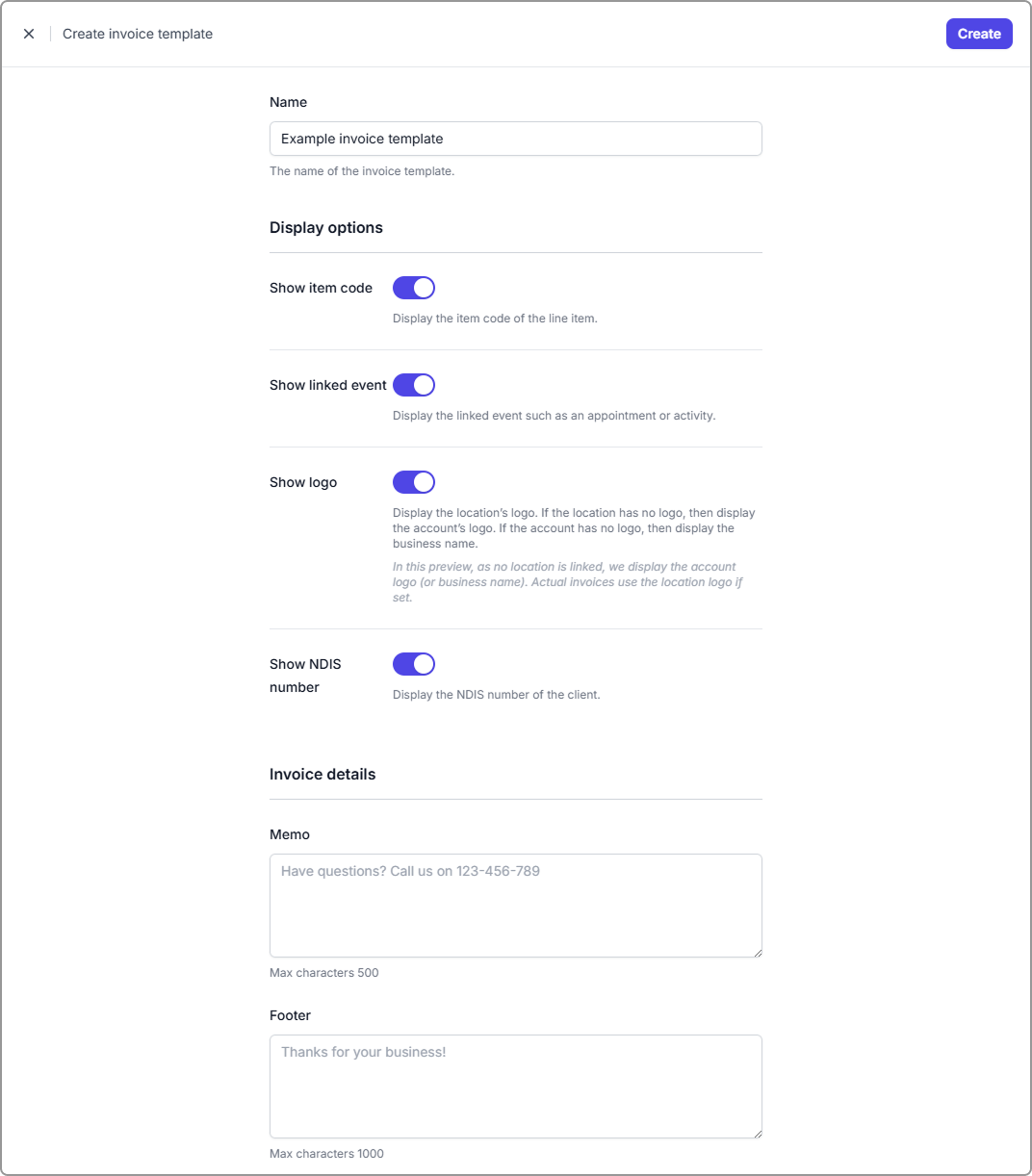
3. Enter the details for your new invoice template.
> See the [Invoice template field reference](#invoice-template-field-reference) below for details about each field.
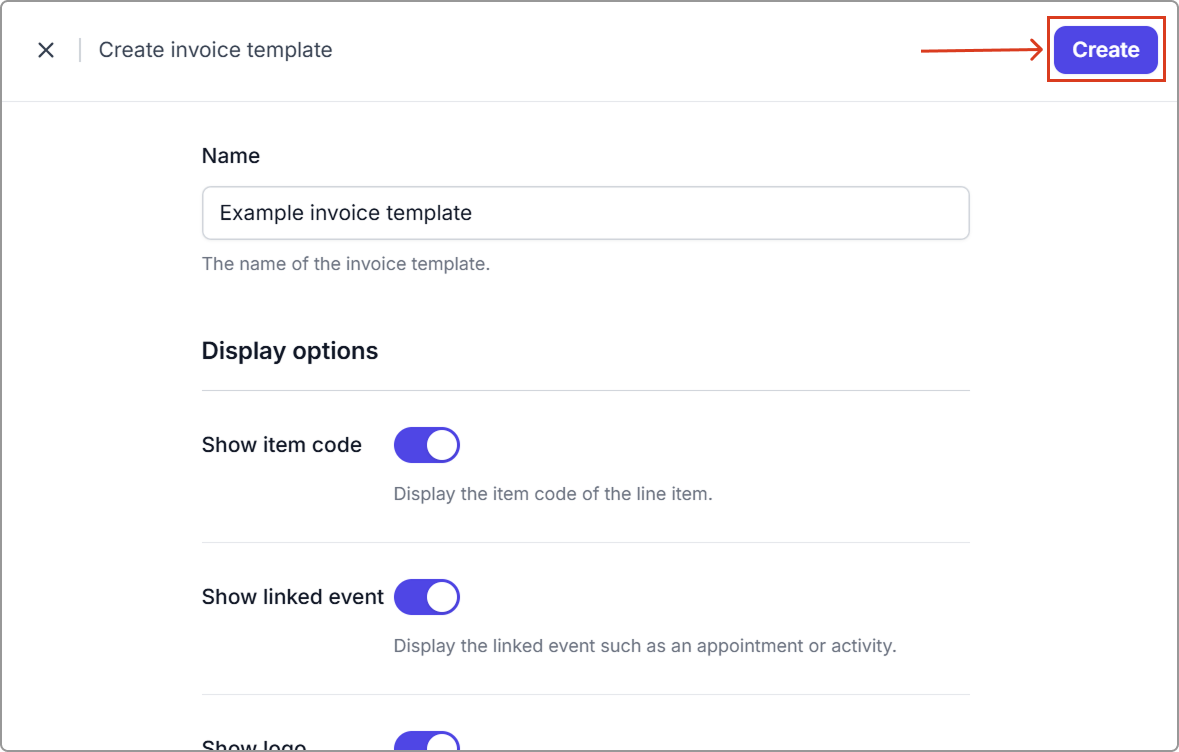
4. Click **Create** (top-right corner).
### Invoice template field reference
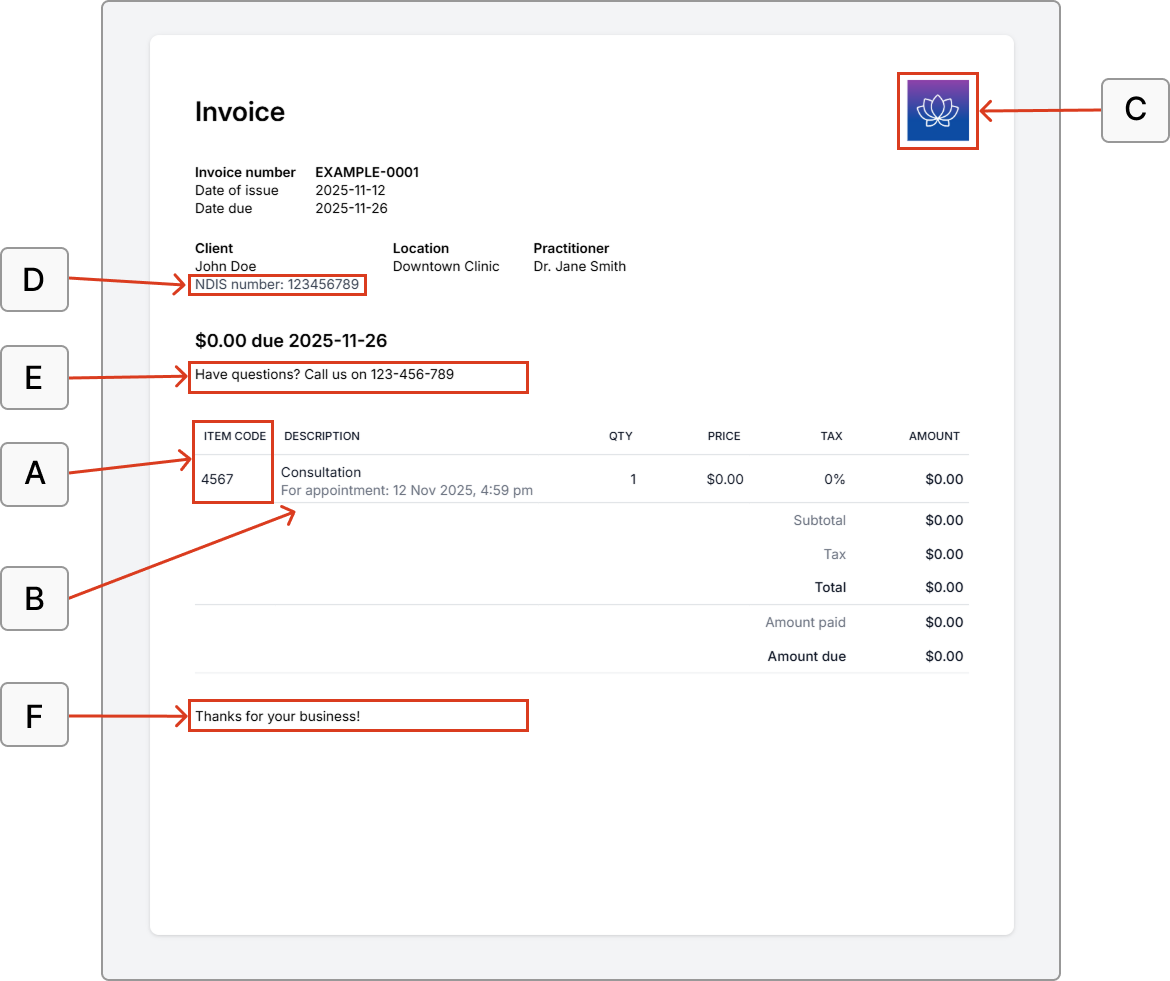
Use the fields below to customize what appears on your invoice templates. The letters (A–F) correspond to the sections marked in the example invoice.
| Field | Description |
| -------------------- | ------------------------------------------------------------------------------------------------------------------------------------------------------------------------------------------------------------------------------------------------------------------------------------------------------------------------------------------------------------------------------------------- |
| A. Show item code | Displays the line item code on the invoice. |
| B. Show linked event | Displays the event related to the invoice (for example: *For* *appointment: Nov 8, 2025, 5:14 PM*). |
| C. Show logo |
Displays the location logo. If no location logo is set, Caspen will use the account logo. If neither is available, the business name will display instead.
Note: In preview mode, the account logo (or business name) is displayed if no location is linked. Actual invoices use the location logo when available.
|
| D. Show NDIS number | Displays the client’s NDIS number if it is saved (Australia-specific). |
| E. Memo |
A short message or note that appears above the line items.
Example memo: “Thank you for your continued support.”
|
| F. Footer |
Text that appears below the line items (for example, payment details, refund policy, or thank-you note).
Example footer: “Payment due within 7 days. BSB: 123-456, Account No: 12345678.”
|
***
## Using your invoice templates
The template will appear in the **invoice template** dropdown when creating a new invoice.\
When selected, your invoice will follow the same layout and settings defined in that template (for example, logo, memo, footer, etc.).
***
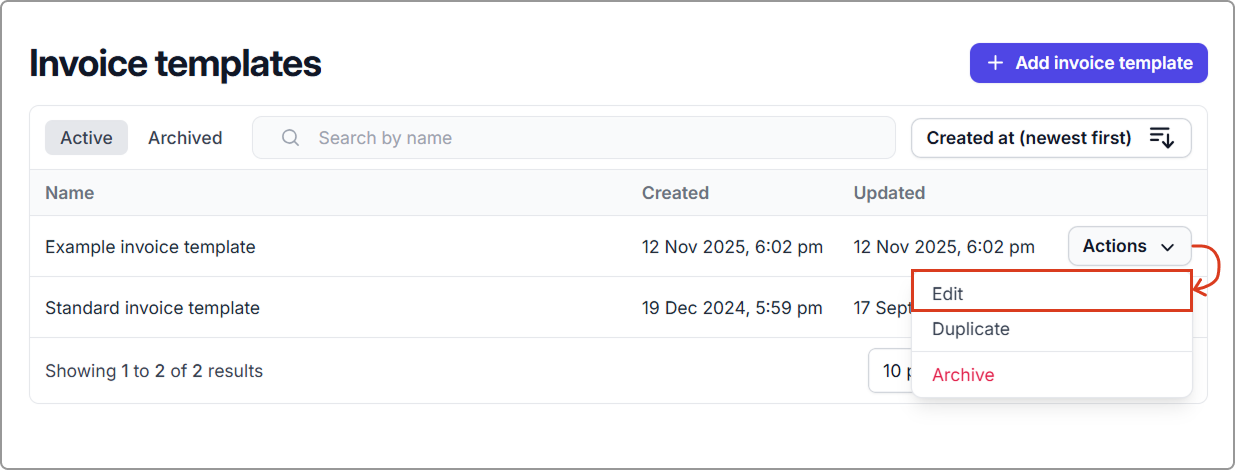
## **Edit an invoice template**
1. Go to **Settings** → **Invoice templates**.
2. Find the template you want to edit.
3. Click **Actions** → **Edit**.
4. Make your changes and click **Save**.
***
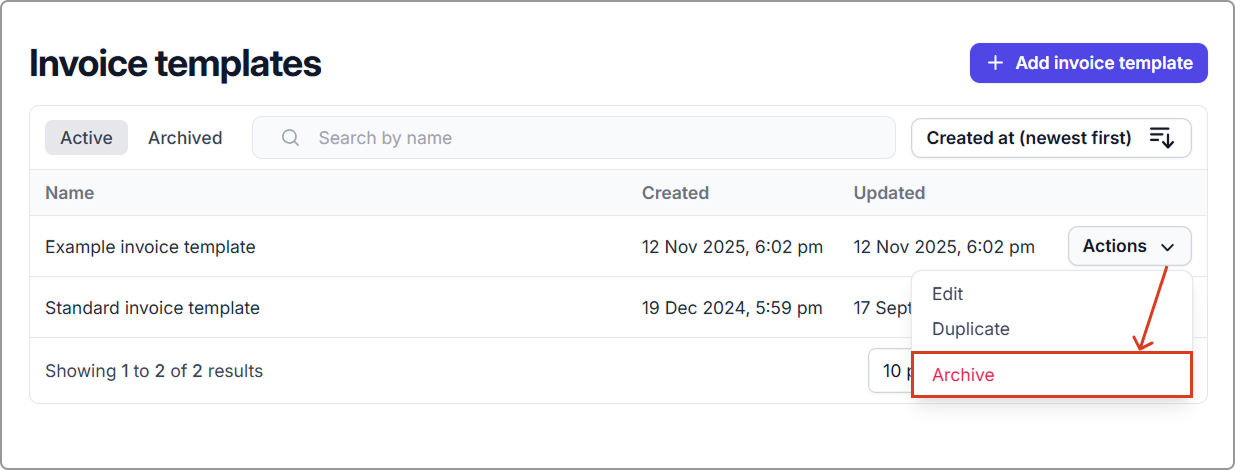
## **Archive an invoice template**
1. Go to **Settings** → **Invoice templates**.
2. Find the template you want to archive.
3. Click **Actions** → **Archive**.
The template will be moved to the **Archived** tab and will no longer be available for selection.
***
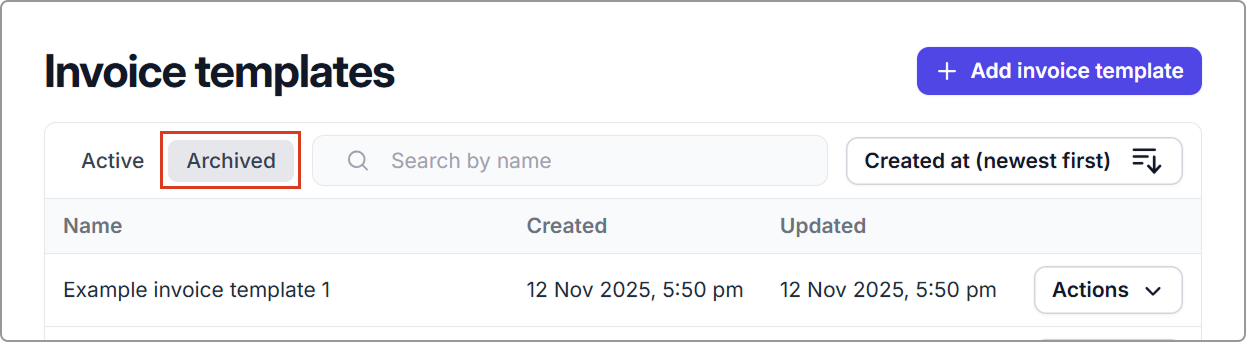
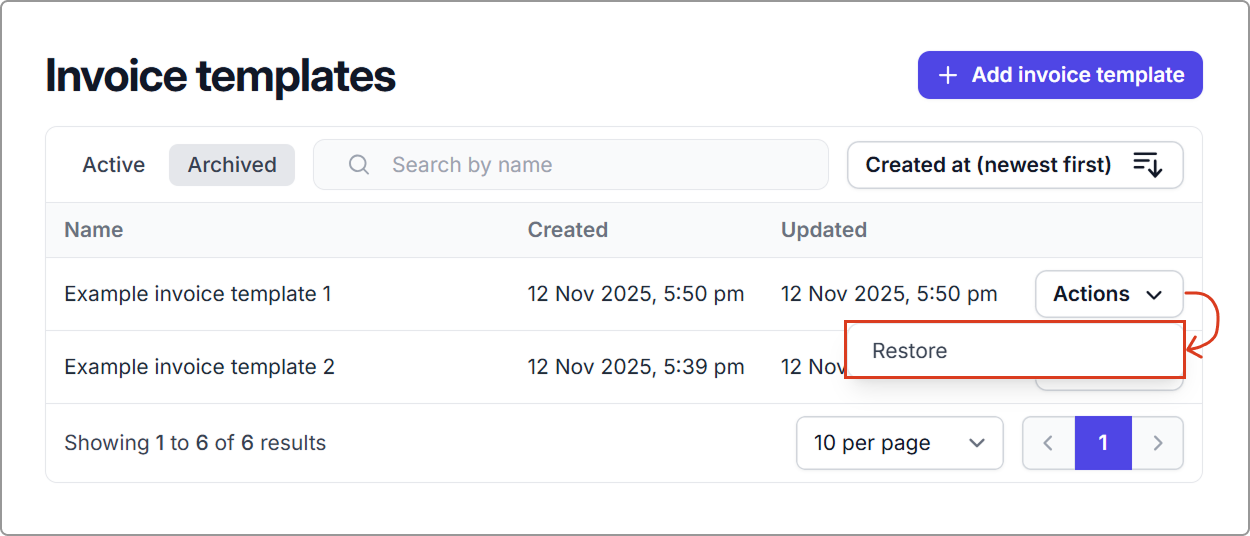
## **Restore an archived template**
1. Go to **Settings** → **Invoice templates**.
2. Click the **Archived** tab.
3. Find the template you want to restore.
4. Click **Actions** → **Restore**.
The template will move back to the Active tab and become available again in the invoice template dropdown when creating a new invoice.