> For the complete documentation index, see [llms.txt](https://support.caspen.com/llms.txt). Markdown versions of documentation pages are available by appending `.md` to page URLs; this page is available as [Markdown](https://support.caspen.com/using-caspen/billing/payments/add-a-credit-note.md).
# Add a credit note
Learn how to issue a credit note to adjust or reduce an invoice amount in Caspen.
## Overview
A credit note is issued when you need to reduce the amount due on a specific invoice.\
Typical reasons include correcting an error, removing a line item, or applying a goodwill adjustment.
A credit note updates the *selected invoice only*. It does **not** create general account credit for later use.
You can only create a credit note for invoices that are **not fully paid**.
{% hint style="warning" %}
**Important:** Once a credit note is associated with an invoice, that invoice can no longer be edited. To make further changes, you will need to void the credit note.
{% endhint %}
***
## How to issue a credit note
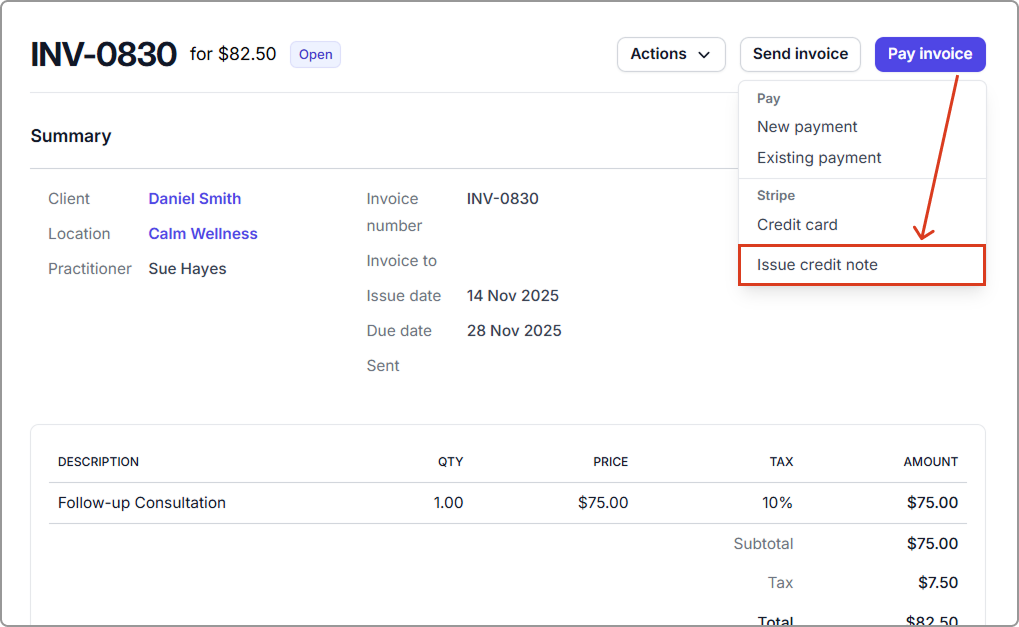
1. Open the invoice from the client profile or **Billing** → **Invoices**.
2. Click **Pay invoice** → **Issue credit note**.
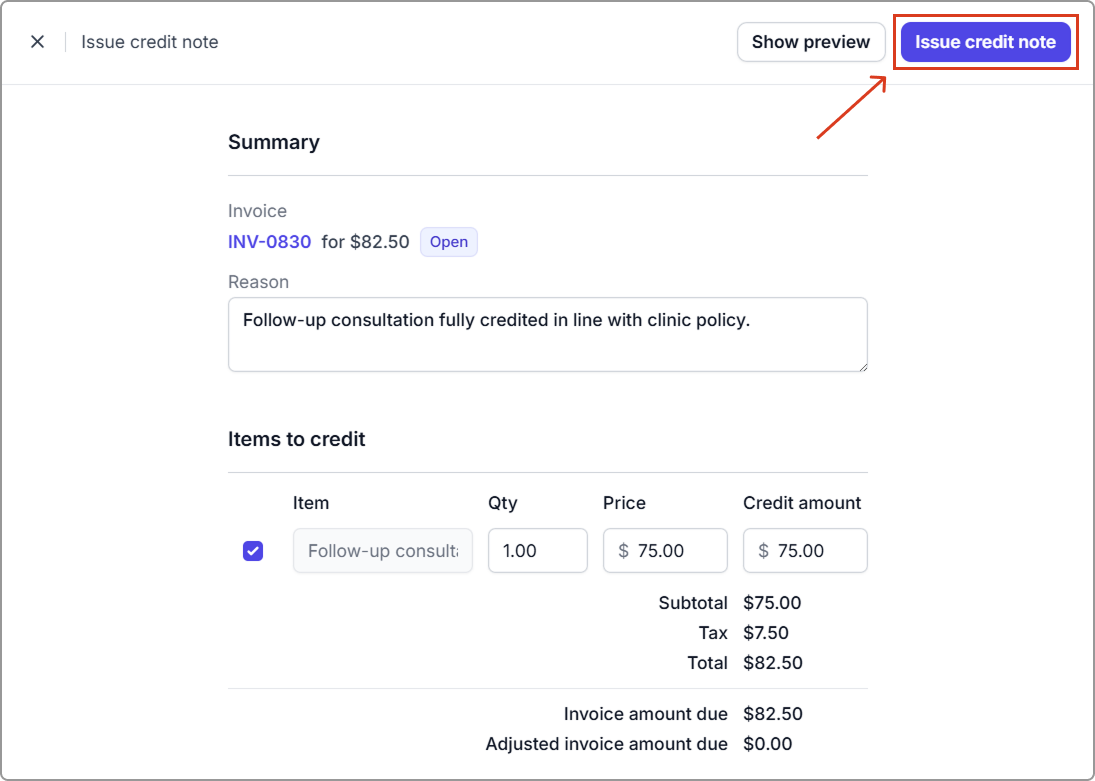
3. Enter a clear **Reason**.
4. Under **Items to credit**, select the lines and adjust quantities or amounts as needed.
5. Click **Issue credit note**.
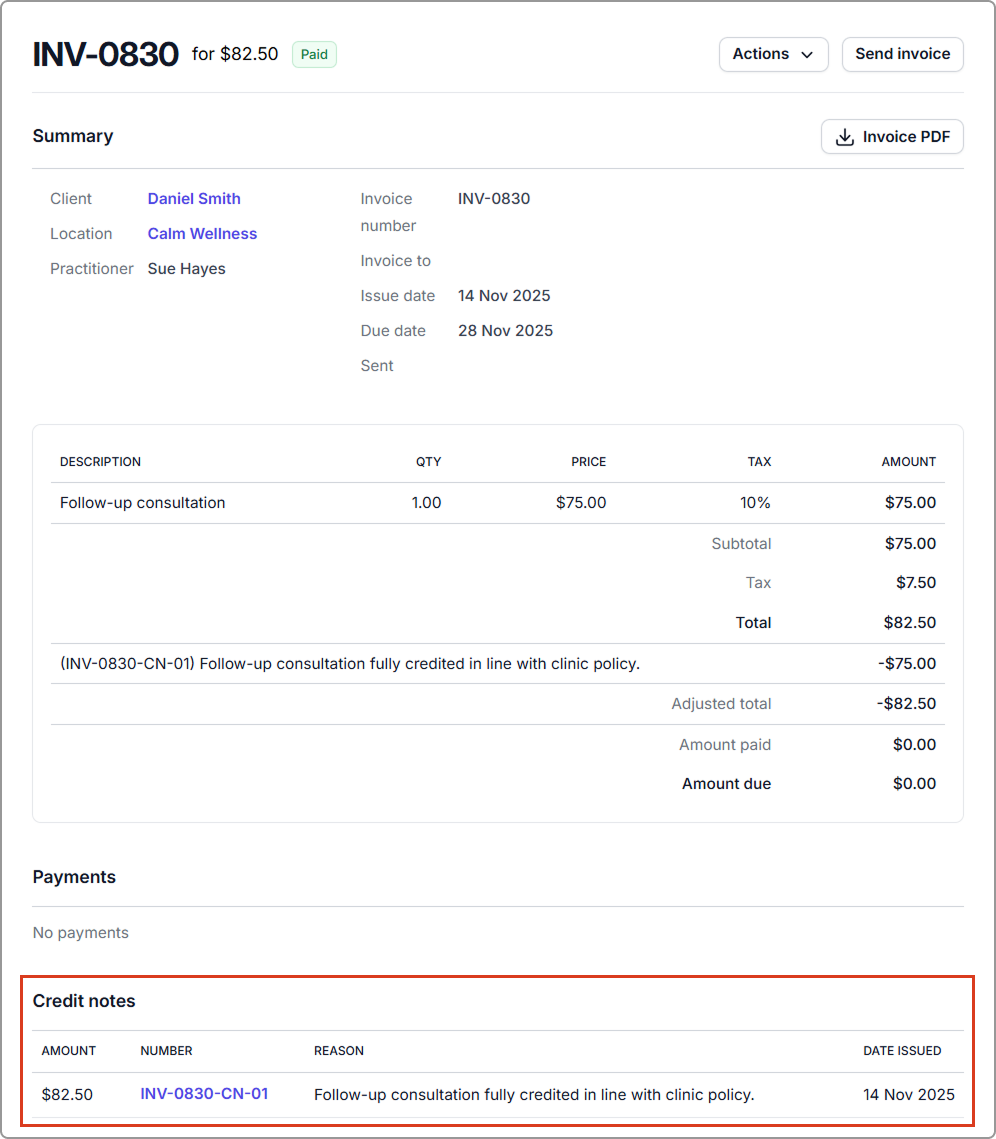
The invoice balance is reduced immediately, and the credit note is listed on the invoice (as shown below).
***
#### Tax and accounting
* With **tax exclusive** settings, tax is calculated on the credited amount after the credit note is issued.
* With **tax inclusive** settings, the amount you enter already includes the tax portion.
***
#### Integrations
* With **Xero** connected, Caspen creates a matching credit note in Xero.
* With **QuickBooks** connected, Caspen creates a matching credit note (listed as an “**Adjustment Note**” in QuickBooks) in QuickBooks.
***
## Frequently asked questions
Can I issue a credit note for a fully paid invoice?
No. The invoice must have an outstanding balance.
If the invoice is fully paid, you’ll need to **unlink or delete the payment first** to make the invoice editable.
Note: Always check your accounting or compliance requirements before adjusting paid invoices.
Can I edit an invoice after I apply a credit note?
No. Once a credit note is linked, the invoice is locked.
If you need to make changes:
* **Invoice not fully paid:** Void the credit note, revert the invoice to draft, make your edits, then reissue the credit note if needed.
* **Invoice fully paid:** You cannot void the credit note on a fully paid invoice.