> For the complete documentation index, see [llms.txt](https://support.caspen.com/llms.txt). Markdown versions of documentation pages are available by appending `.md` to page URLs; this page is available as [Markdown](https://support.caspen.com/using-caspen/billing/invoices/delete-an-invoice.md).
# Delete an invoice
Learn how to permanently remove a draft invoice that is no longer needed.
## **Overview**
You can delete invoices that are in **Draft** status.\
Deleting an invoice permanently removes it from your records and **cannot be undone**.
If the invoice is linked to a calendar event (such as an appointment or activity), deleting it will unlink it and remove it from that event.\
Once deleted, you can create and attach a new invoice if needed.
***
## **Before you delete an invoice**
* Only **Draft** invoices can be deleted.
* Once deleted, an invoice **cannot be recovered**.
* If an invoice is Finalized (Open or Paid), you must first **revert it** **to Draft** before deleting.
* Deleting invoices is permanent and should only be used for records created in error or during testing.
* For issued invoices that need to be canceled, see [Void an invoice](/using-caspen/billing/invoices/void-an-invoice.md).
***
## **To delete an invoice**
1. Go to **Billing** → **Invoices**.
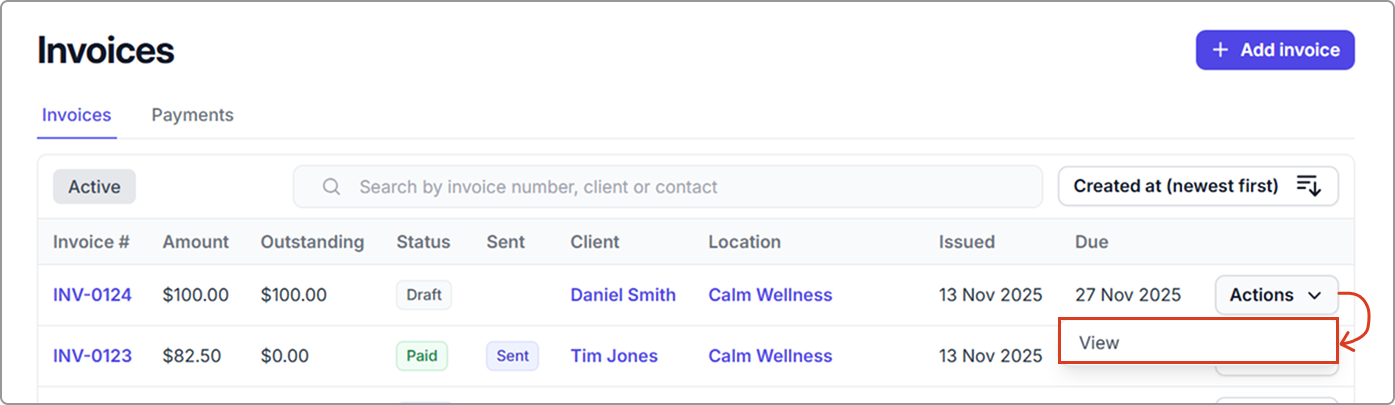
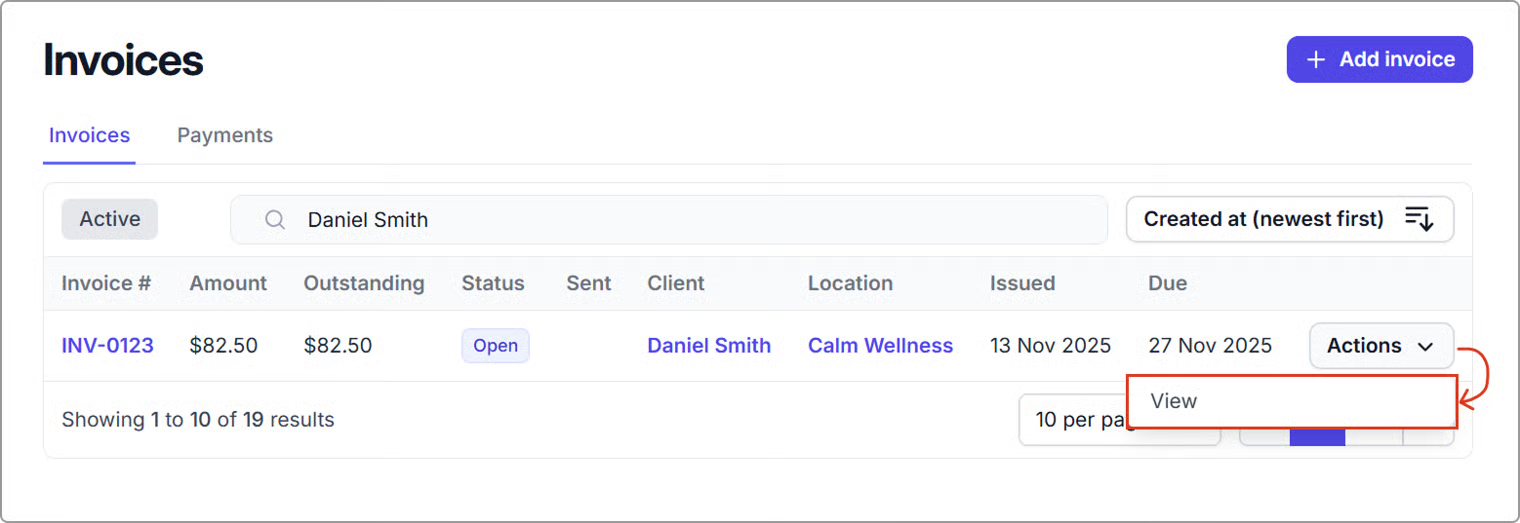
2. Open the invoice (**Actions** → **View**, or click the invoice number).
3. Ensure the invoice is in Draft status. If it has a status of finalized, you must revert it to Draft before deleting it (see Revert an invoice to Draft).
4. Click **Actions → Delete invoice**.
**What happens after you delete an invoice**
* The invoice is permanently removed from your billing records.
* If linked to a calendar event, it will be unlinked and removed from the event details.
* You can create a new invoice for the event or client if required.
***
## **Revert an invoice to Draft**
If an invoice is finalized, you can revert it to Draft before deleting it.
1. Go to **Billing** → **Invoices** and open the invoice (**Actions** → **View**, or click the invoice number).
2. Click **Actions → Revert to draft**.
3. Once reverted, follow the steps under **To delete an invoice**.
> **Note:** If the invoice has payments or credit notes applied, you will need to unlink or void those transactions first before reverting. This ensures your financial records and reports remain accurate.
***
## Handling linked payments and credit notes
If the invoice has payments or credit notes applied, remove or void them before reverting an invoice to Draft.
#### **Payments**
1. Click the **payment allocation link** on the invoice.
2. Select **Delete** to unlink the payment.
You can then locate the payment record separately and choose to **refund, void, or reapply** it to another invoice if needed.
#### **Credit notes**
If a credit note is attached, it must be **voided** before the invoice can be reverted or deleted.
1. Open the credit note by clicking the **credit note number**.
2. Click on **Actions** (top-right) → **Void credit note**, and confirm.
***
## Frequently asked questions
Can I delete a finalized invoice?
No. Only invoices in **Draft** status can be deleted.\
Your options include reverting the invoice to **Draft** (as outlined above) or voiding it instead. See **Void an invoice** guide.
What happens if I delete an invoice linked to a calendar event?
The invoice is unlinked and removed from the event. You’ll be able to add a new invoice to the event if needed.
Can I recover a deleted invoice?
No. Deleted invoices are permanently removed and cannot be restored.