> For the complete documentation index, see [llms.txt](https://support.caspen.com/llms.txt). Markdown versions of documentation pages are available by appending `.md` to page URLs; this page is available as [Markdown](https://support.caspen.com/using-caspen/billing/invoices/void-an-invoice.md).
# Void an invoice
Permanently cancel an issued invoice while keeping a record for audit and reporting.
## Overview
Voiding an invoice permanently marks it as **Void** and removes it from your active billing workflow while keeping it available for record-keeping and audit purposes.
Only finalized invoices in **Open** status can be voided. Once voided, an invoice cannot be undone or edited.
***
## **Before you void an invoice**
There are a few conditions to check before voiding:
* You **cannot void** **an invoice that has payments applied**.
* You **cannot void** **an invoice with credit notes attached**.
* The invoice must be in a **Finalized (Open)** state. Draft invoices cannot be voided.
If you need to void an invoice that has payments or credit notes applied, first **unlink or delete those transactions**.\
These conditions ensure your financial records remain accurate and consistent across reports and integrations (e.g., QuickBooks, Xero).
***
## **To void an invoice**
1. Go to **Billing** → **Invoices** and find the invoice you want to void.
You can also open the invoice from the **client profile** or the **calendar event information panel** (if linked to an appointment or activity).
2. Click **Actions** → **View** (or click the invoice number).
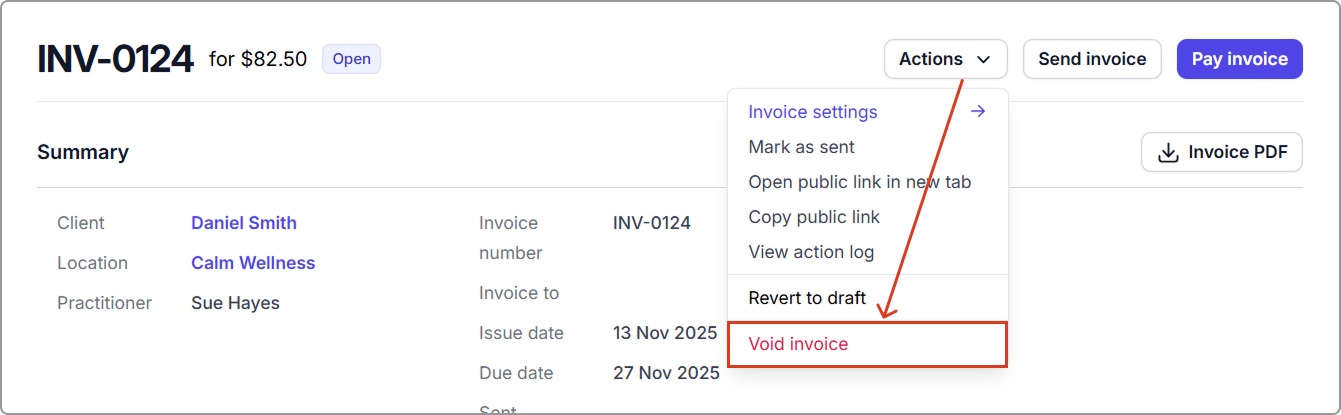
3. In the open invoice, click **Actions** → **Void invoice**.
4. In the confirmation pop-up, click **Void invoice** again to confirm.
Once confirmed, the invoice will:
* Update its status to **Void**,
* Remain visible in your records, and
* Be excluded from totals in your billing and financial reports.
***
## Handling linked payments and credit notes
If the invoice has payments or credit notes applied, you must remove or void them before voiding the invoice.
#### **Payments**
1. Click the **payment allocation link** on the invoice.
2. Select **Delete** to unlink the payment.
You can then locate the payment record separately and choose to refund it, void it, or reapply it to another invoice if needed.
#### **Credit notes**
If a credit note is attached, it must be voided before the invoice can be voided.
To do this:
1. Open the credit note by clicking the credit note number.
2. Go to **Actions → Void credit note**, and confirm.
***
## **When to void vs. use a credit note**
* **Void an invoice** when it was issued in error or needs to be canceled entirely.
* Use a **credit note** when you need to adjust an amount or provide a refund while keeping a record of the transaction.
For more information, see [Add a credit note](/using-caspen/billing/payments/add-a-credit-note.md).
***
## Frequently asked questions
Can I undo a voided invoice?
No. Once an invoice is voided, it cannot be reversed or edited. You’ll need to create a new invoice if it was voided by mistake.
Can I re-use the same invoice number?
No. Voided invoice numbers remain part of your billing sequence for audit integrity. Caspen will automatically assign the next available number to new invoices.
What’s the difference between deleting and voiding an invoice?
* **Delete**: Permanently removes a **draft** invoice that was never issued.
* **Void**: Cancels a finalized invoice while keeping it for historical and reporting accuracy.