> For the complete documentation index, see [llms.txt](https://support.caspen.com/llms.txt). Markdown versions of documentation pages are available by appending `.md` to page URLs; this page is available as [Markdown](https://support.caspen.com/using-caspen/billing/invoices/edit-an-invoice.md).
# Edit an invoice
Learn how to revert an invoice to Draft so you can make changes or corrections.
## **Before you begin**
You can only edit invoices while they are in **Draft** status.\
If you need to make changes to a finalized invoice, you must **revert it back to Draft** first.
You can only revert an invoice to Draft if:
* **No payments** are applied, and
* **No credit notes** are attached.
If payments are applied, you must **unlink or void** them before reverting.\
If a credit note is attached, it must be **voided** before changes can be made.\
See **Handling linked payments and credit notes** below.
Once reverted, you can edit the invoice as needed and finalize it again when ready.
***
## Revert an invoice to draft
{% hint style="warning" %}
Important note: You can only revert an invoice to Draft if no payments or credit notes are attached. See *Before you begin* for details.
{% endhint %}
If an invoice is finalized, you can revert it to **Draft** to make updates or corrections.
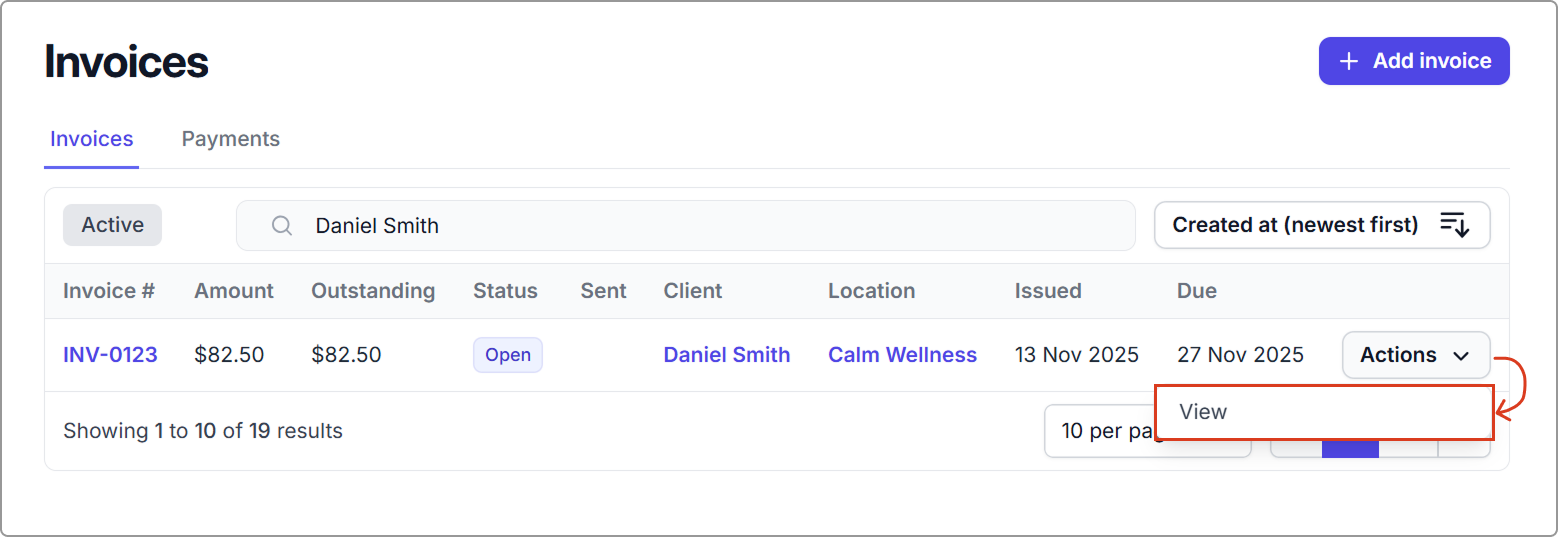
1. Go to **Billing** → **Invoices** and open the invoice.
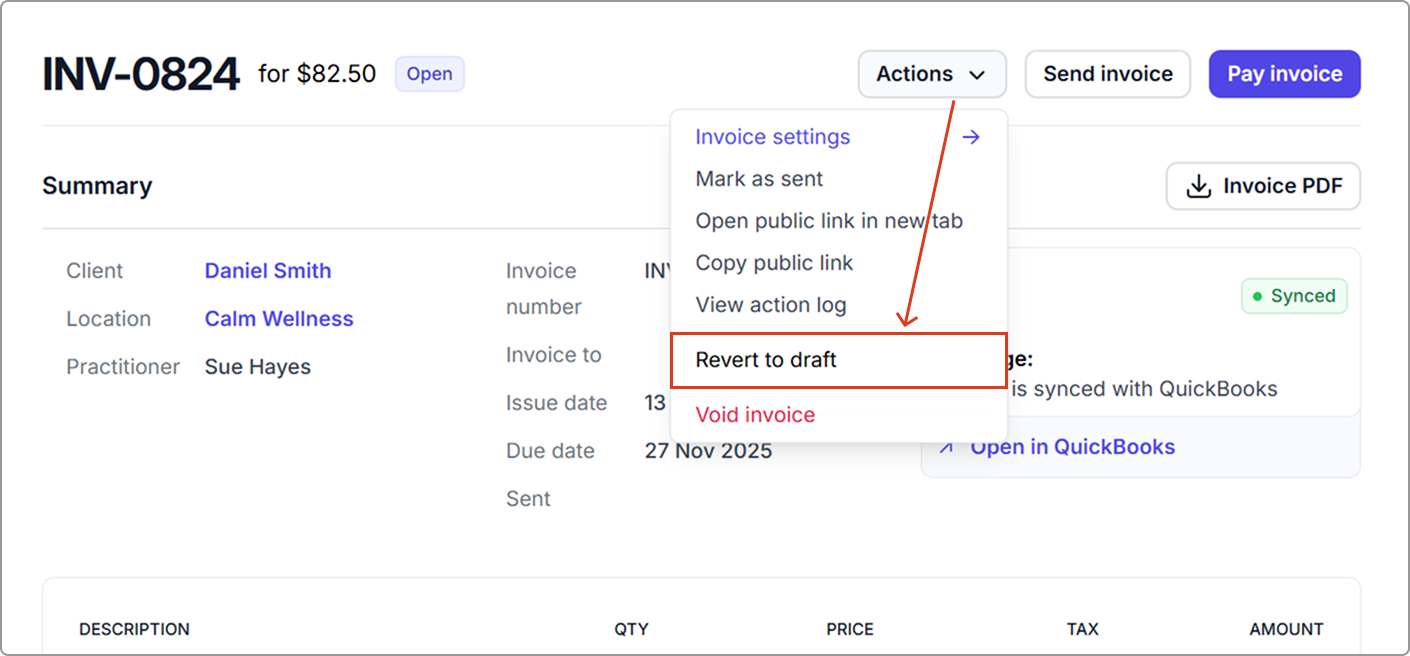
2. Click **Actions** → **Revert to draft.**
The invoice will return to **Draft** status.\
The **Pay invoice** and **Send invoice** buttons will be replaced by an **Edit invoice** button.
3. Click **Edit invoice** to open the invoice editor and make your changes.
**Once you’ve finished editing, you can:**
* Exit to keep the invoice in **Draft**, or
* Click **Finalize invoice** when you are ready to issue it again.
***
## Handling linked payments and credit notes
If the invoice has payments or credit notes applied, you must remove or void them before reverting the invoice.
#### **Payments**
1. Click the **payment allocation link** on the invoice.
2. Select **Delete** to unlink the payment.
After unlinking, you can locate the payment record separately and choose to:
* Refund it
* Void it
* Reapply it after the invoice is finalized again
#### **Credit notes**
If a partial credit note is attached, it must be **voided** before the invoice can be reverted or deleted.
To do this:
1. Open the credit note by clicking the **credit note number**.
2. Go to **Actions** → **Void credit note** and confirm.
#### **Next step**
After removing any linked payments or credit notes, return to the steps above to revert the invoice to Draft.
***
These steps ensure your financial records remain accurate and consistent across your billing and reporting.
***