> For the complete documentation index, see [llms.txt](https://support.caspen.com/llms.txt). Markdown versions of documentation pages are available by appending `.md` to page URLs; this page is available as [Markdown](https://support.caspen.com/using-caspen/billing/invoices/create-an-invoice.md).
# Create an invoice
Learn how to create, edit, track, and send invoices in Caspen.
## **Overview**
{% hint style="info" %}
**Before you begin:**\
Ensure your [invoice preferences](/using-caspen/settings/billing/set-up-invoice-preferences.md) and [templates](/using-caspen/settings/templates/set-up-invoice-templates.md) are set up with your branding, default settings, and payment terms.
{% endhint %}
Invoices in Caspen can include services, classes, and activities (whether linked to calendar events or not), products, or standalone custom line items you add manually.
Each invoice must be linked to a client and can be sent directly to the client or a contact (such as a third-party payer or funding body).
→ For a full explanation of invoice fields and statuses, see the [Invoice field reference guide](/using-caspen/billing/invoices/invoice-field-reference-guide.md).
***
## **Ways to create an invoice**
You can create an invoice from four places:
**From a client profile:**\
Go to Clients → View client → Create invoice.
**From an appointment:**\
Open an appointment from your Calendar, then click **Add invoice** in the side panel.
**From the Billing section:**\
Go to Billing → Invoices → Add invoice.
**From a contact record:**\
Go to Contacts → View contact → Invoices → Create.
When created from an appointment, appointment details (date, time, service) will automatically appear on the invoice if enabled in your invoice template.
No matter where you start, the invoice builder works the same way.
***
## **How to create an invoice**
To walk you through the workflow of creating an invoice from **Billing**, follow these steps:
1. Go to **Billing** → **Invoices.**
2\. Click **Add invoice.**
3. Complete the invoice setup**.**
* **Client:** Select the client being invoiced. You can choose an existing client or click **Add new client**. For new clients, a name is required (email and other details are optional).
* **Practitioner:** Select manually (automatically filled if the invoice is created from an appointment).
* **Location:** Choose the relevant business location.
* **Invoice to (optional):** Select a contact such as a plan manager or payer if the invoice is billed to someone other than the client.
* **Issue date** and **Due date:** Adjust as needed.
4. Click **Continue** (top-right).
The invoice editor opens and your invoice is saved as a draft.
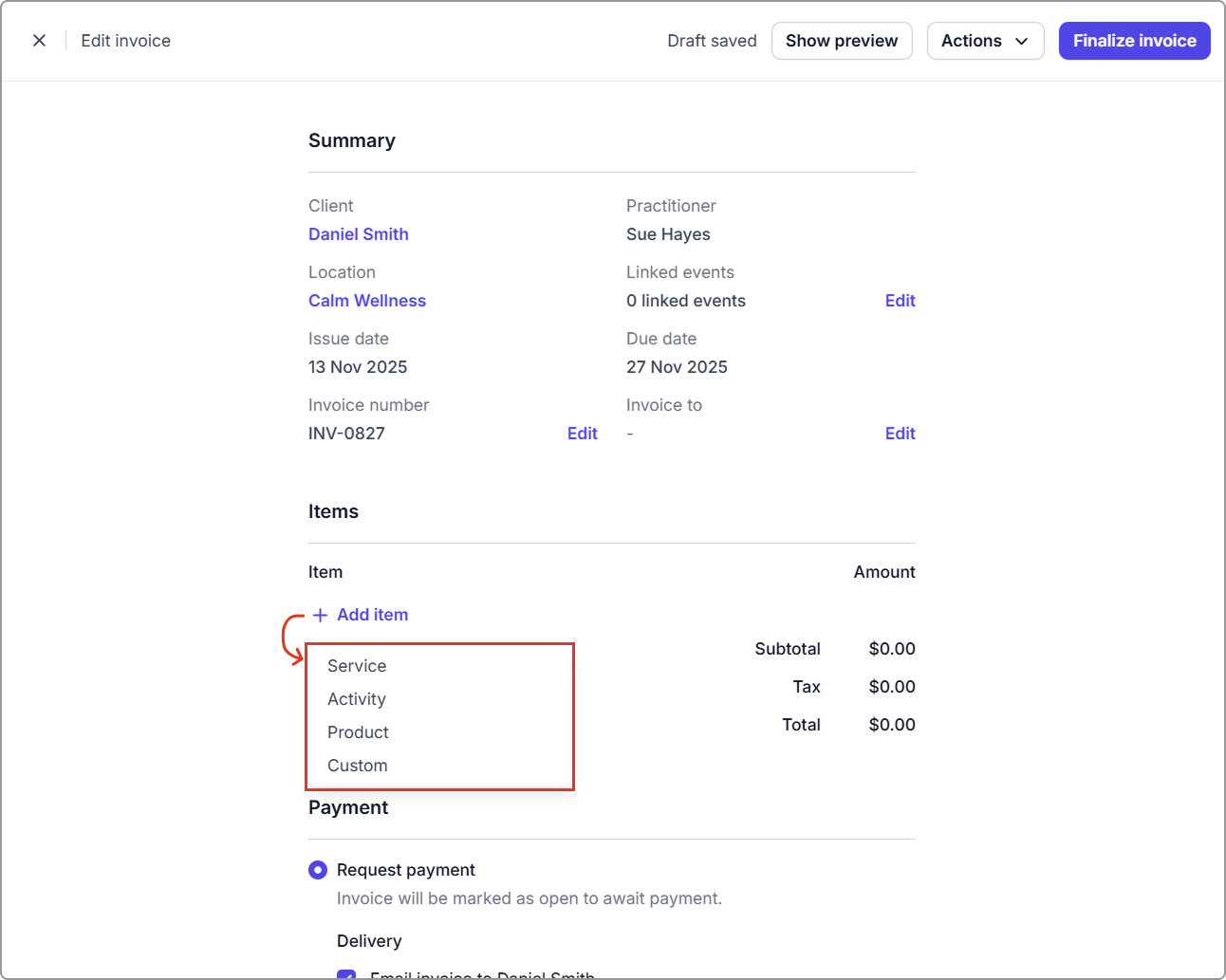
5. **Add items** to the invoice.
* Click **Add item** to add a service, activity, product, or a custom charge.
* After adding an item, click on any line to adjust the quantity, price, tax, or discounts.
6. **Select invoice delivery and payment options**.
Choose how you want to deliver the invoice and handle payment.
> ➡️ Nothing is emailed or processed until you click **Finalize invoice**.
**Request payment**\
Marks the invoice as **Open** so the client (or contact) can pay.\
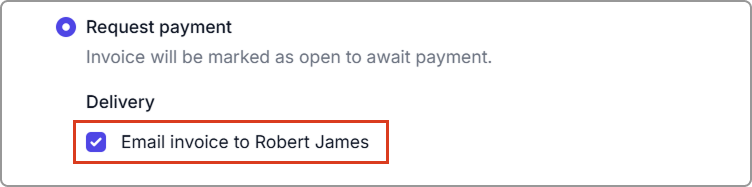
Tick **Email invoice to \[recipient]** to send the invoice immediately when the invoice is finalized.
**Apply payment**\
Marks the invoice as **Paid** when you have already received the payment.
**Create payment (Stripe)**\
Charges a credit card directly using Stripe.
Additional payment options become available after finalizing the invoice.\
See [*Pay an invoice*](/using-caspen/billing/payments/pay-an-invoice.md) for full details.
7\. **Add notes and formatting (optional).**
Under **Additional options**, you can:
* Select an invoice template.
* Add a **Memo** (above items) or **Footer** (below items).\
To set defaults, update your invoice templates.
8\. Review all invoice details in the **Summary** and **PDF preview**. Then click **Finalize invoice.**
> If you're not ready to finalize, click **X** (top-left) to keep the invoice in Draft.
The invoice will change from **Draft** to **Open** (or **Paid**, if payment was applied).
Finalized invoices appear in:
* **Billing** → **Invoices**
* the **client’s profile**
* the **event information panel** in the calendar (if created from an appointment or activity)
***
## **Send an invoice to a client**
You can send an invoice automatically when finalizing, or manually afterward.
**Automatically when finalizing**
* *Email invoice to \[recipient]* is ticked by default while the invoice is in Draft.
* If ticked, the invoice sends immediately when you click **Finalize invoice**.
* You can select an email template before sending.
**Manually after finalizing**
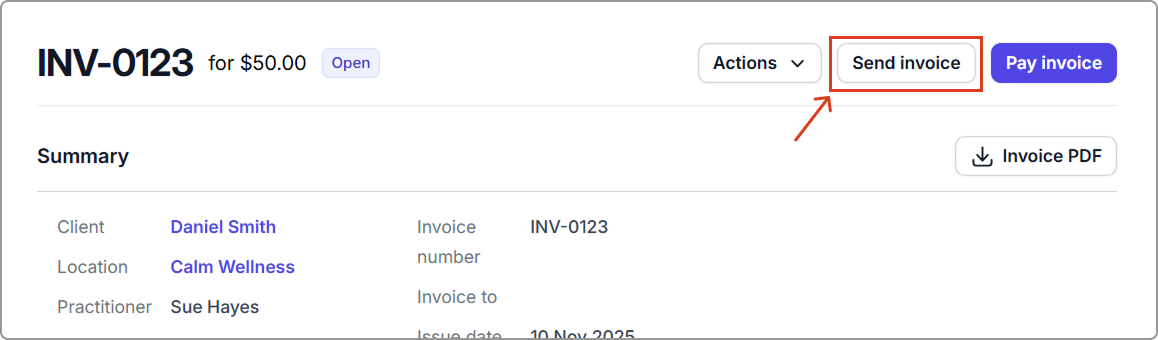
If Delivery was left unticked, send manually via the **Send invoice** button on the finalized invoice screen.
You will be able to review or edit the email subject, message, and template before sending.
Alternative option:\
If you prefer to send the invoice yourself (e.g., via SMS or email), click **Actions** → **Copy public link** and share the link directly with the client.
Important:\
If you send the invoice manually using the public link, make sure to mark it as sent so the invoice clearly shows that it has been sent. On the invoice, go to **Actions** → **Mark as sent**.
**After the invoice is sent**
The invoice will display a **Sent** label.
\
You can also view delivery status details in the client’s **communications** log on their profile:
* **Delivered**: The email was successfully sent.
* **Failed**: Delivery failed (e.g., incorrect email address).
If online payments are enabled and the client or contact pays using the **Pay invoice** link, the invoice status updates automatically to **Paid**.
***
## **Send an invoice to a contact**
You can choose a billing contact (Invoice to) either when setting up the invoice on the initial Create invoice screen or later when editing the draft invoice.
If an **Invoice to** contact (e.g., plan manager or funding body) is selected:
* The invoice is emailed to the contact instead of the client.
* A confirmation of the recipient will be shown.
* If online payments are enabled, the contact receives a payment link.
* Once finalized, the invoice recipient cannot be changed unless you revert the invoice to Draft (see [Edit an invoice](/using-caspen/billing/invoices/edit-an-invoice.md)).
***
**Related articles**
* [Pay an invoice](/using-caspen/billing/payments/pay-an-invoice.md)
***
## Frequently asked questions
What if I don’t want to email an invoice to the client?
Select **Request payment** and simply **untick “Email invoice to…”**.\
The invoice will be finalized as **Open** but no email will be sent.
Why can I only link one practitioner to an invoice?
Caspen uses a single-practitioner model to ensure accurate reporting, simplify reconciliation, and meet funding body and insurance requirements. Many organizations require a clear link between the practitioner and the service provided.
If you need to invoice for more than one practitioner or support staff member, create a separate invoice for each provider.
Can I change the invoice recipient after finalizing?
No.\
Once an invoice is finalized, the recipient cannot be changed unless you **revert it to Draft**.
Can I add my bank details to every invoice?
Yes.\
Add your details to a **Footer** in your invoice template settings to make them appear by default.
Why does the appointment date/time not appear on my invoice?
Appointment details only appear if enabled in your **invoice template**.
Can I invoice a contact without sending anything to the client?
Yes.\
Select the **Invoice to** and enter the contact you want to send the invoice to.\
The invoice will only be sent to that contact.
Why is my invoice amount not calculating correctly?
It’s a good idea to review:
* Line item quantity
* Tax settings
* Discounts
* Whether service prices are inclusive or exclusive of tax
* Your region’s tax rules (Settings → Taxes)