> For the complete documentation index, see [llms.txt](https://support.caspen.com/llms.txt). Markdown versions of documentation pages are available by appending `.md` to page URLs; this page is available as [Markdown](https://support.caspen.com/using-caspen/calendar/appointments/update-an-appointment-status.md).
# Update an appointment status
Set an appointment to arrived, missed, or canceled from the calendar.
## Where to change a status
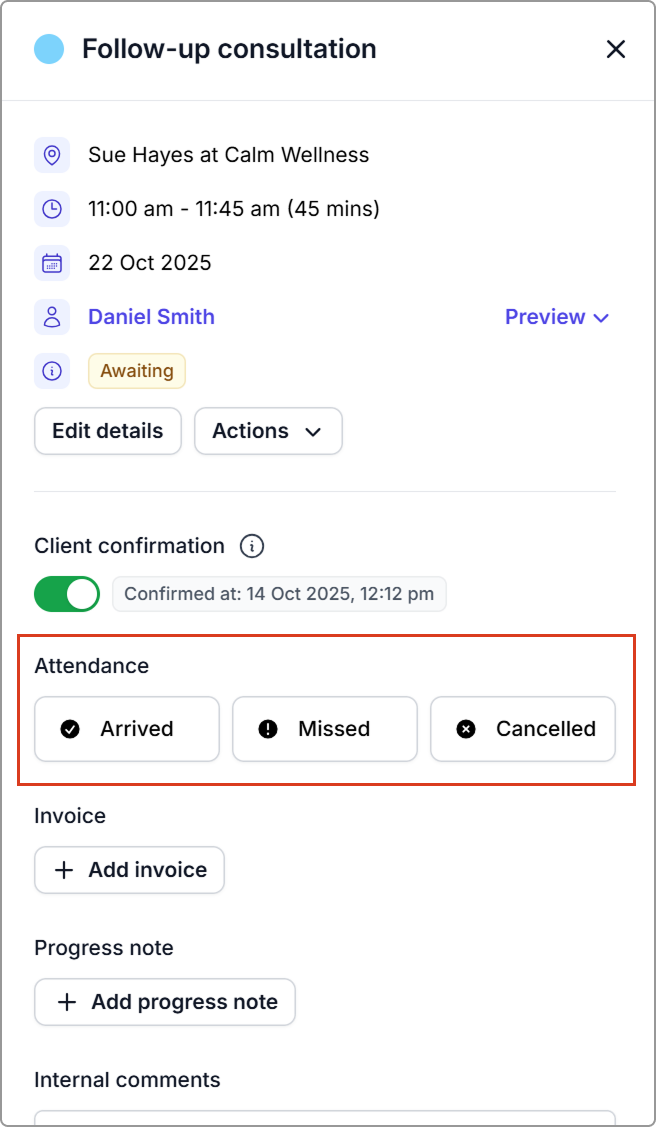
1. Open **Calendar** and click the appointment.
2. In the info panel, go to **Attendance** and choose **Arrived**, **Missed**, or **Canceled**.
***
## Mark appointments as arrived
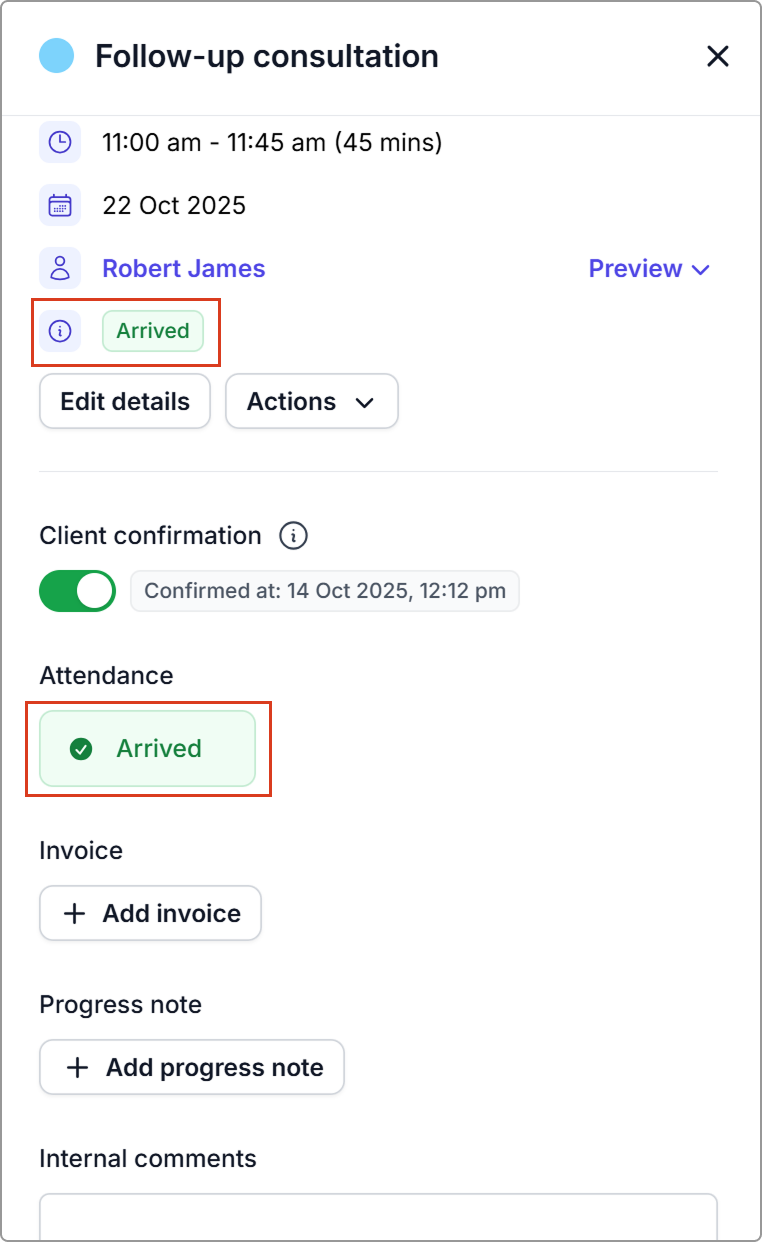
* Open the appointment → Attendance → Click **Arrived**.
* Use this when the client has checked in.
**What happens**
* The appointment is recorded as **Arrived**.
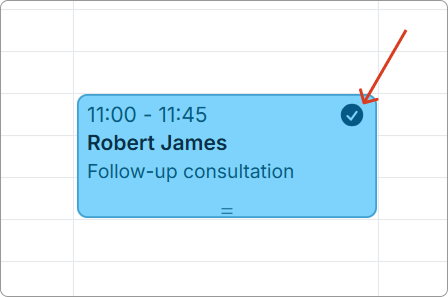
* A check mark appears on the appointment in the calendar.
{% columns %}
{% column %}
{% endcolumn %}
{% column %}
{% endcolumn %}
{% endcolumns %}
***
## Mark appointments as missed
* Open the appointment → Attendance → Click **Missed**.
**What happens**
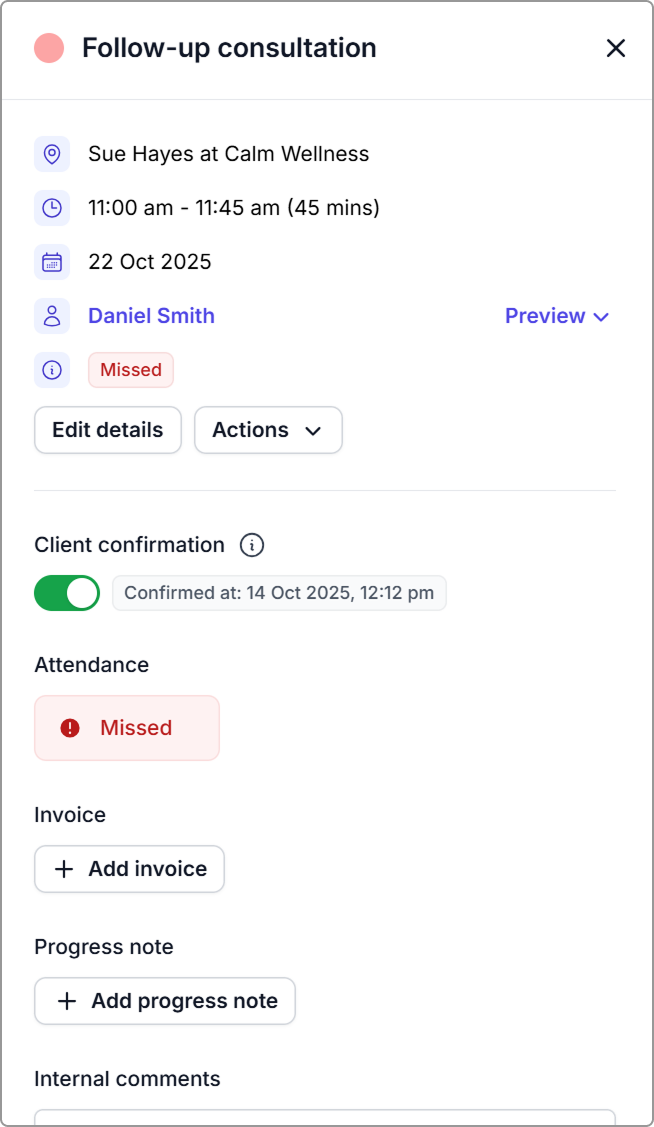
* The appointment remains on the calendar but is marked **Missed** (no-show).
* No client message is sent by default.
* You can still add notes or invoice if your policy allows.
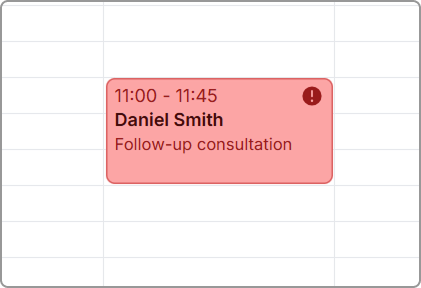
* The appointment colour shows **red** on the calendar with an **exclamation-mark** badge.
{% columns %}
{% column %}
{% endcolumn %}
{% column %}
{% endcolumn %}
{% endcolumns %}
***
## Mark appointments as canceled
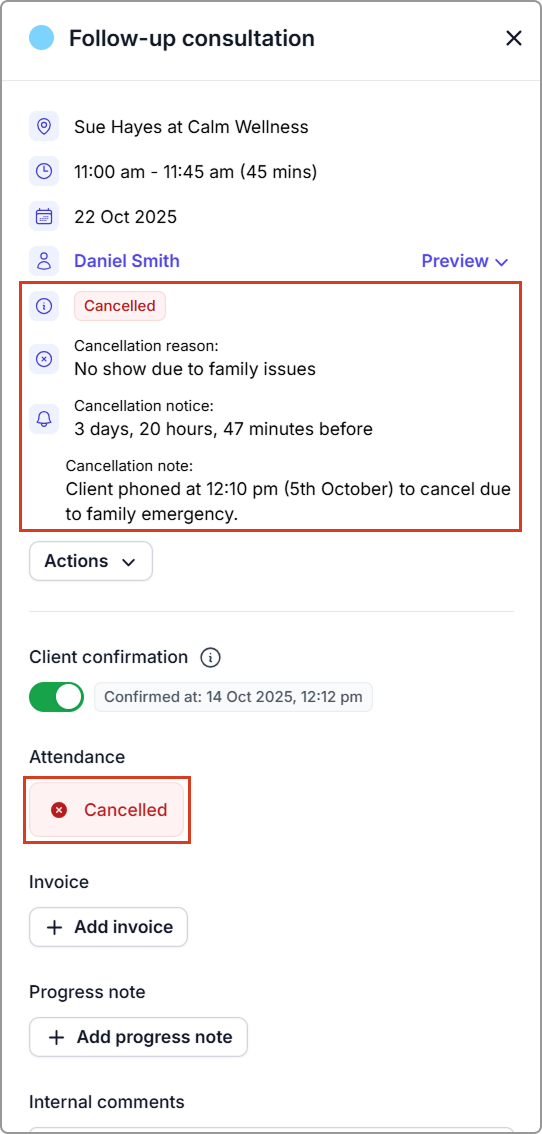
* Open the appointment → **Attendance** → Click **Canceled.**
* Enter (**cancellation reason**, **date and time**, **notes**, and (for repeating appointments) choose whether to **cancel future appointments**.
* See [Cancel an appointment](/using-caspen/calendar/appointments/cancel-an-appointment.md) for full steps.
**What happens**
* The appointment is removed from the calendar, freeing the time for new bookings.
* Any rooms or resources linked to the appointment become available again.
***
## Change an incorrect status
Open the appointment, click the current status under **Attendance**, and the status options will reappear. Then select **Arrived**, **Missed**, or **Canceled**.
***
**Need to find a canceled appointment?** Canceled appointments don’t appear on the calendar.\
Go to **Schedule** and filter by **Canceled** under Status. For more details, see [Schedule](/using-caspen/schedule.md).
***
## Frequently asked questions
What’s the difference between missed and canceled appointments?
**Canceled** means the booking was called off before it started. **Missed** means the client did not attend. A canceled appointment (in the future) frees the slot, while a missed one stays recorded as not attended.